ShufyTheme WHMCS Documentation file
By coodiv team
Last Documentation Update: June 6, 2026
Introduction
It became evident that there exists a considerable monopoly within the WHMCS themes and add-ons marketplace.
We observed that numerous WHMCS users are encountering challenges when seeking an appropriate theme that aligns with their brand identity.
In response to this pressing need, we embarked on the development journey of ShufyTheme.
ShufyTheme stands out as one of the most comprehensive and user-friendly WHMCS themes available on the market today. Our aim with ShufyTheme is to provide WHMCS users with a seamless and visually appealing solution that not only meets but exceeds their expectations. By incorporating cutting-edge design elements and robust functionality, ShufyTheme aims to revolutionize the WHMCS user experience, empowering businesses to showcase their brands effectively and effortlessly.
Before Getting Started
This documentation is designed to assist you with every step of the installation and customization process. Please carefully review the documentation to gain a thorough understanding of how this theme operates and how to customize it effectively.
We strongly recommend that you familiarize yourself with this documentation. Investing just half an hour in reading the manual can save you a significant amount of time and prevent unnecessary questions with obvious answers.
If you have any questions that are not covered in this help file, please don't hesitate to contact us via email through The Item Support Page
or reach out to our dedicated support team for assistance.
Installation
This guide will lead you step-by-step through the process of installing Shufytheme on your server. We'll provide detailed instructions to ensure a smooth installation experience from start to finish.
1. ShufyTheme Requirements
IMPORTANT: Starting with Shufytheme version 1.3.0, Shufytheme Client Theme & Shufytheme control panel no longer supports PHP below 8.1.
IonCube Loader version:12, 13 or 14PHP:PHP 8.1, 8.2 and 8.3.WHMCS system:Before installing Shufytheme, you must install WHMCS.- Requires
max_execution_timeto be set to at least 300 seconds. - Requires
max_input_varsto be set to at least 5000. - Requires
MyISAMdatabase storage engine.
2. Check your version
- Check your WHMCS version: Before starting the installation, you need to verify if ShufyTheme is compatible with your WHMCS version.
- Prepare your Purchase Code: You need to obtain your Purchase Code from ThemeForest because we will need it during the installation process. Read this article if you're unsure how to get it.
3. Download the latest version of ShufyTheme
- Log into your Envato Market account.
- Hover the mouse over your username at the top of the screen.
- Click ‘Downloads’ from the drop-down menu.
- Click 'Download' next to "ShufyTheme" icon to download the latest version of the theme.
4. Upload ShufyTheme to your server
- Extract the
shufytheme_package_themeforest_X.X.Xfolder that has been downloaded from ThemeForst. - Inside that folder you will find Theme (X.X.X) fodler, and inside it a
Upload.zipfile - Get your WHMCS system installation directory in WHMCS admin area. Go to "Help" > "License Information" > "Valid Directory".
- Upload content of
Upload.zipfolder to using FTP server, to the directory where your WHMCS system is installed. - Ensure that all files are uploaded correctly during the upload process, without encountering any errors.
Important step
After uploading ShufyTheme addon files to your server, please set the permissions for the following files to 666. This will help prevent any issues or errors with saving your configurations.
your_WHMCS_installation/modules/addons/shufyTheme/css-values/custom.cssgive the file 666 permissionsyour_WHMCS_installation/modules/addons/shufyTheme/css-values/default-style.cssgive the file 666 permissionsyour_WHMCS_installation/modules/addons/shufyTheme/css-values/green-style.cssgive the file 666 permissionsyour_WHMCS_installation/modules/addons/shufyTheme/css-values/homepage-plans.cssgive the file 666 permissionsyour_WHMCS_installation/modules/addons/shufyTheme/css-values/purple-style.cssgive the file 666 permissionsyour_WHMCS_installation/modules/addons/shufyTheme/css-values/red-style.cssgive the file 666 permissionsyour_WHMCS_installation/modules/addons/shufyTheme/css-values/typographie.cssgive the file 666 permissions
5. Upload ShufyTheme Addon to your server
- After Extracting
shufytheme_package_themeforest_X.X.Xfolder that has been downloaded from ThemeForst. - Inside that folder Open
Shufytheme control panel (X.X.X)Folder - Choose the folder that suite your server PHP version, for ex: your server is using PHP 8.1, so you need to open PHP 8.1 folder
- Upload content of that
modulesfolder using FTP server, to the directory where your WHMCS system is installed.
6. Install ShufyTheme Addon
- Login to your WHMCS admin area.
- In the top right corner, click on
System Settingsthen selectAddon Modules.
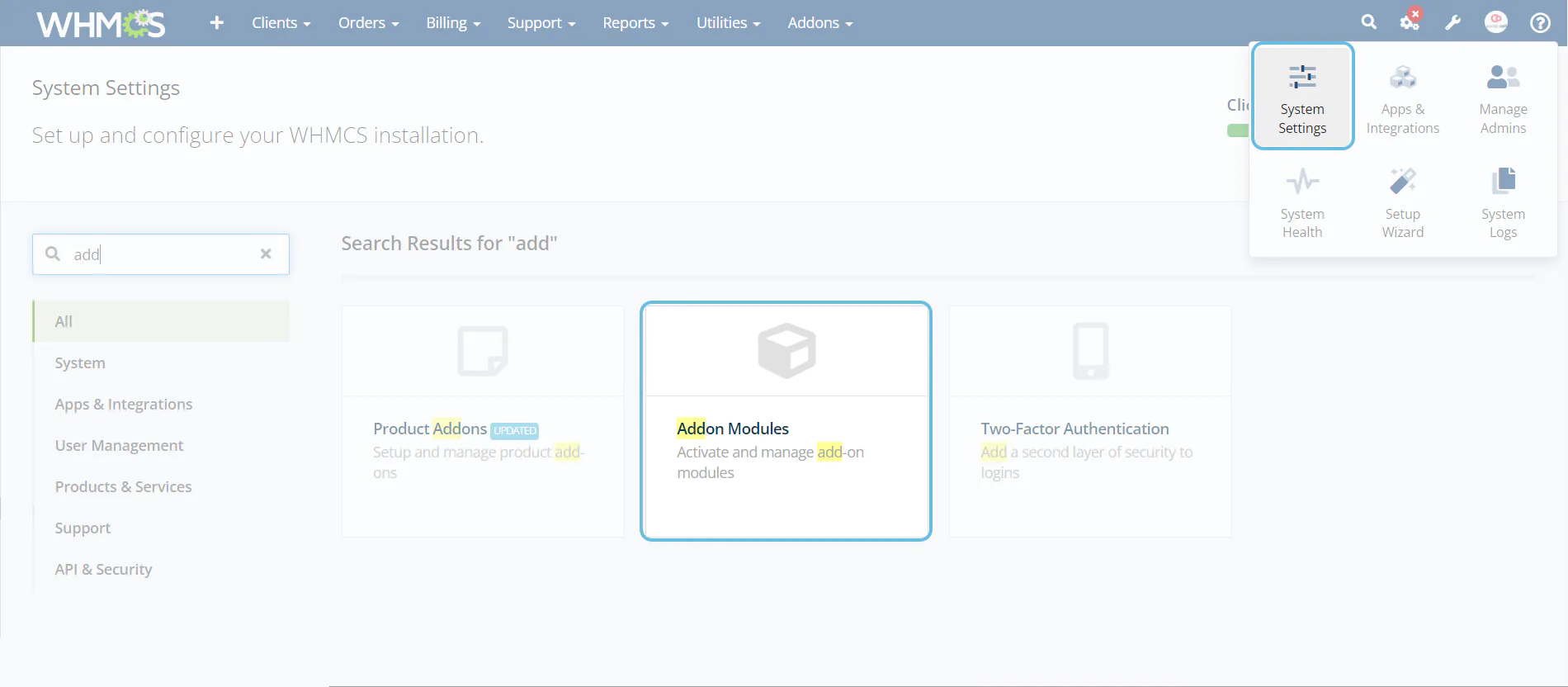
- Activate
Shufy Theme Control Panel by coodivaddon.
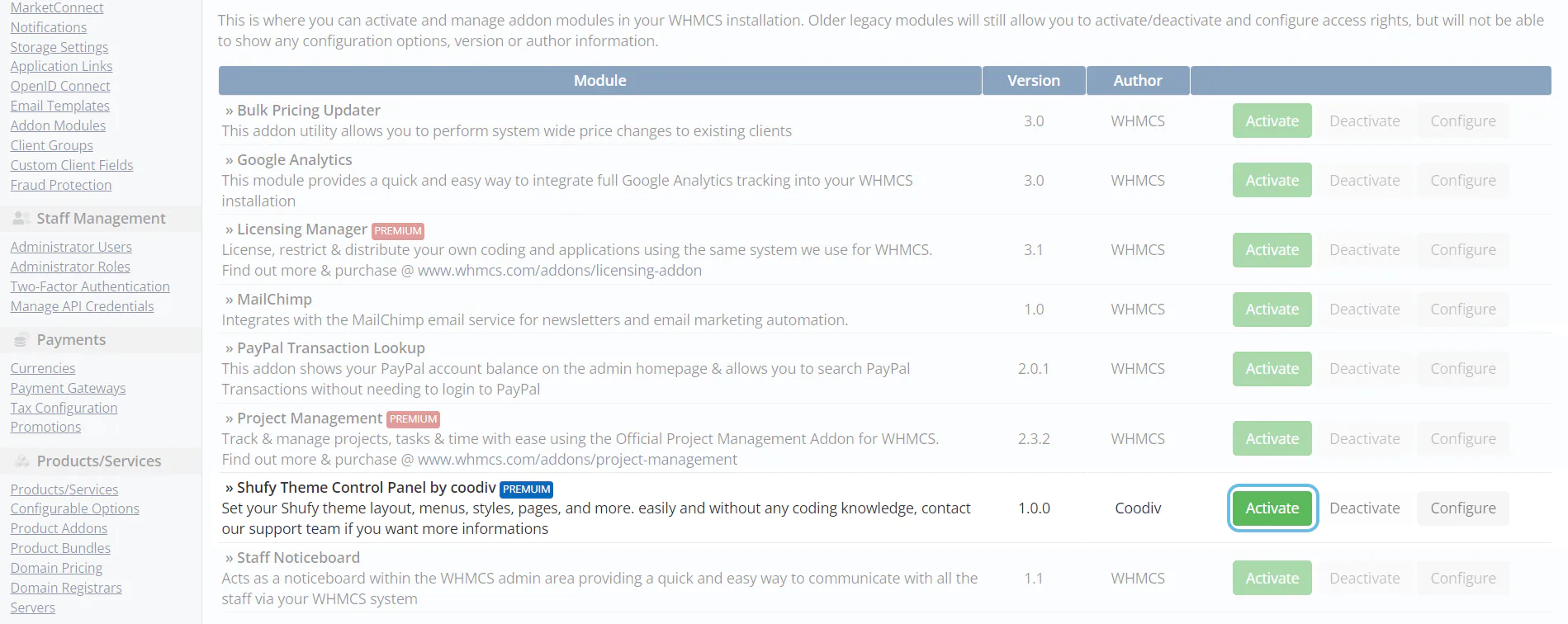
- Click the
Configurebutton, then select the admin role groups to grant access according to your requirements, and finally, save your changes.

7. Activate ShufyTheme Theme and orderform template
- In the top right corner, click on
System Settingsthen selectGeneral Settings.
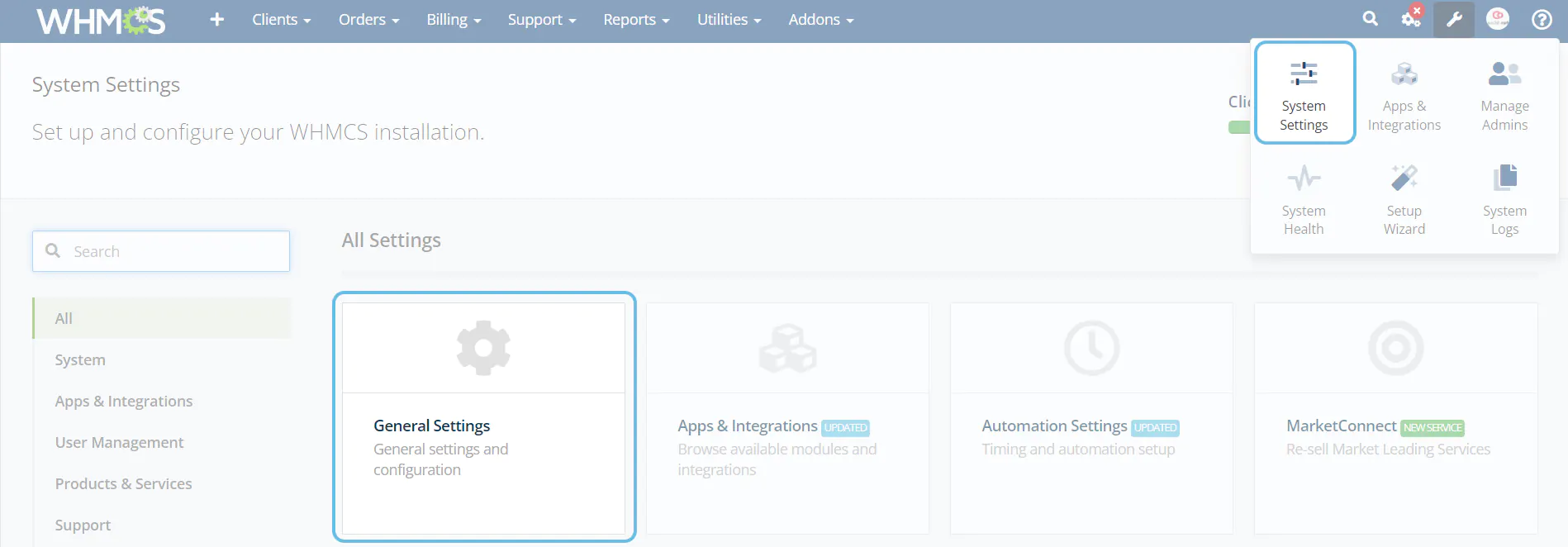
- In General tab select
ShufyThemefrom System Theme dropdown and click on Save Changes.
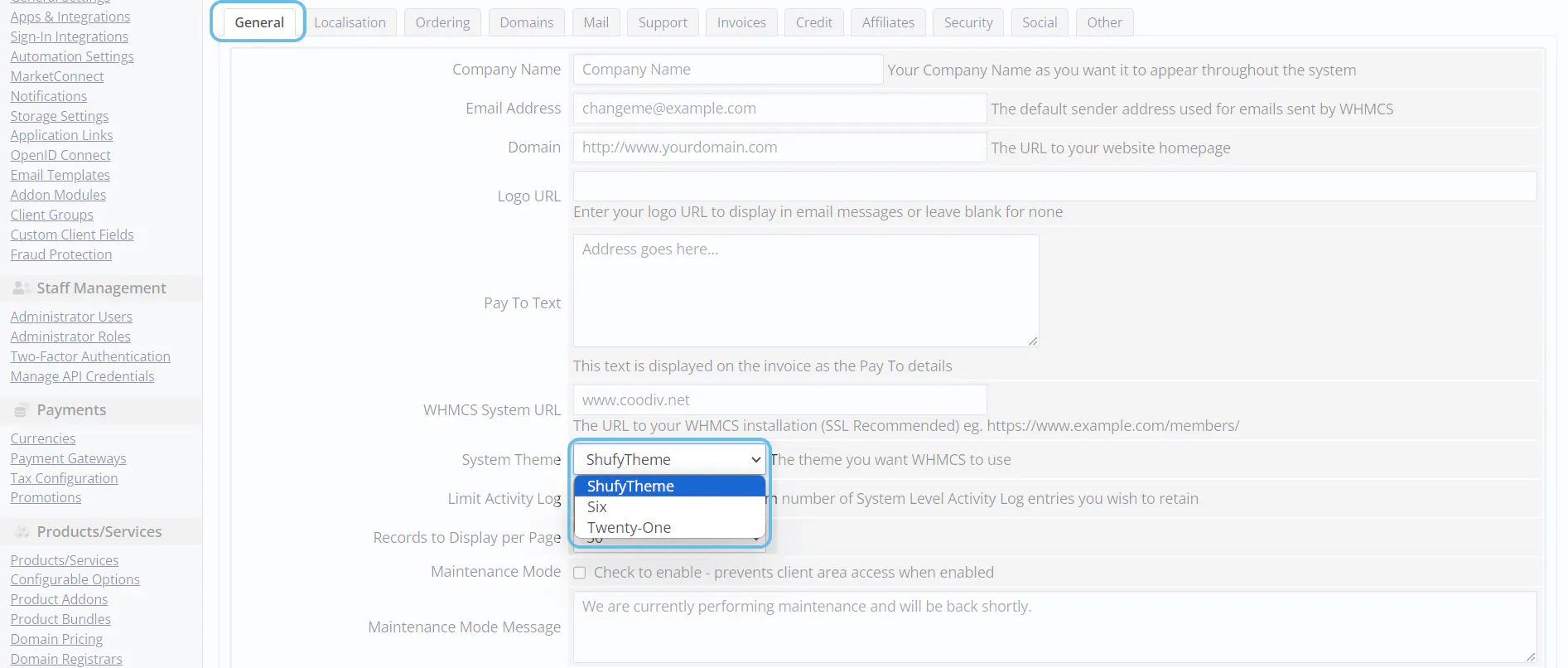
- In Ordering tab select
Shyfytheme CartDefault Order Form Template and click on Save Changes.
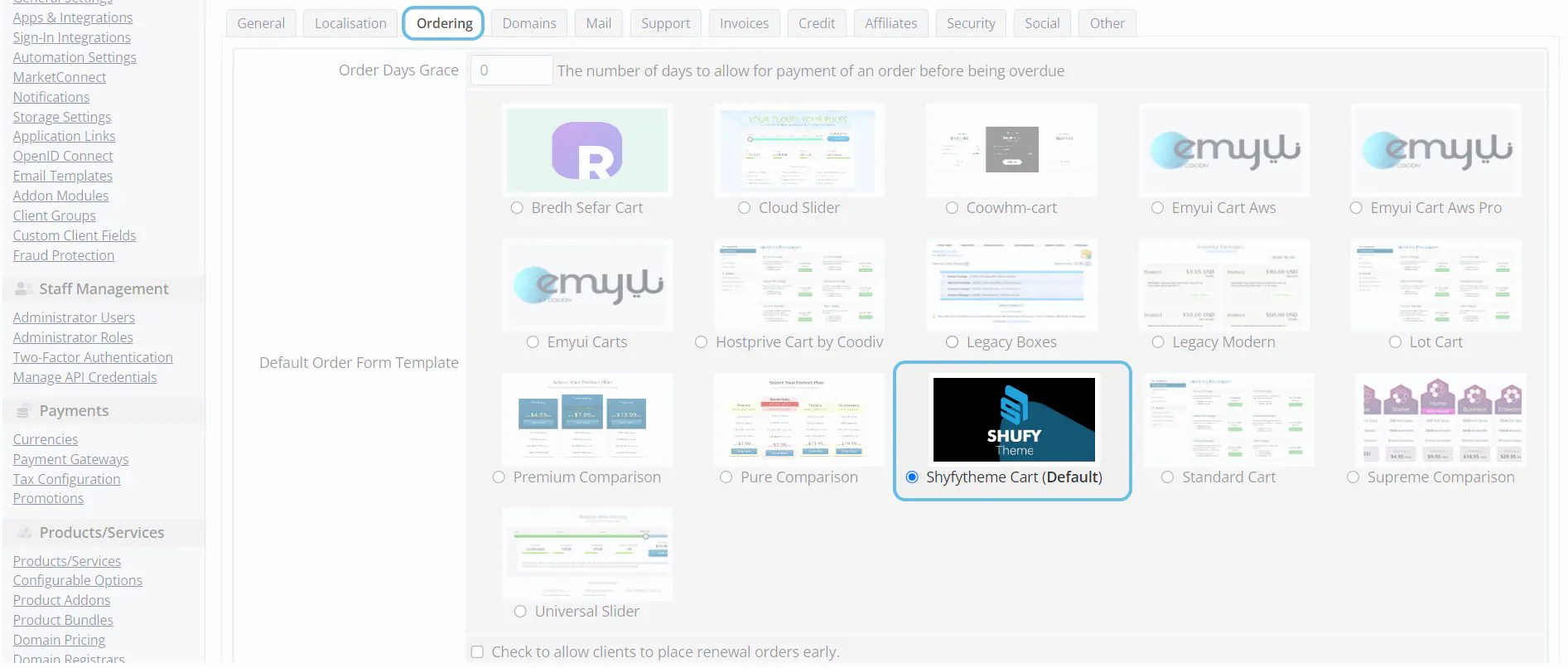
8. Activate ShufyTheme Addon
- Go to
Addonsthen clickShufy Theme Control Panel by coodivin the navigation menu of your WHMCS admin area.

- Entre your
Purchase Codethen clickVerify Purchase. Read this article if you're unsure how to get the Purchase Code.
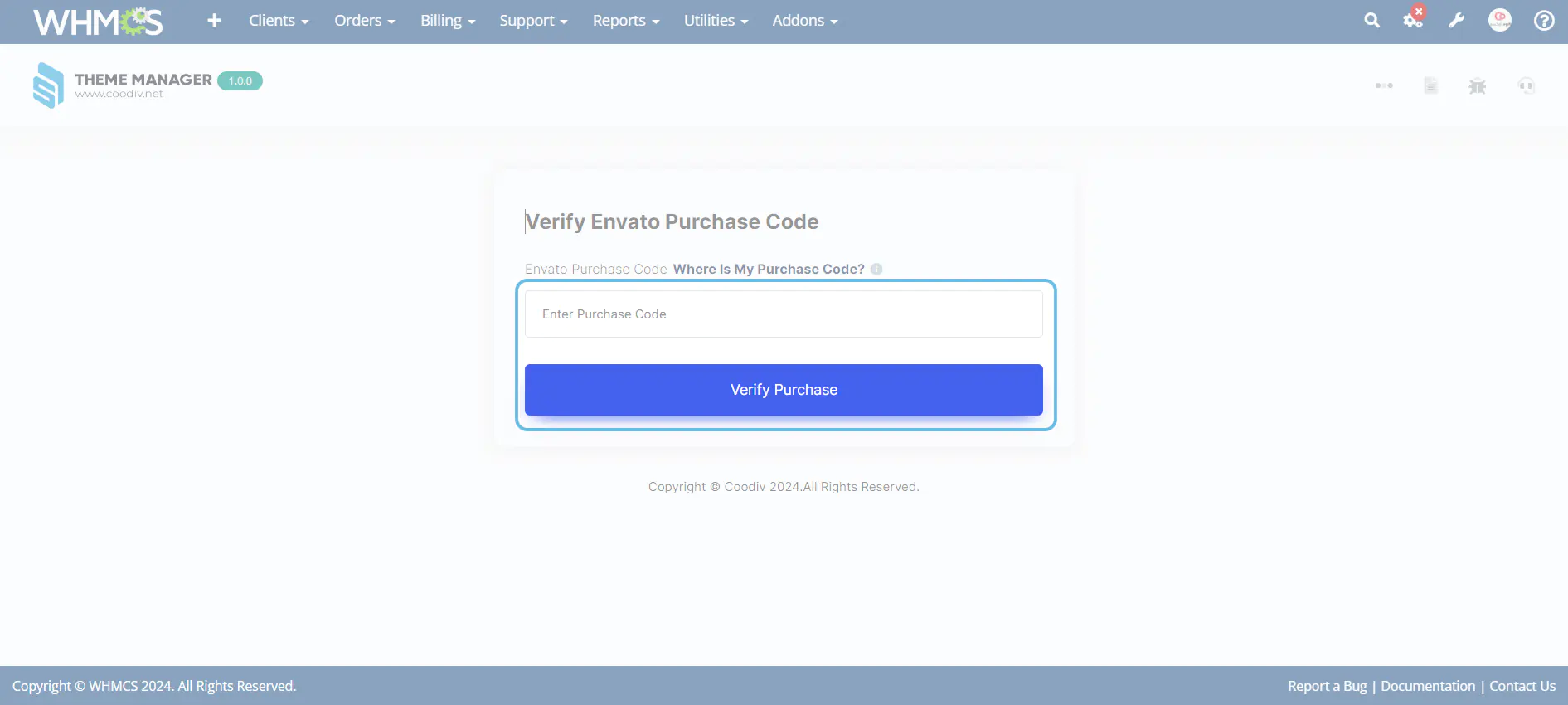
Updating ShufyTheme
In this guide, you will learn how to effectively update ShufyTheme. We will provide a step-by-step walkthrough of the entire update process.
1. Download the latest vesion
- Log into your Envato Market account.
- Hover the mouse over your username at the top of the screen.
- Click ‘Downloads’ from the drop-down menu.
- Click 'Download' next to "ShufyTheme" icon to download the latest version of the theme.
2. Upload ShufyTheme update files to your server
- Ensure that you save a backup from your theme, which you would like to update.
- Use the right folder to update
ShufyThemefrom the downloaded package from ThemeForest, ex: you are using 8.9 and you want to update to 8.10.1, you just need to use the content of update from 8.9 to 8.10.1 folder
3. Updating ShufyTheme Control Panel by coodiv
- Ensure that you save a backup from your settings, Read how to export and import options
- Upload the new
ShufyThemetomodules\addonspath
4. Clear Cache
- Clear your browser and server cache for example Cloudflare
- Clear the WHMCS template cache in: Utilities > System > System Cleanup > “Go” > “Empty Template Cache”.
Upgrading the ShufyTheme Addon to the Latest Version
In this guide, you will learn how to upgrade the ShufyTheme addon to the latest version
without losing any of your saved settings. This step-by-step guide will walk you through the entire
update process safely and easily.
1. Download the Latest Version from ThemeForest
- Log in to your
Envato Marketaccount. - Hover over your username at the top of the page.
- Select Downloads from the drop-down menu.
- Click Download next to the
ShufyThemeitem to get the latest version.
2. Upload the ShufyTheme Addon Files to Your Server
-
Create a backup of your current addon files located at
modules/addons/shufyTheme. - Extract the downloaded package from ThemeForest.
-
Inside the extracted folder, navigate to the
ShufyTheme Control Paneldirectory. -
Upload
modules/addons/shufyTheme.zipto your server atmodules/addons, replacing the existing addon files. - Do not worry about your saved settings. All settings are stored in your database and will remain unchanged after the update.
3. Launching the Automatic Update Process from the ShufyTheme Control Panel
- After uploading the new Control Panel files to your server, log in to your
WHMCSadmin panel and navigate toAddons > Coodiv Themes Control Panel (ShufyTheme). - If your
ShufyTheme Control Panelrequires an update, you will see this message displayed on the addon homepage.
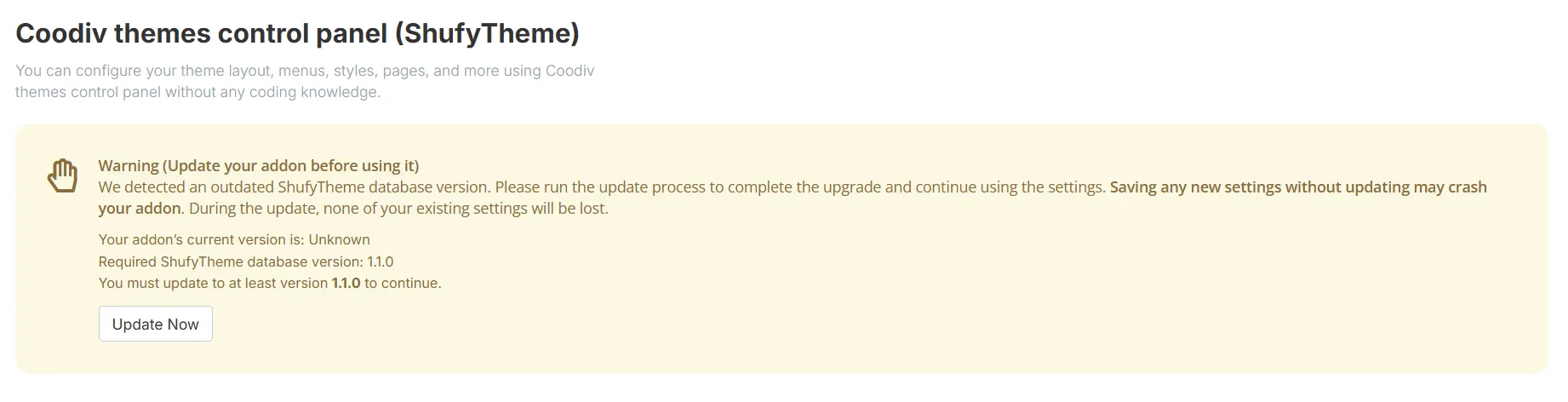
- Click the
Update Nowbutton in this message. You will then be redirected to the upgrade page, as shown in the following screenshot.
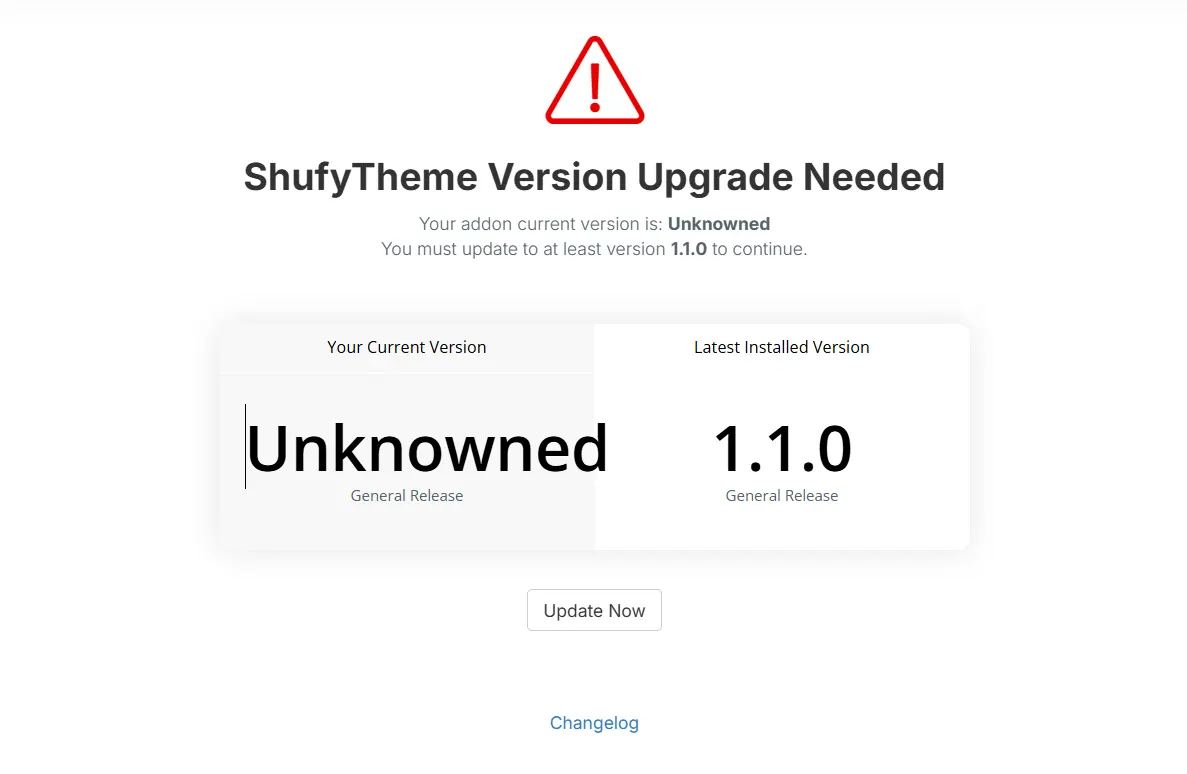
- On the upgrade page, if your current version is different from the latest installed version, an
Update Nowbutton will appear at the bottom of the page. Click this button to start the upgrade process.
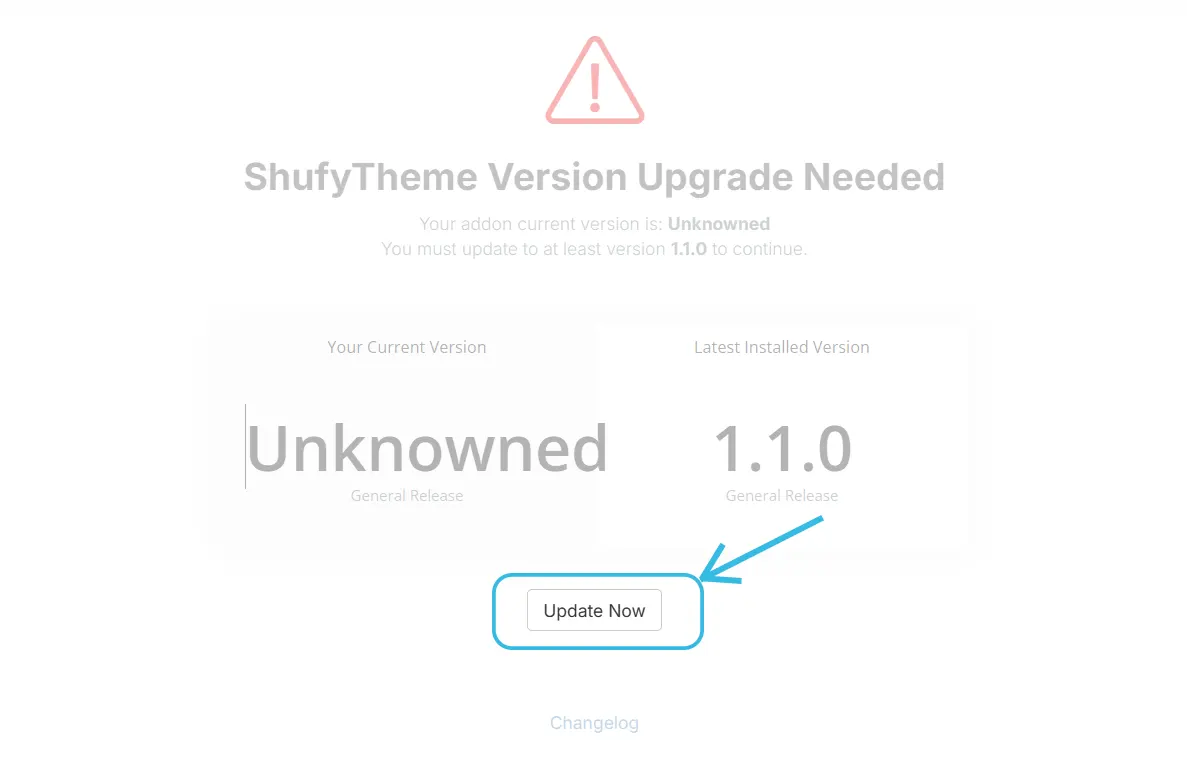
- After clicking the
Updatebutton, do not close the page. You will be redirected to a loading screen while the update process runs in the background. This usually takes only a few seconds.
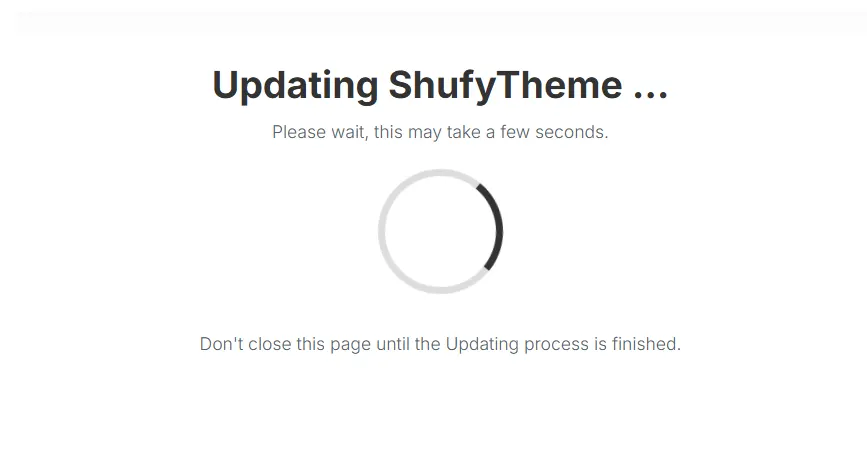
- If the upgrade process completes successfully, you will be redirected back to the upgrade page again, where a success message will be displayed.
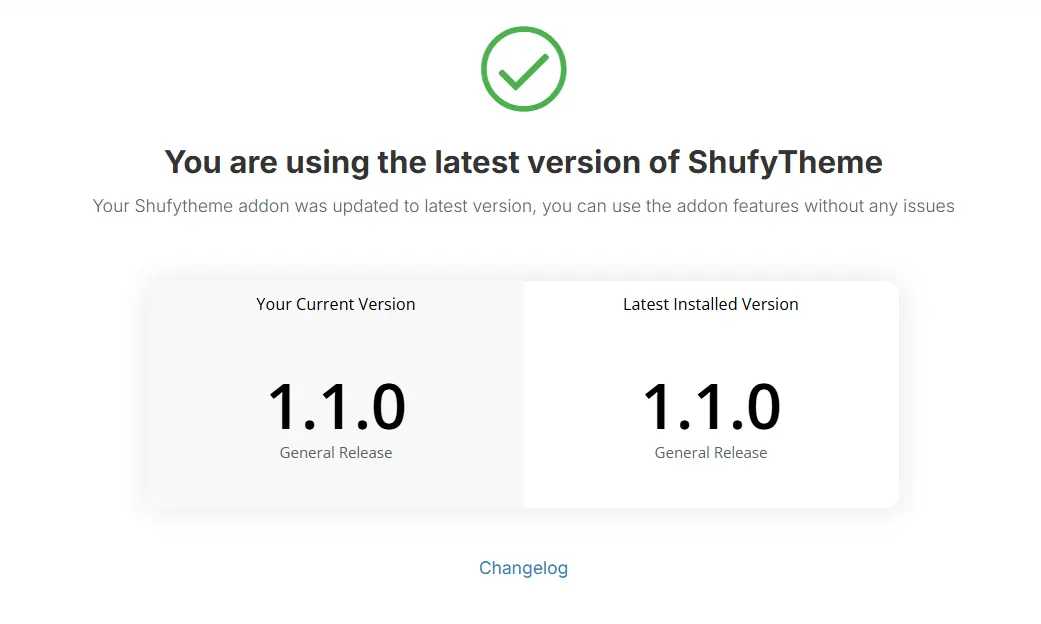
4. Restore Your Custom CSS and Color Settings
- After completing the update, your custom CSS and color settings may not immediately appear on the front-end.
-
To restore your custom CSS, go to
ShufyTheme General Settingsand click Save Settings without making any changes. This will restore all your custom CSS. -
To restore your custom colors, go to
ShufyTheme Styles & Colors Settingsand click Save Settings without making any changes. This will restore all your custom color settings.
6. Troubleshooting Upgrade Errors
If you encounter an error during the upgrade process, follow these steps to resolve it:
- Check your internet connection: Ensure your connection is stable, as interruptions can cause upgrade failures.
- Clear browser cache: Sometimes cached files can prevent the update from displaying correctly. Clear your browser cache and reload the page.
- Clear WHMCS cache: Clear the WHMCS template cache in: Utilities > System > System Cleanup > “Go” > “Empty Template Cache”.
-
Verify file permissions: Make sure the
modules/addons/shufyThemefolder on your server is writable. Permissions should usually be755for folders and644for files. - Check your server requirements: Ensure your server meets WHMCS and ShufyTheme minimum requirements (PHP version, extensions, etc.).
-
Restore backup if needed: If the update fails, restore your addon files from the backup you created earlier at
modules/addons/shufyTheme. - Contact Support: If the problem persists, reach out to the support team with details about the error and any screenshots.
ShufyTheme Extension Manager
Starting from version 1.1.0, we added an Extension Manager to the ShufyTheme Control Panel. This manager allows you to easily install and manage extensions that enhance your WHMCS administration and improve your clients’ experience on your website. Some extensions are free, while others are paid, and we will continue to add new extensions regularly.
Preview Your Extensions
-
On the ShufyTheme Control Panel homepage, you will see the following message:

-
Click on Manage Extensions to be redirected to the
ShufyTheme Extension Manager. Here you will see ready-to-use addons:
If you already have addons in your ShufyTheme Extension Manager, you can install, delete, or manage them directly from this page.
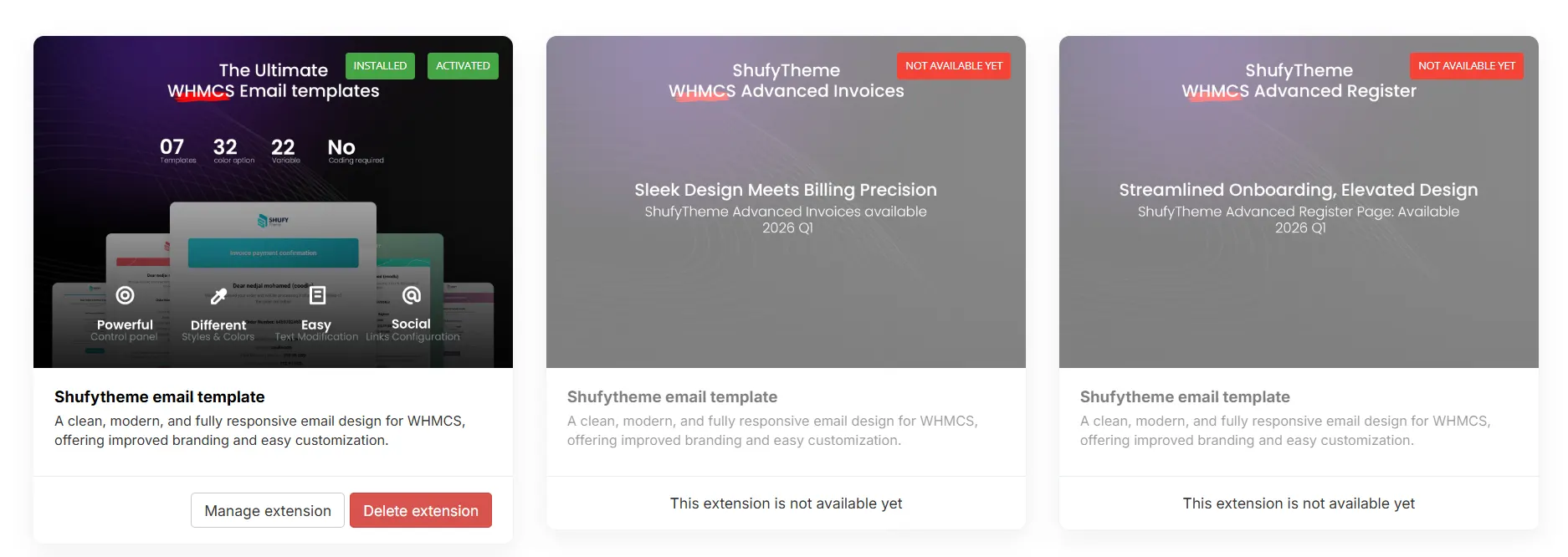
ShufyTheme Email Template
The ShufyTheme Email Template is a fully responsive and mobile-friendly email solution designed to enhance your WHMCS communication. It comes with built-in RTL support, multiple color schemes, and an intuitive dashboard that allows you to customize templates without any coding knowledge. Whether you’re sending invoices, notifications, or marketing emails, these templates ensure a consistent and professional look for your brand.
Make sure your ShufyTheme Control Panel is at least version
1.1.0 to use the ShufyTheme Email Template.
If you are using an earlier version, please upgrade the control panel first.
1- How to Install the ShufyTheme Email Template
- Download the
ShufyTheme Email Templateaddon from Codecanyon and get your purchase code, we will need that to activate the email template addon -
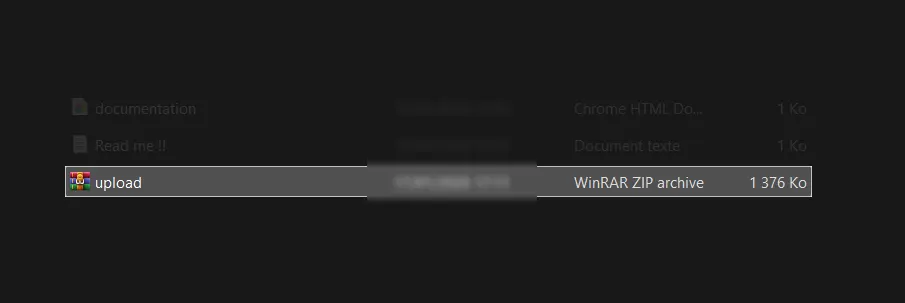
Extract the downloaded package and locate a file named
upload.zip.
-
Upload
upload.zipfile to your server atmodules/addons/shufyTheme. -
There extract
upload.zipfile, make sure that the path aremodules/addons/shufyTheme/extentions/shufytheme-email-template - Now, Log in to your
WHMCSadmin panel. -
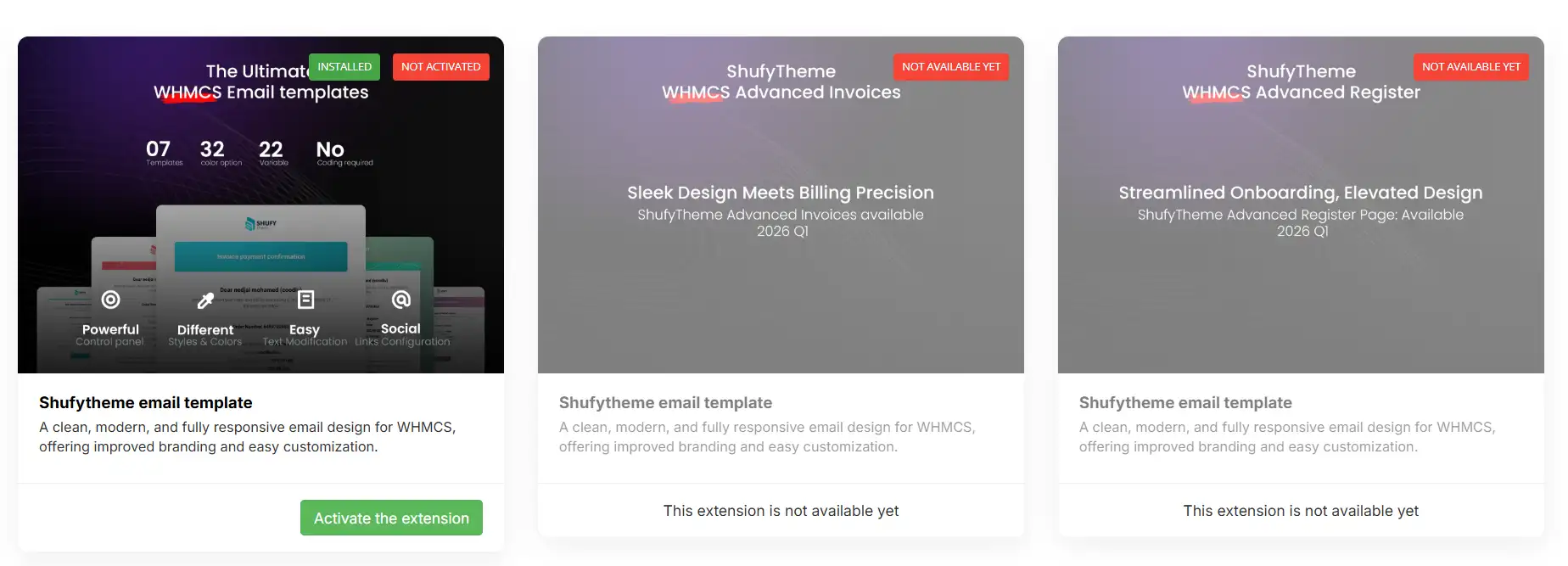
Navigate to Addons > ShufyTheme Control Panel and go to the Extension Manager.
-
Locate the
ShufyTheme Email Templateaddon and click on Activate the Extension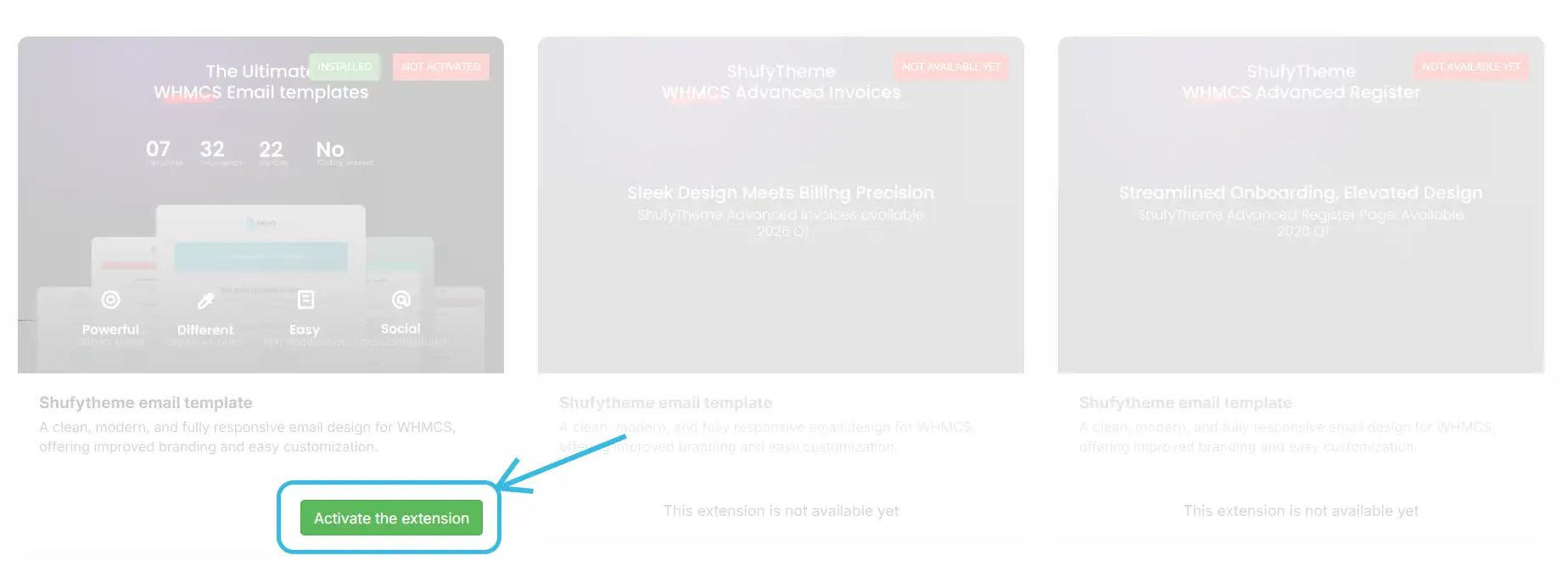
- Entre your
Purchase Codethen clickVerify Purchase. Read this article if you're unsure how to get the Purchase Code.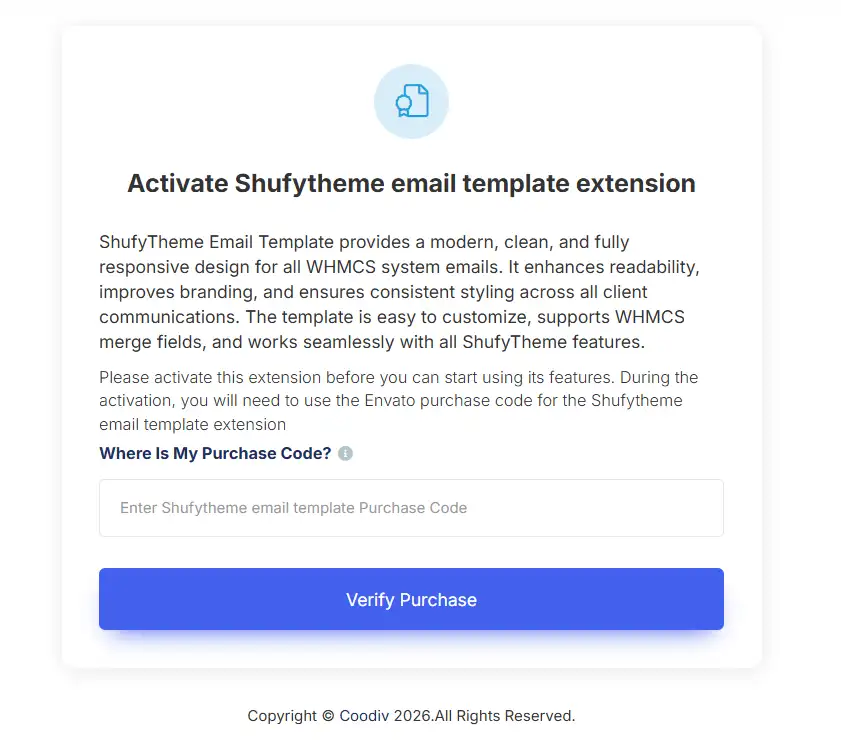
-
Once activated, you can access the Email Template dashboard to customize your templates without any coding.
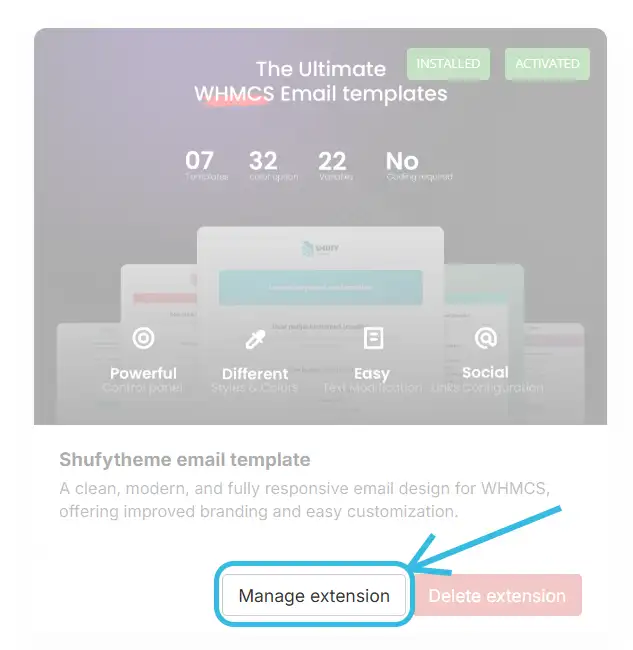
2. Configuring Your ShufyTheme Email Template to Match Your Brand
After installing the ShufyTheme Email Template, you can fully customize it to reflect your brand’s identity. Use the template dashboard to adjust colors, text, social account links, logos, and layout settings so that every email you send to your clients matches your website’s style. This ensures a consistent and professional appearance across all your communications.
1. Add Your Logo to the ShufyTheme Email Template
-
In the General Settings of the ShufyTheme Email Template, you will find two logo fields, as shown in the screenshot below:
one for the default (light mode) and one for dark mode screens.
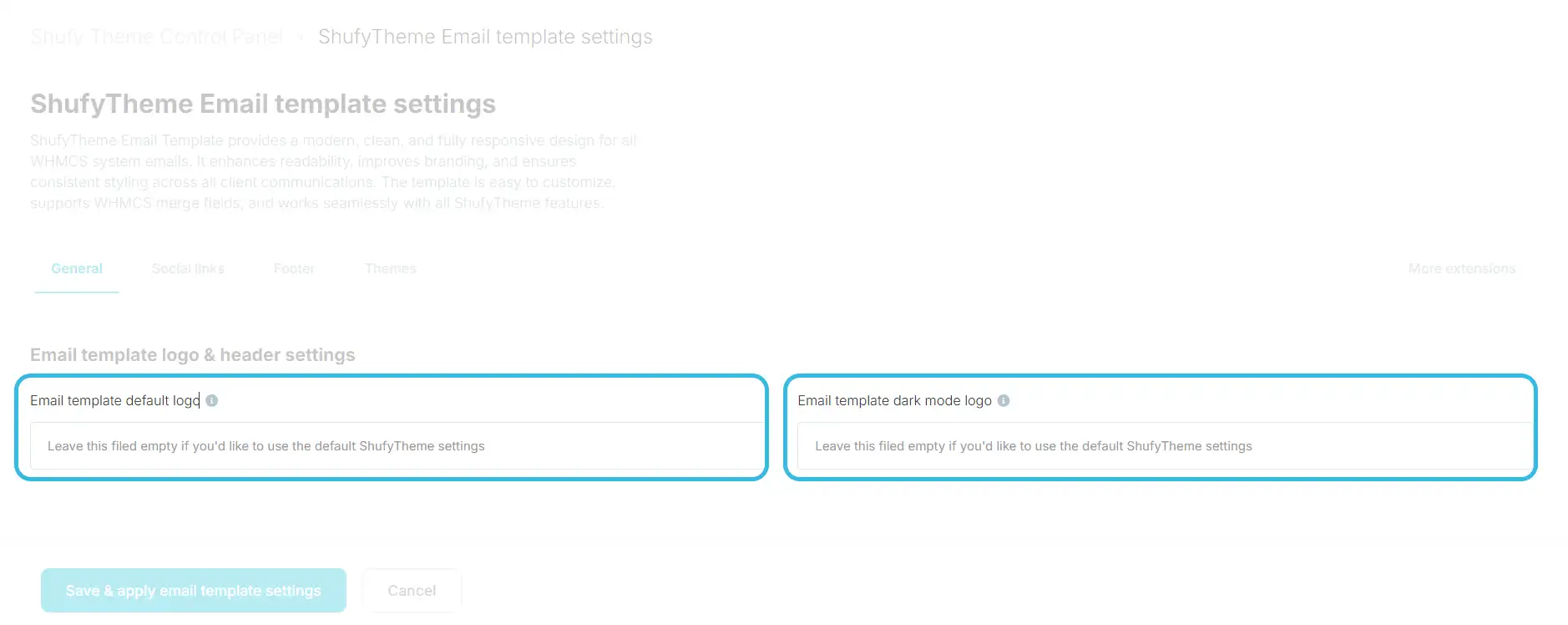
-
Once added, your logo will automatically appear in the email template as shown in the following screenshot.
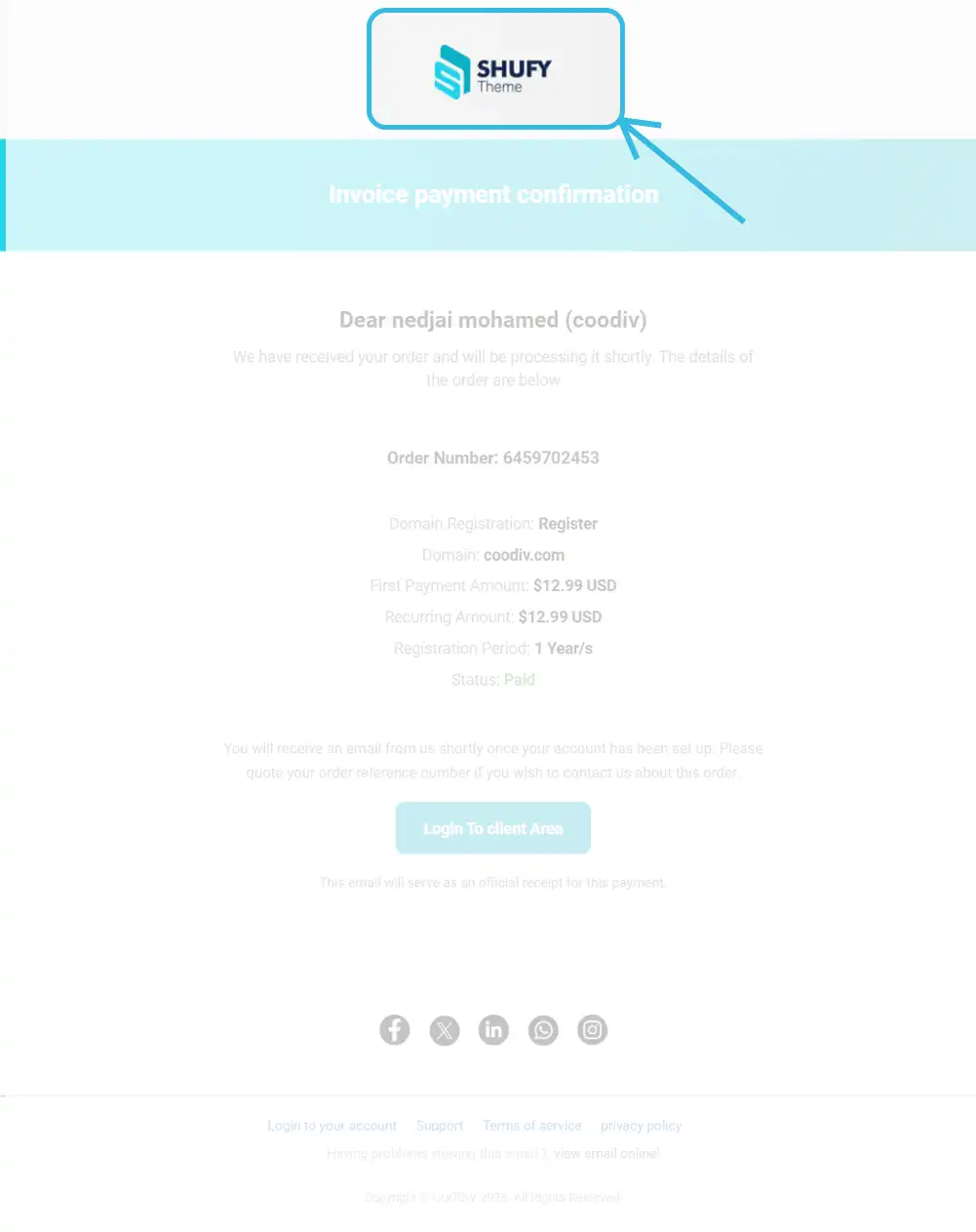
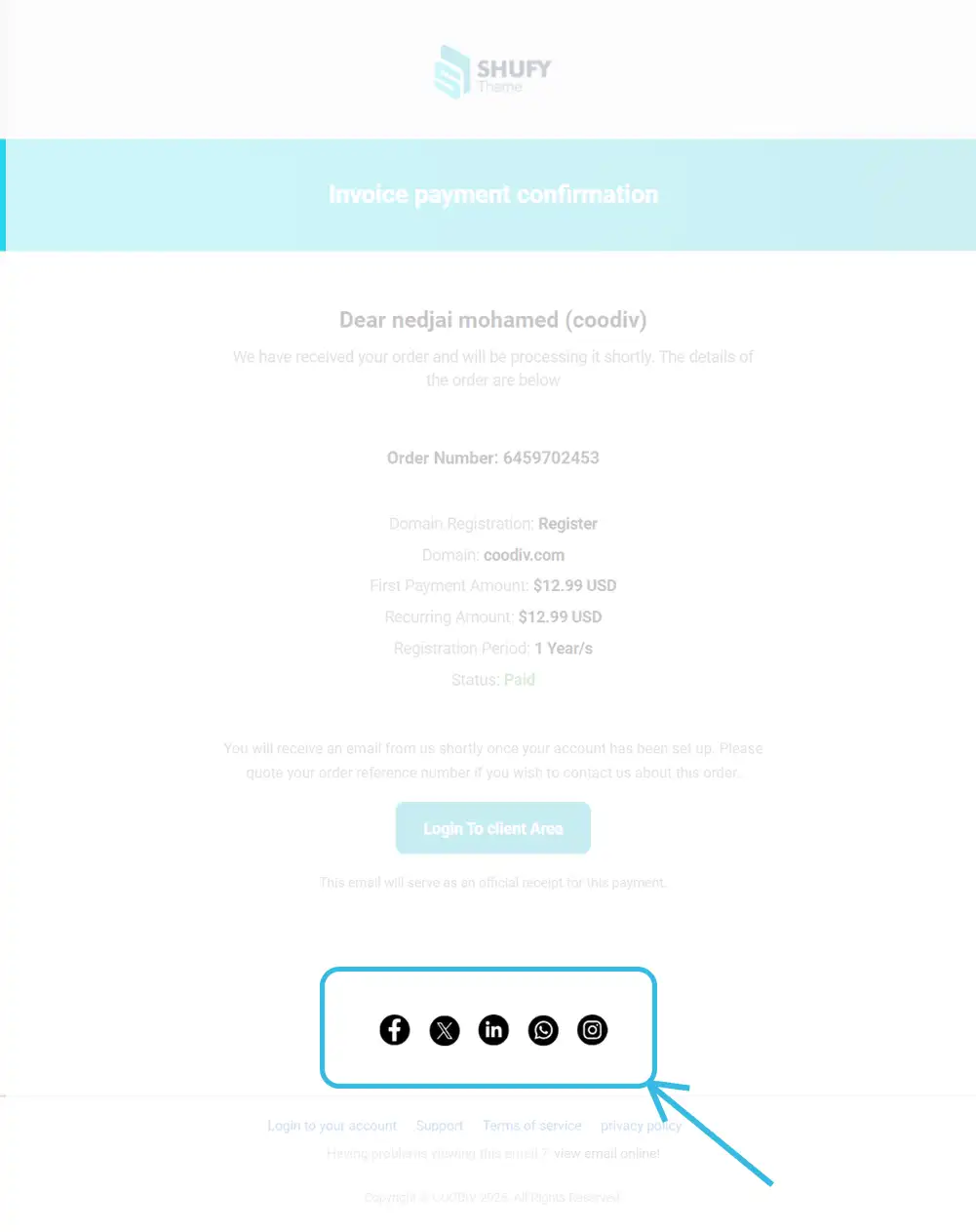
2. Configure Social Links in Your Email Template
To connect your email template with your social media profiles, follow these steps:
- Go to the Social Links section in the ShufyTheme Email Template dashboard.
-
Add the URLs for your social media accounts, such as Facebook, Twitter, Instagram, LinkedIn, and your company Whatsapp number.
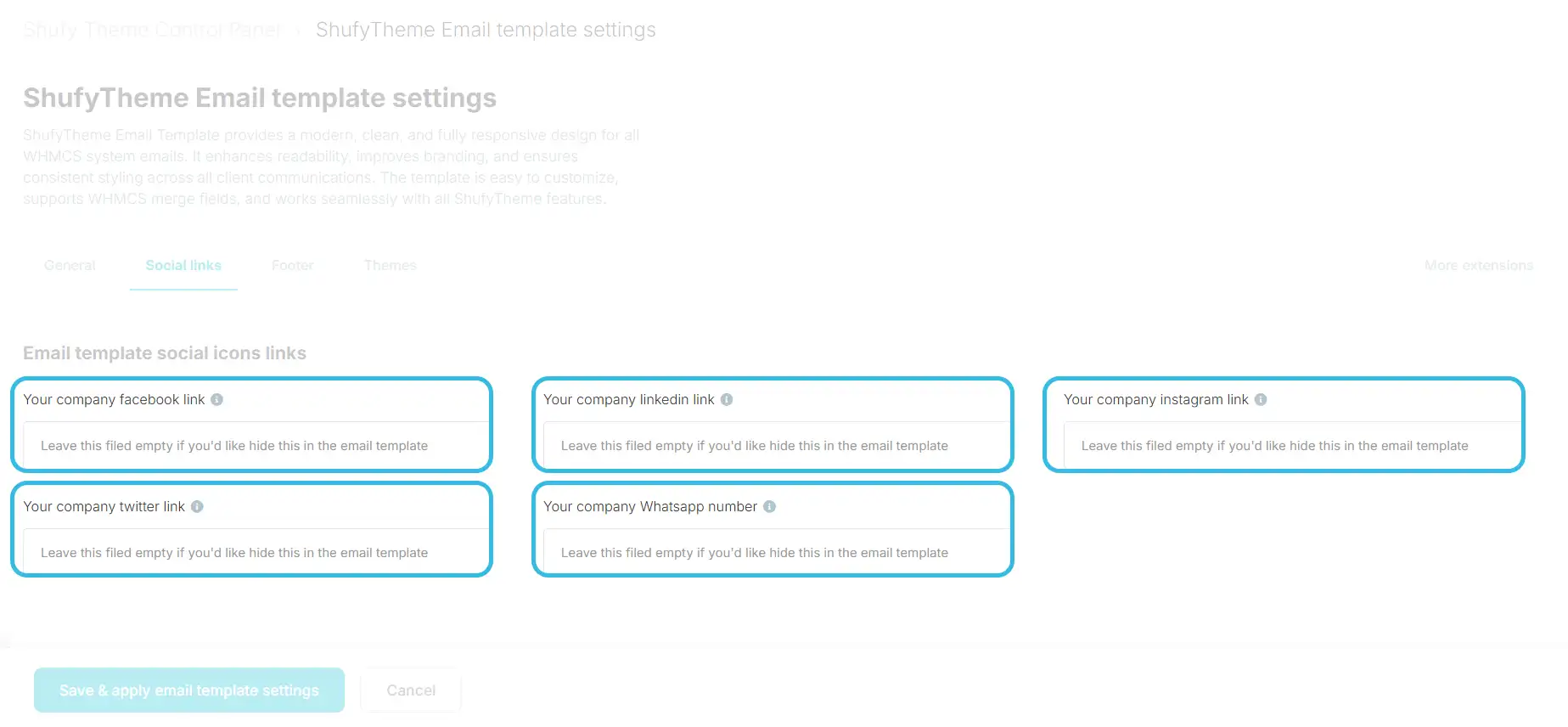
- Enable or disable the icons you want to show in your emails. Only the enabled icons will appear in the footer of your email templates, to disable any social icon just leave the field empty
-
After adding your links, click Save Settings to apply the changes.
3. Configure the Footer Section
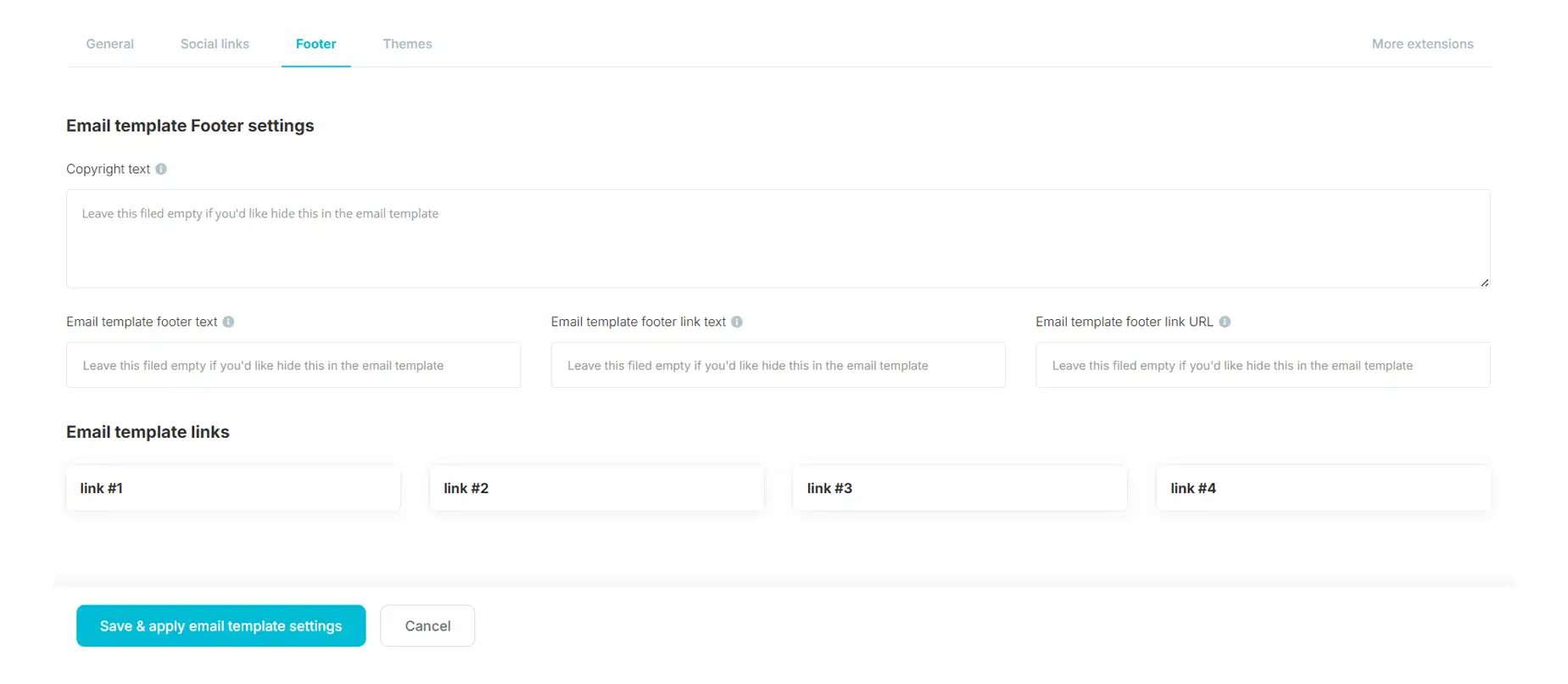
You can fully customize the footer of your ShufyTheme Email Template to provide important information and links for your clients.
- Go to the Footer Settings section in the ShufyTheme Email Template dashboard.
-
Copyright Text: Add your company’s copyright information. For example:
© 2026 Coodiv team. All rights reserved.
If you want to disable this section, simply leave the field empty. -
Email template footer text: Add any extra information you want to display in the footer, such as disclaimers or contact notes.
Leave the field empty to disable this section.
-
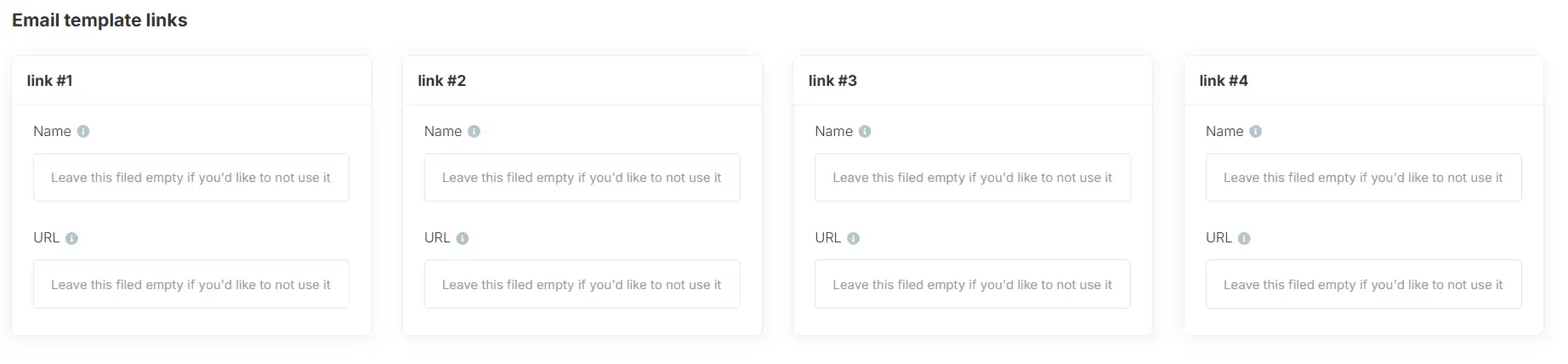
Footer Links: You can add up to 4 important links, such as:
- About Us
- Privacy Policy
- Terms & Conditions
- Contact
To hide any link, leave the text field empty.
- Click Save Settings to apply all changes, then send a test email to make sure the footer looks correct on both desktop and mobile devices.
4. Choose Your Email Template Theme
The ShufyTheme Email Template comes with 7 ready-to-use styles, each offering a unique layout and design for your emails. For each style, you can choose from 4 different color schemes to match your brand identity perfectly.
- Go to the Theme Settings section in the ShufyTheme Email Template dashboard.
-
Select one of the 7 available styles. Each style has a different layout, header, and content design.
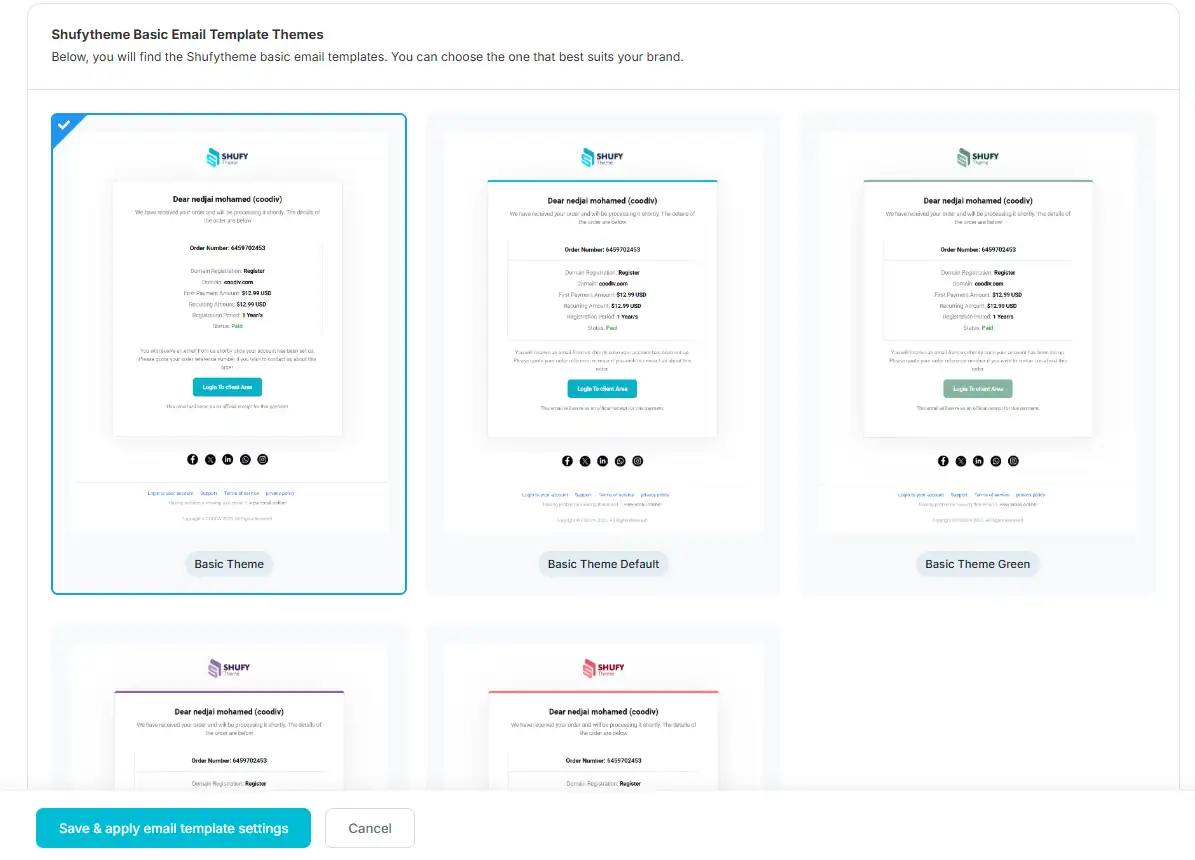
- After choosing a style, select a color scheme from the 4 options available for that style. This will automatically update the template colors for headings, buttons, links, and backgrounds.
- Preview your email using the Live Preview option to ensure the selected style and colors look perfect.
- Click Save Settings to apply the style and color scheme to all your outgoing emails.
5. Troubleshooting & Support
If you encounter any issues while installing, configuring, or using the ShufyTheme Email Template, follow the steps below to resolve common problems:
-
Email Template Not Appearing: Make sure the addon is installed in
modules/addons/shufyTheme/extensionsand activated via the Extension Manager. Also, ensure your ShufyTheme Control Panel is at least version 1.1.0. -
Settings Not Saving: Check file permissions for your WHMCS installation. The server must allow write access to the
modules/addons/shufyThemefolder. - Emails Not Showing Correctly: Test your emails on multiple devices and email clients. Make sure your images and logos are uploaded correctly and that your selected theme and color scheme are applied.
- Purchase Code Activation Error: Ensure you entered the correct purchase code from Codecanyon. Double-check for extra spaces or missing characters.
- General Issues: Clear your browser cache and reload the dashboard. Sometimes cached files can prevent settings from updating.
If the problem persists after trying these steps, you can contact our support team for assistance:
- Submit a ticket via our support portal Coodiv support portal.
- Include details such as your WHMCS version, ShufyTheme Control Panel version, screenshots of the issue, and your purchase code.
Our support team will respond as quickly as possible to help resolve your issue and ensure your email templates work perfectly.
Configure your theme
We've elevated the WHMCS option panel with the ShufyTheme Control Panel, making theme configuration easier than ever before. With our intuitive control panel, you can effortlessly customize various aspects of your theme. From editing colors, layouts, menus, footer and sidebar layouts, login and register layouts, to SEO management and typography control, ShufyTheme offers an extensive array of customization options to suit your needs.
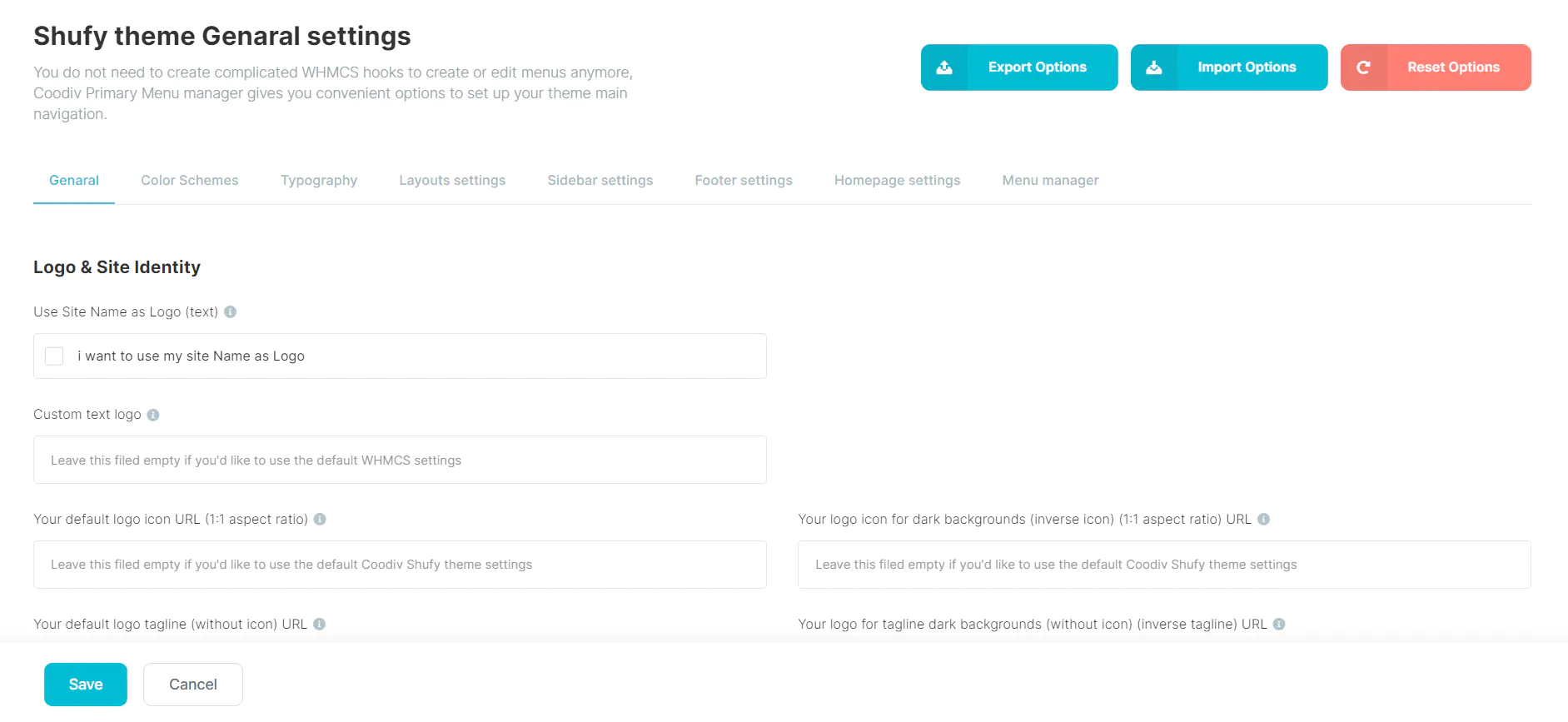
1. Logo & Site Identity
You can use the default Shufytheme logo, add your custom logo link, or even if you don't have a logo, you can still use the text logo option.
- Use Site Name as Logo (text) Check this option if you want to display your website name as a logo
- Custom text logo Fill in this input to Use Site Name as Logo and use custom text instead of your original website name.
- Your default logo icon URL Add your icon URL and most be a 1:1 aspect ratio
- Your default logo tagline add your logo URL and most be without icon
- Your Full logo link URL add here your full logo URL
2. Genaral settings
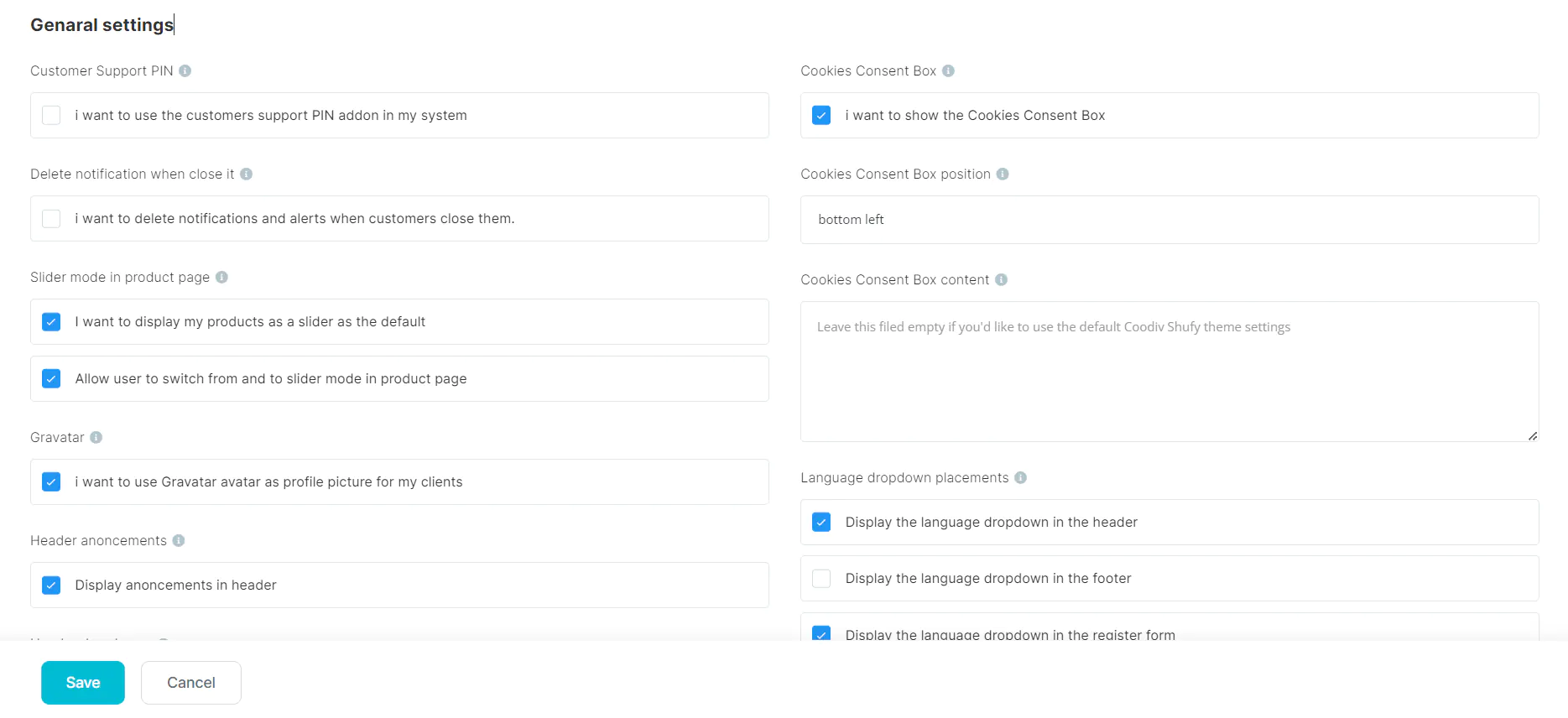
You can use the default Shufytheme logo, add your custom logo link, or even if you don't have a logo, you can still use the text logo option.
- Customer Support PIN With ShufyTheme you can use Customer Support PIN
- Delete notification when close it You can hide all Customers notifications after close it for the first time
- Slider mode in product page in these fields, you can configure the slider mode in the product page
- Gravatar tick/enable this field to display Gravatar as profile picture for your customers.
- Header anoncements tick/enable this field to display header anoncement slider
- Header dropdowns You can choose if you want dropdowns to shows as a sidebar or a simple dropdown
- Marketconnect Bannaers These fields are for displaying ShufyTheme MarketConnect banners
- Login & register page styles You can choose from various login and register page styles
- Cookies Box settings You can configure your cookies box position, contents and more
- Language dropdown placements You can choose where you want to display your language dropdown
3. SEO Tools
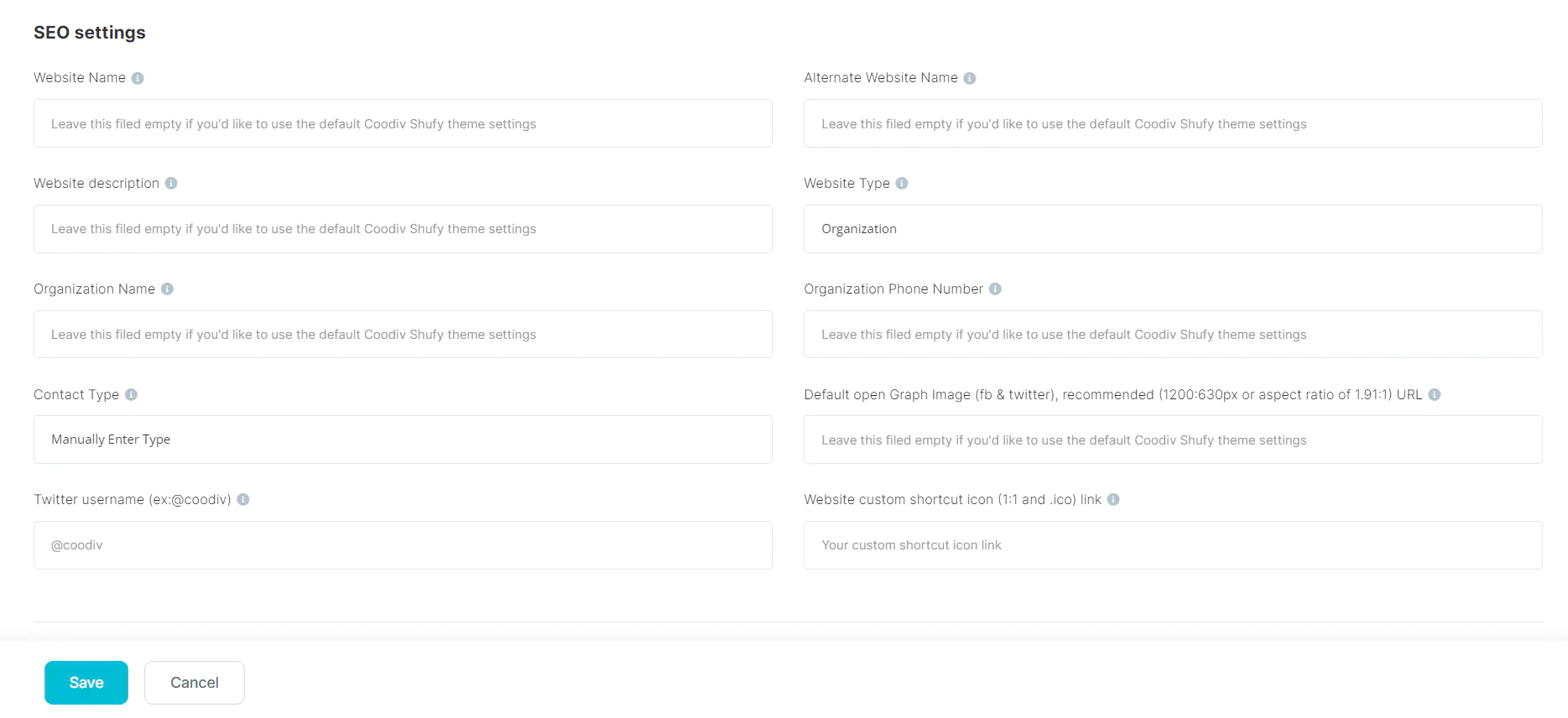
ShufyTheme is equipped with built-in SEO enhancements. With each new version, we endeavor to enhance the SEO capabilities of our products, ensuring your website not only looks great but also performs well in search engine rankings.
- Website Name A name that Google may use for your homepage search results. This will default to the WHMCS site title if left blank.
- Website description An alternate website description for your site.
- Organization Name Add your Organization Name to this filed.
- Contact Type Select Which Contact Type you are using in your website.
- Twitter username Add your twitter username with @.
- Alternate Website Name An alternate name for your site. This could be an acronym or shorter version of your website name.
- Website Type Select which department are your website belongs to
- Organization Phone Number Add your Organization Phone Number to this filed.
- Default open Graph Image ADD Default open Graph Image URL for facebook and twitter links
- Website custom shortcut icon Add your custom shortcut icon and sould be 1:1 and .ico link
4. Custom CSS code
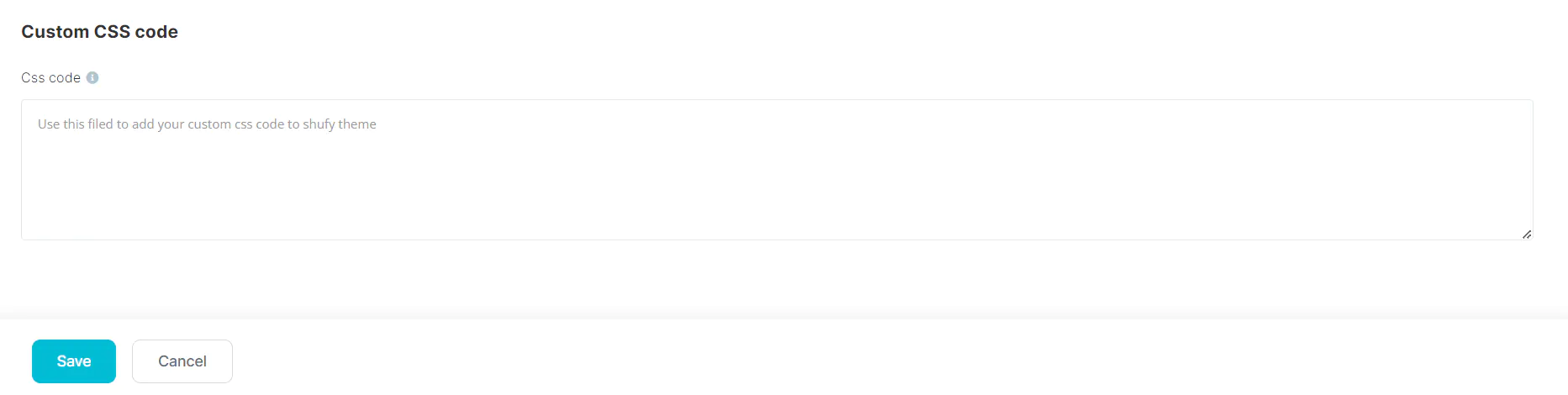
Empower your customization by effortlessly adding your custom CSS code via the ShufyTheme Control Panel, bypassing the necessity of editing any theme files.
5. Support PIN
-
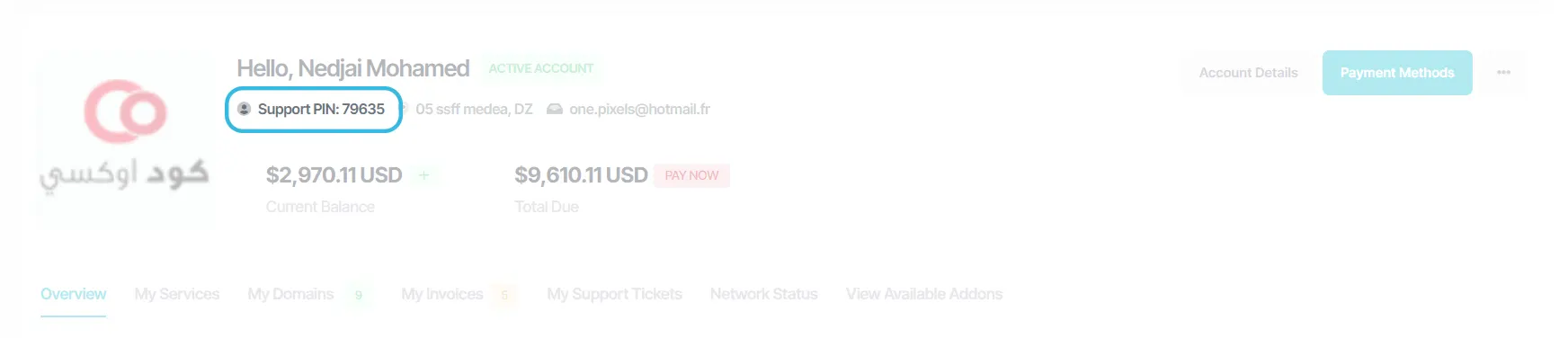
When the Support PIN feature is enabled from the General Settings,
each client will be assigned a unique, automatically generated PIN displayed on
their Client Area homepage. You can use this PIN in your support system to quickly
identify and verify users, providing faster assistance with a higher level of security.
-
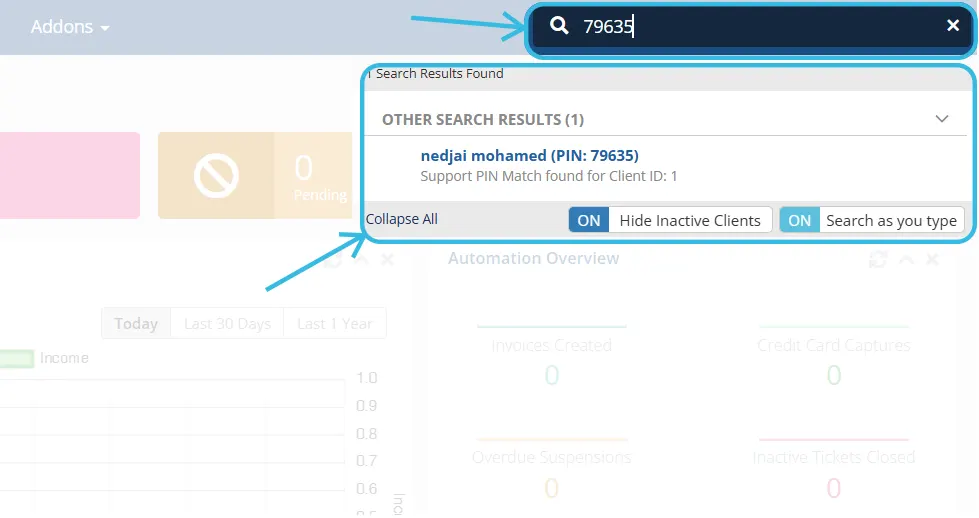
To search for a client using only the Support PIN, simply enter the PIN number into
the WHMCS search bar at the top of the admin area.
6. Theme Translation
The Theme Translation feature allows you to easily translate ShufyTheme into any language without editing core files. Using the built-in language and translation options, you can customize text labels, buttons, and messages to match your website’s language and audience, while keeping your theme fully update-safe.
Important
The translation feature works only on ShufyTheme 1.3.0 and ShufyTheme Control Panel 1.1.0 or higher. Please make sure your theme and control panel meet these minimum versions before using this function.
How to Translate ShufyTheme Custom Strings
- Access your server using FTP or your hosting file manager.
-
Navigate to the ShufyTheme language folder:
templates/shufytheme/lang/ -
Inside the folder, you will find language files named after language codes
(for example:
english.php). -
Duplicate the existing language file and rename it to match your language
(for example:
french.php,arabic.php). - Open the new language file using a text editor and translate the text values while keeping the variable names unchanged.
-
Example:
Original English string inenglish.php:$_LANG['shufytheme']['notification']['danger_content'] = "Procedure Initiated. Take Immediate Action.";
Translated to Frenchfrench.php:$_LANG['shufytheme']['notification']['danger_content'] = "Procédure lancée. Agissez immédiatement.";
Translated to Arabicarabic.php:$_LANG['shufytheme']['notification']['danger_content'] = "تم بدء الإجراء. اتخذ إجراءً فورياً.";
-
Save the file and upload it back to the
templates/shufytheme/lang/directory. -
Log in to your
WHMCSadmin panel and set your desired language as the default or assign it to specific clients. - Clear your browser cache and refresh your website to see the translated strings applied.
Note: Always translate only the text inside quotes and do not modify the PHP variables to avoid breaking the theme.
Colors Manager
Revamp your theme customization experience with a selection of 4 pre-made styles and an extensive palette of over 160 color options for each style. Absolutely no coding expertise required!
- 4 Color Schemes : Choose from 4 pre-made color schemes.
- Colors options : More than 160 options for each color scheme, totaling over 640 color options to manage.
1. Color Schemes
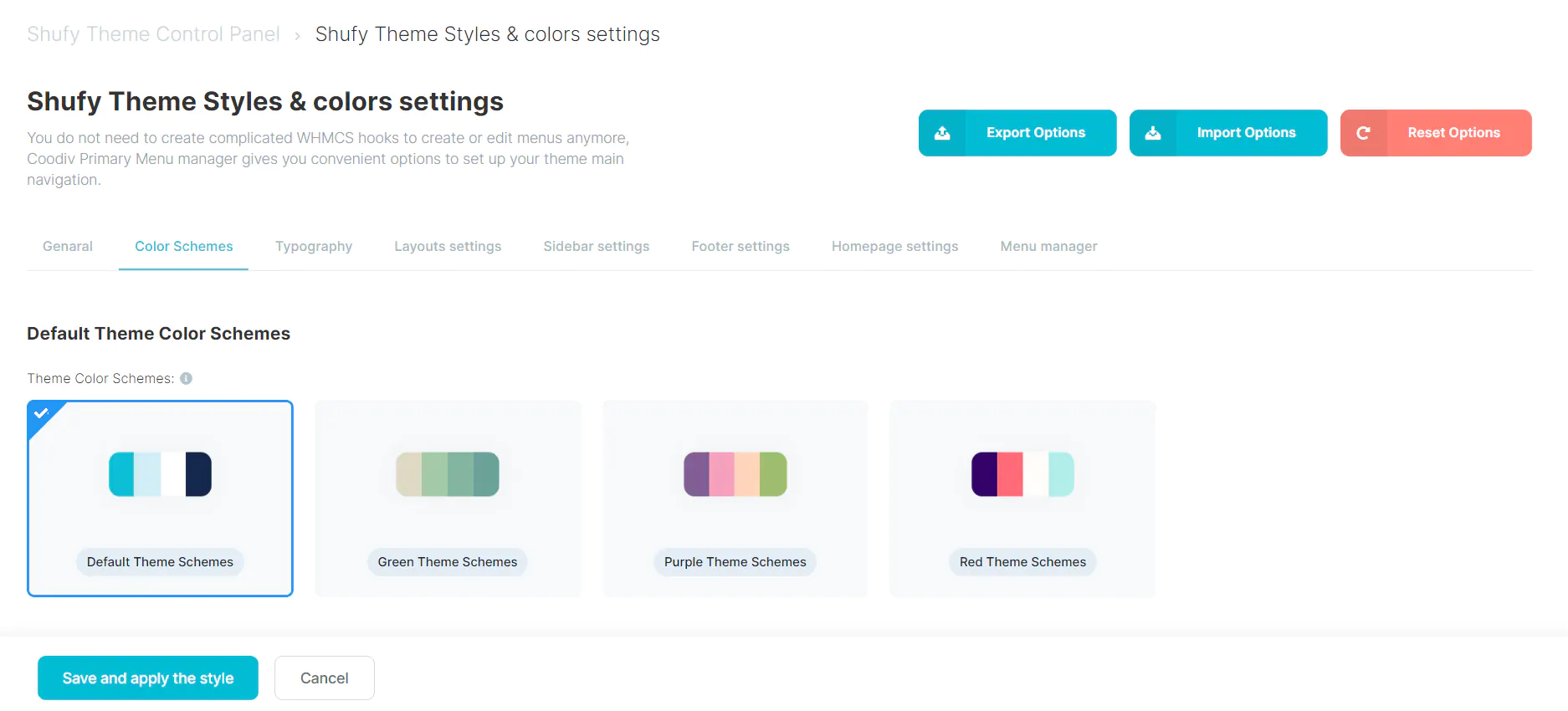
You can select from 4 pre-made color schemes. Feel free to choose a pre-made scheme or customize one to establish your brand colors. You can activate your chosen scheme by following these steps:
- Go to the
Shufy Theme Styles & colors settingstab in Shufy Theme Control Panel. - Choose the
Color Scheme, which you want to use, for example Purple Theme Schemes. - Click
Save and apply the styleat the bottom of the screen.
2. Color Variables
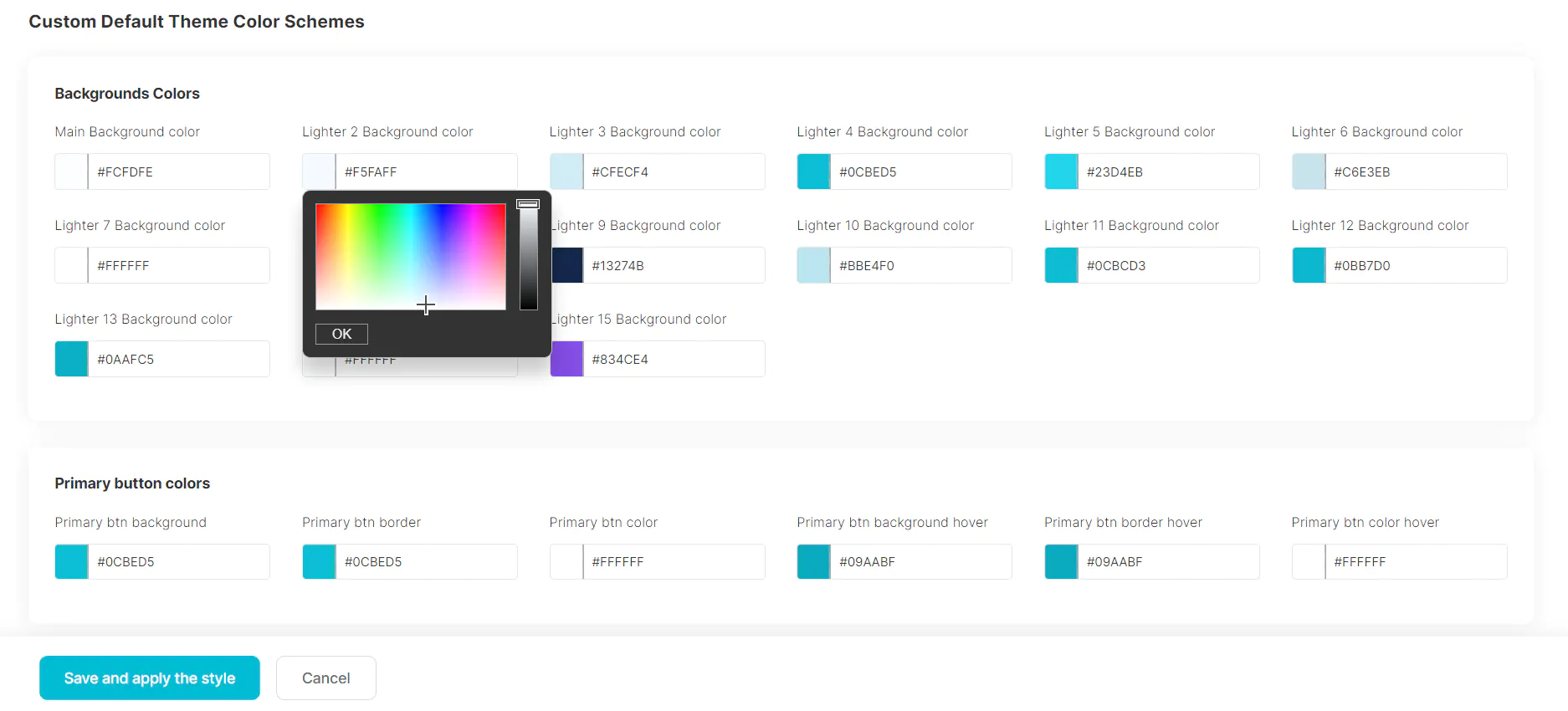
If the pre-made color schemes don't match your brand, you can begin editing the color schemes of every theme element using the Custom Theme Color Schemes section.
- Backgrounds Colors The default ShufyTheme Backgrounds schemes
- Primary button colors Primary button color schemes (background, colors, border, hover .. etc)
- Primary Light button colors Primary Light button color schemes (background, colors, border, hover .. etc)
- Default button colors Default button color schemes (background, colors, border, hover .. etc)
- Primary outline button colors Primary outline color schemes (background, colors, border, hover .. etc)
- primary outline white button colors primary outline white button color schemes (background, colors, border, hover .. etc)
- Primary outline light button colors Primary outline light button color schemes (background, colors, border, hover .. etc)
- light button colors light button color schemes (background, colors, border, hover .. etc)
- lighter button colors Ligter button color schemes (background, colors, border, hover .. etc)
- Texts Colors Headings, Texts, Borders, Tags Colors & More ...
- Sidebar colors Schemes More than 15 color options for default Sidebar
- Dark Sidebar colors Schemes More than 15 color options for Dark Sidebar
- Primary alerts, Badges & status colors Edit the primary alerts, badge, status default background and colors
- Secondary alerts, Badges & status colors Edit the secondary alerts, badge, status default background and colors
- Success alerts, Badges & status colors Edit the success alerts, badge, status default background and colors
- Danger alerts, Badges & status colors Edit the danger alerts, badge, status default background and colors
- Warning alerts, Badges & status colors Edit the warning alerts, badge, status default background and colors
- Info alerts, Badges & status colors Edit the info alerts, badge, status default background and colors
- Light alerts, Badges & status colors Edit the light alerts, badge, status default background and colors
- Dark alerts, Badges & status colors Edit the dark alerts, badge, status default background and colors
Typography settings
Shufytheme options panel gives you the power to choose from multiple Font Family and customize the font sizes on your website.
- Font Family settings : Allows you to change "Font Family" used in Shufytheme without any cooding knowladge.
- Font Sizing settings : You have complete autonomy to adjust font sizes for both Desktop and Mobile screens.
1. Font Family settings
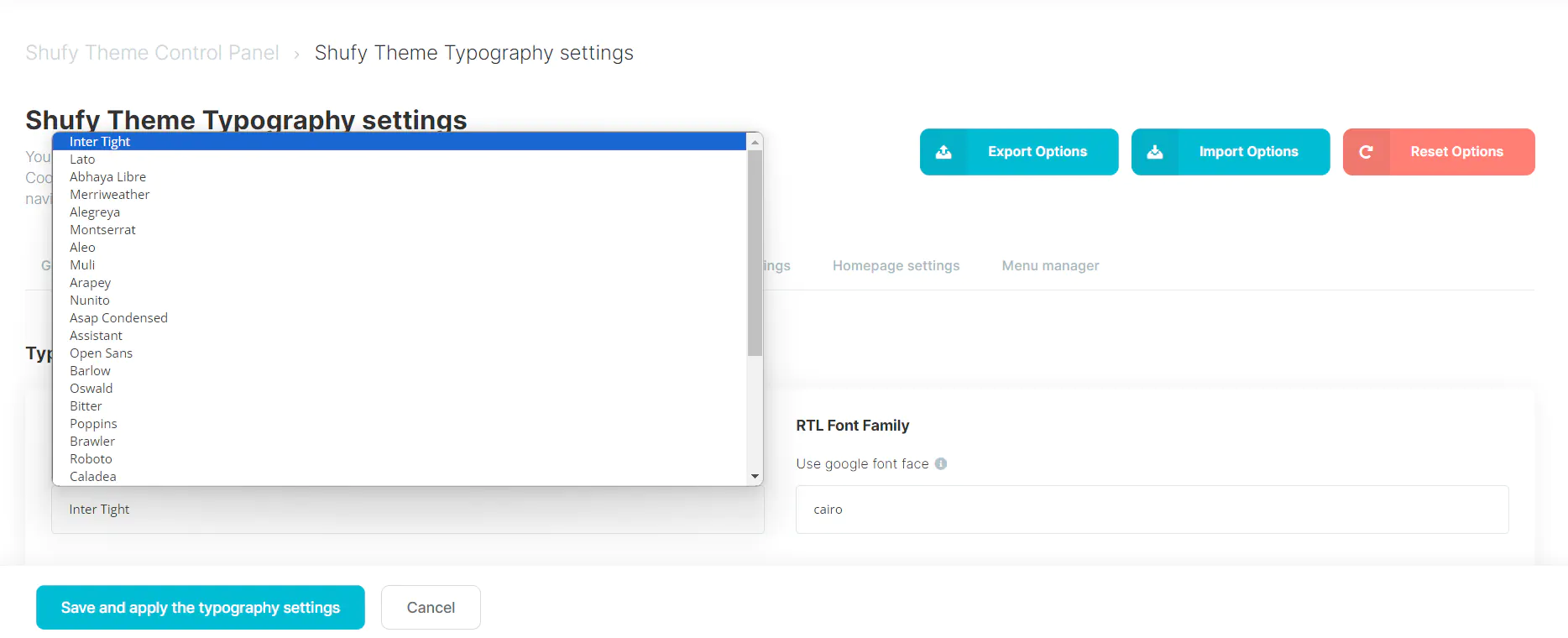
In this section you can choose from a large variant of google font To use in your website
- Dafault Font Family The default font family for your website
- RTL Font Family The RTL font family for your website
2. Font Sizing settings
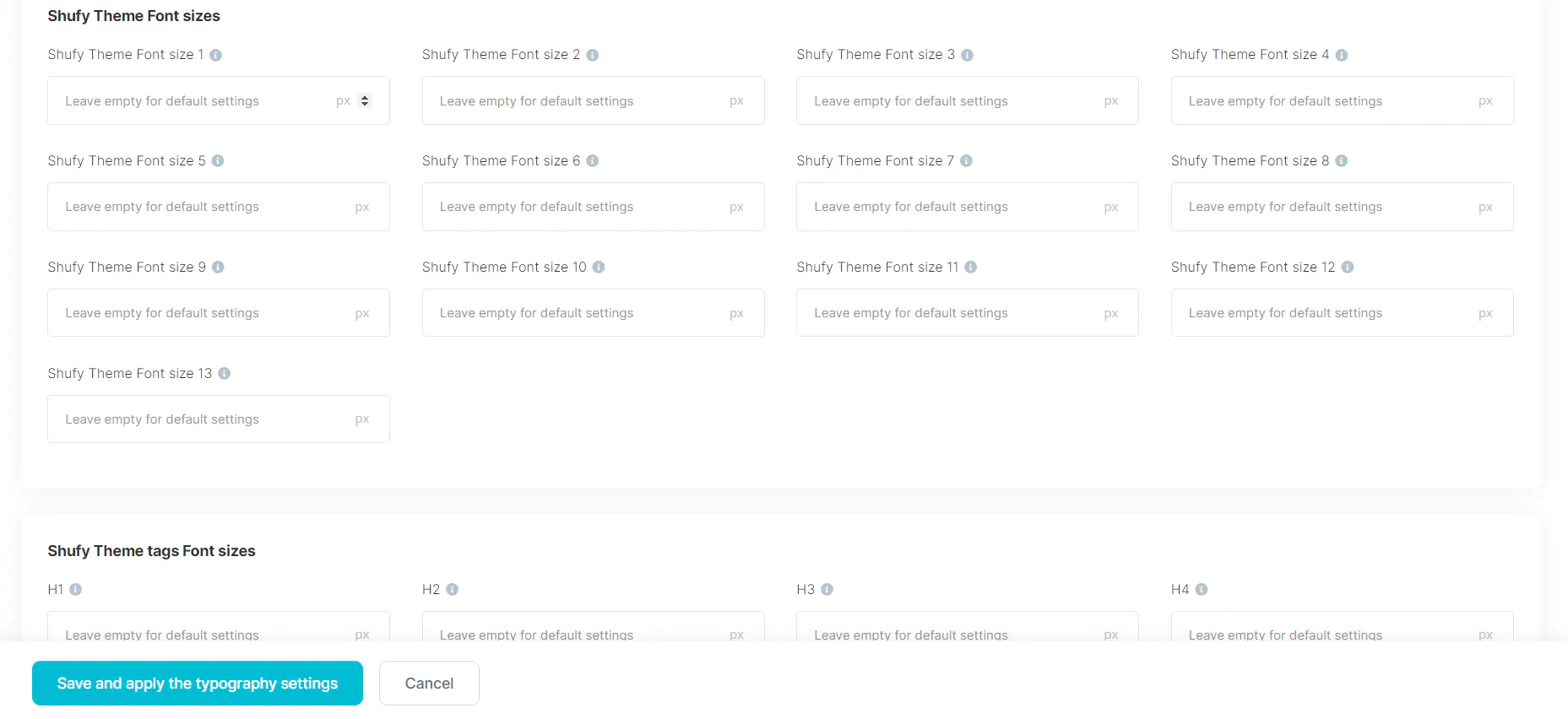
The ShufyTheme control panel gives you the ability to adjust font sizes for both Desktop and Mobile screens with over 22 options available.
- Shufy Theme Font size 1 The default font size for
coodiv-text-1class - Shufy Theme Font size 2 The default font size for
coodiv-text-1class - Shufy Theme Font size 3 The default font size for
coodiv-text-3class - Shufy Theme Font size 4 The default font size for
coodiv-text-4class - Shufy Theme Font size 5 The default font size for
coodiv-text-5class - Shufy Theme Font size 6 The default font size for
coodiv-text-6class - Shufy Theme Font size 7 The default font size for
coodiv-text-7class - Shufy Theme Font size 8 The default font size for
coodiv-text-8class - Shufy Theme Font size 9 The default font size for
coodiv-text-9class - Shufy Theme Font size 10 The default font size for
coodiv-text-10class - Shufy Theme Font size 11 The default font size for
coodiv-text-11class - Shufy Theme Font size 12 The default font size for
coodiv-text-12class - Shufy Theme Font size 13 The default font size for
coodiv-text-13class - H1 The default font size for
H1tag - H2 The default font size for
H2tag - H3 The default font size for
H3tag - H4 The default font size for
H4tag - H5 The default font size for
H5tag - H6 The default font size for
H6tag - P The default font size for
Ptag - BUTTON The default font size for
BUTTONtag - SMALL BUTTON The default font size for
SMALL BUTTONtag
Layouts Manager
Effortlessly customize the appearance of your WHMCS client portal with over 17 Pre-Layouts for your theme. The Shufytheme Layout Manager functionality provides you with complete freedom to define various layouts for the sidebar and top header elements.
- Sidebar Layouts : Easly change and customize your theme sidebar layout from 4 pre-made layouts.
- Sidebar position : Easly change and customize your theme sidebar position from 4 pre-made position.
- Logo position : Easly change your theme logo position from the sidebar to the top header.
1. Sidebar Layouts
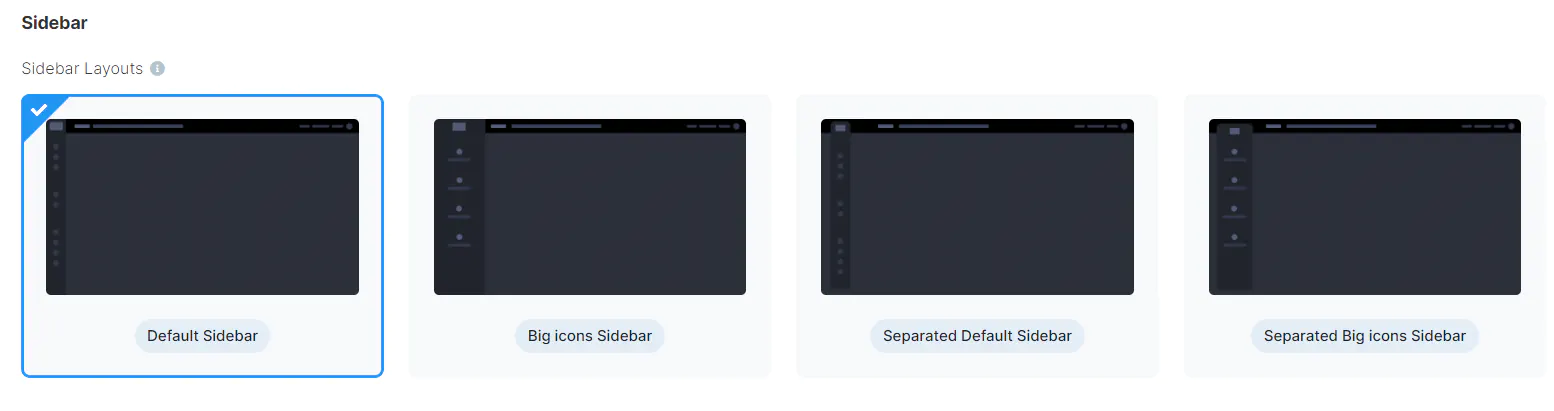
Easly change and customize your theme sidebar layout with the Shufytheme Layout Manager from 4 pre-made layouts
- Default Sidebar Use the default style Shufytheme sidebar
- Big icons sidebar Use the Big icons style Shufytheme sidebar
- Separated Default Sidebar Use the default separated style Shufytheme sidebar
- Separated Big icons Sidebar Use the Big icons separated style Shufytheme sidebar
2. Sidebar position
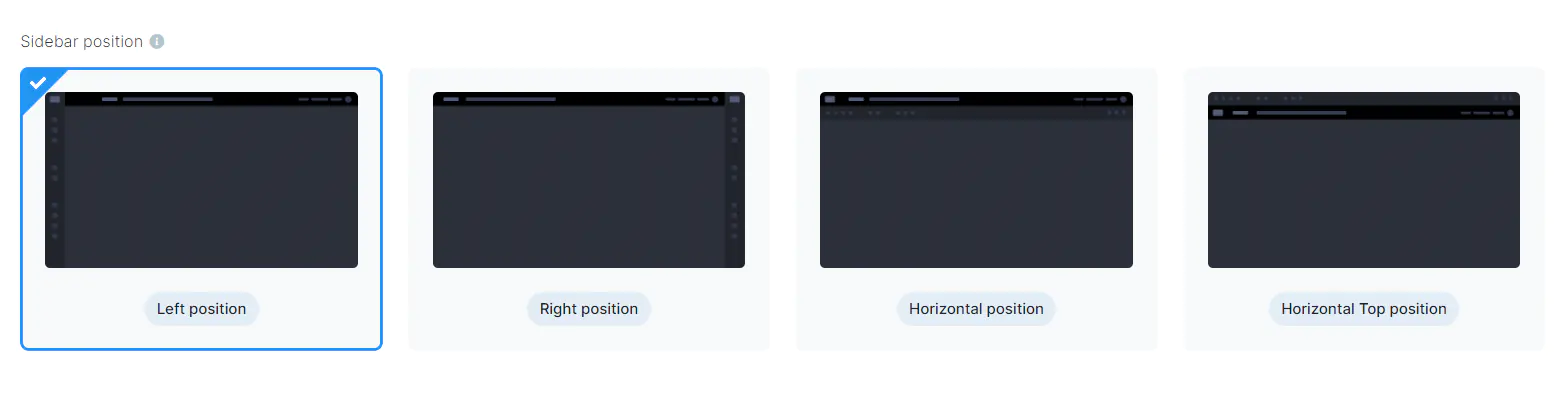
Easly change and customize your theme sidebar layout with the Shufytheme position Manager from 4 pre-made layouts
- Left position Use the left position Shufytheme sidebar
- right position Use the right position Shufytheme sidebar
- Horizontal position Use the horizontal position Shufytheme sidebar
- Horizontal top position Use the horizontal top position Shufytheme sidebar
3. Logo position
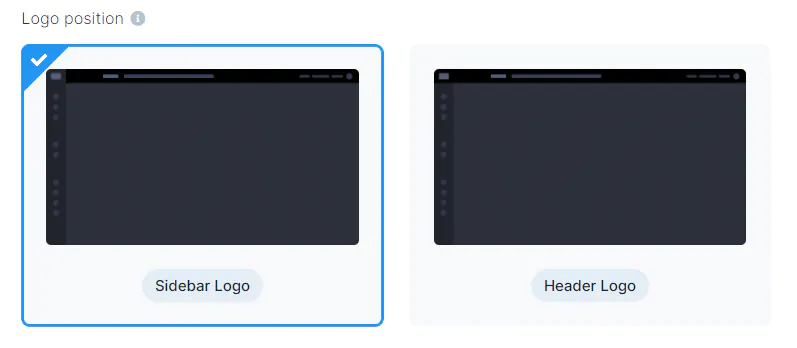
Easly change your theme logo position from the sidebar to the top header with the Shufytheme layouts Manager
- Sidebar Logo Add your logo to ShufyTheme sidebar
- Header Logo Add your logo to ShufyTheme Top header
Sidebar settings
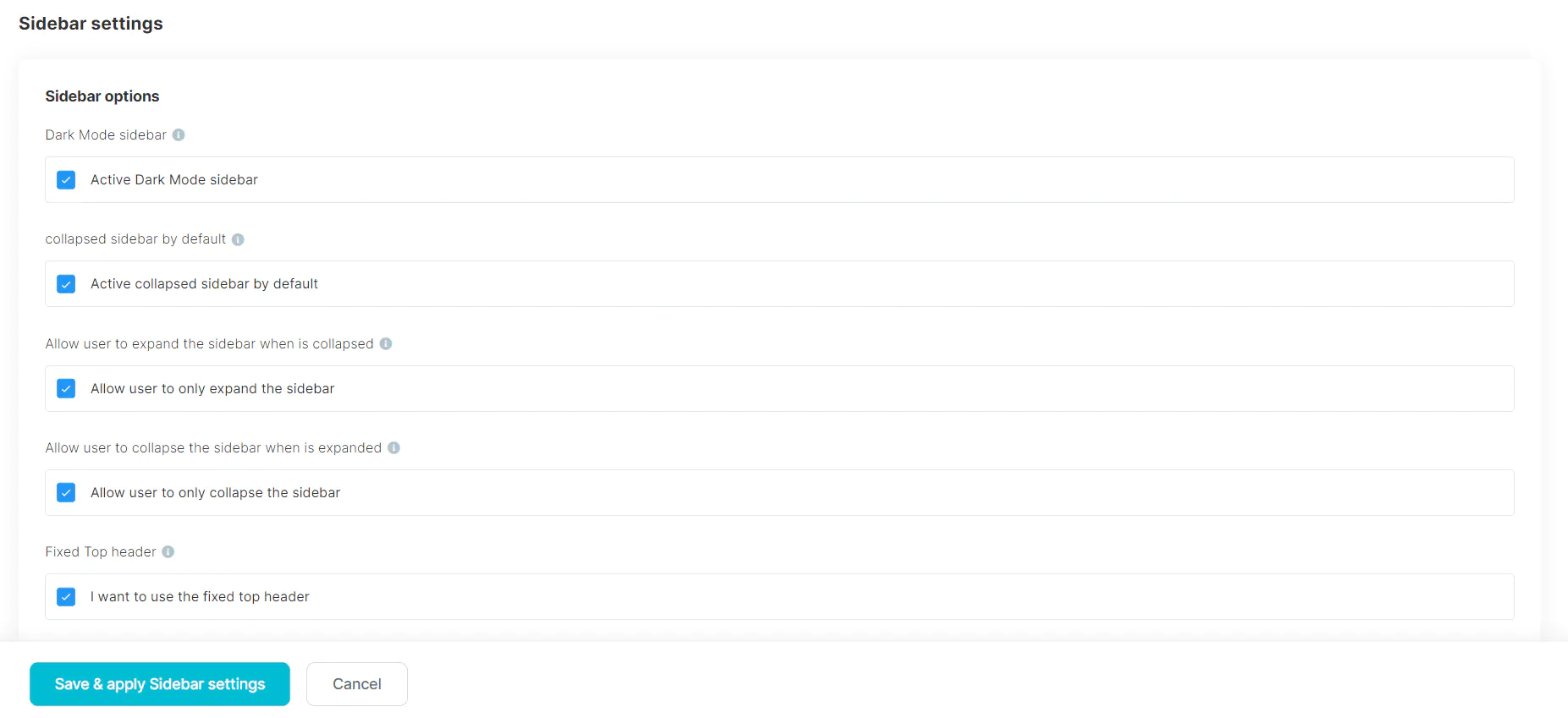
The Shufytheme Sidebar settings functionality grants you complete freedom to customize the header and sidebar behavior, including boxed width, expanding, fixed positions, hover effects, and more.
- Dark Mode sidebar with this option you can enable or disable the dark sidebar mode
- collapsed sidebar by default with this option you can collapsed the sidebar by default
- Allow user to expand the sidebar when is collapsed with this option you can enable or disable users to expand the sidebar
- Allow user to collapse the sidebar when is expanded with this option you can enable or disable users to collapse the sidebar
- Fixed Top header with this option you set fixed top header when scroll
- Fixed horizontal sidebar with this option you set fixed horizontal sidebar when scroll
- Fixed Secondary & cart menu with this option you set fixed Secondary & cart menu when scroll
- Enabe show sidebar on hover with this option you can enable or disable expending the sidebar on hover
- Enabe show sidebar child on hover with this option you can enable or disable opening the sidebar child when hover
- Enable top header full screen width with this option you can enable or disable boxed width for top header
- Enable horizontal sidebar full screen width with this option you can enable or disable boxed width for horizontal sidebar
Footer layout Manager
With the expansive capabilities of the Shufytheme options panel, you're presented with a selection of over 7 distinct footer layouts to choose from.
- 7 footer layouts Choose from 7 footer layouts to use on your theme
- Footer settings More footer settings like copyright, website logo, social icons ...etc
1. Footer Layouts
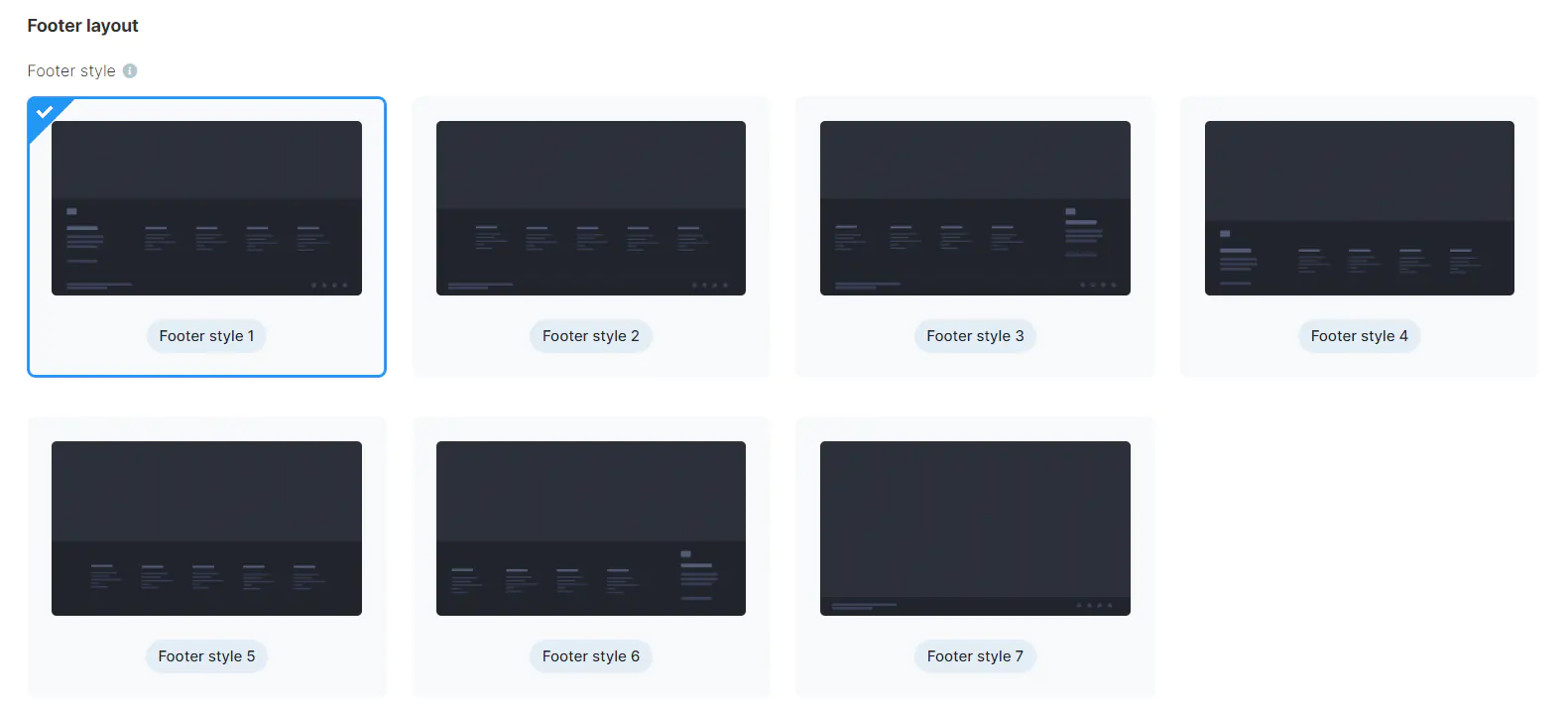
Choose from 7 footer layouts to establish the footer design that best suits your theme and brand.
- Footer layout 1 The footer layout 1 shows all of the footer features and elements
- Footer layout 2 The footer layout 2 removes the footer side elements like logo and description
- Footer layout 3 The footer layout 3 shows all of the footer features and elements with footer side on the right
- Footer layout 4 The footer layout 4 removes the footer bottom bar
- Footer layout 5 The footer layout 5 remove both of the bottom bar and footer side informations
- Footer layout 6 The footer layout 6 shows all of the footer features and elements with footer side on the right and removes the footer bottom bar
- Footer layout 7 The footer layout 7 show only the footer bottom bar
2. Footer settings
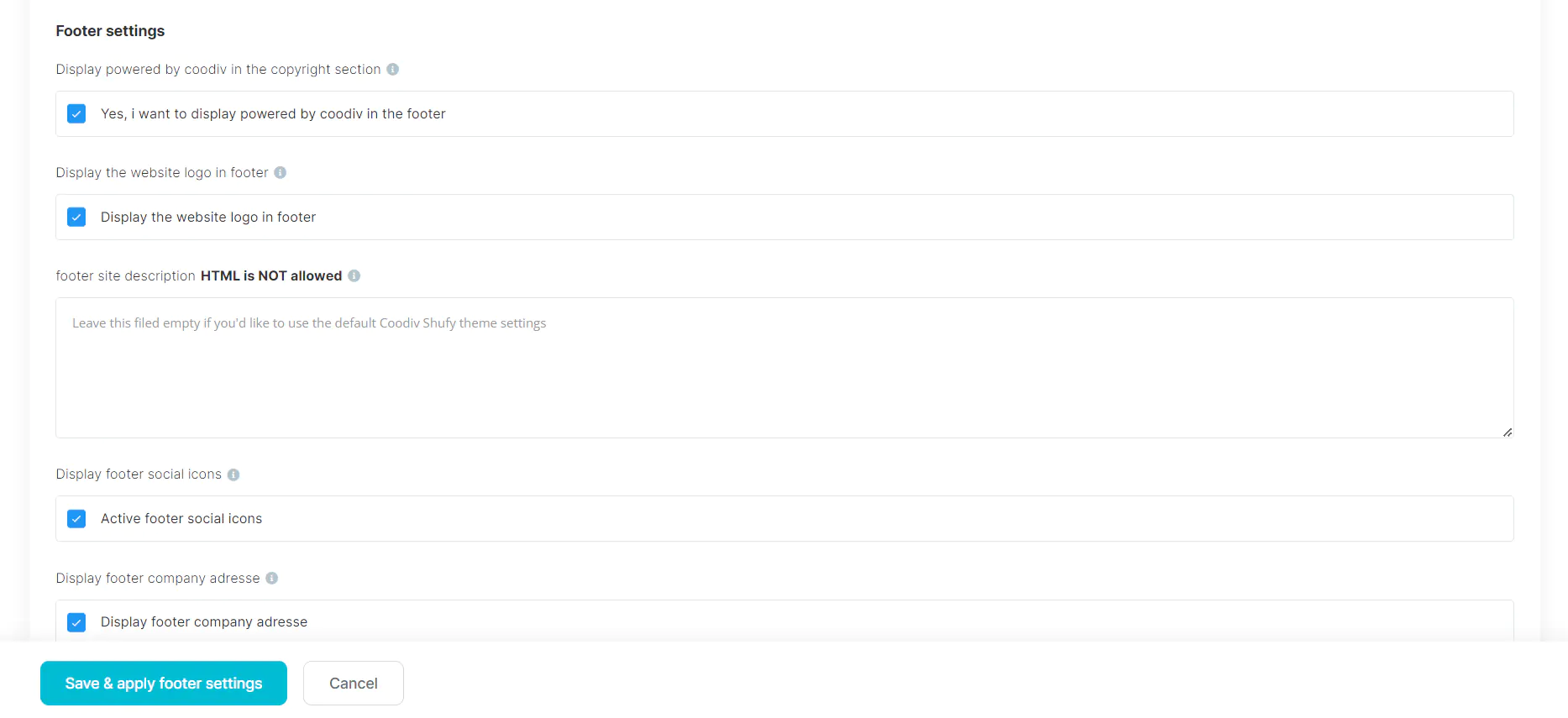
Within the Shufytheme settings, you'll find a plethora of options to customize your footer to perfection. Navigate to the Footer Settings section, where you'll discover a treasure trove of options waiting to be tailored to your specific needs.
- Copyright Display powered by coodiv in the copyright section
- Website Logo Display the website logo in footer
- Description footer site description
- Social Icons Display footer social icons
- Company Adress Display footer company adresse
- Company Mobile Phone Display footer company mobile phone
- Company Email Display footer company email
- Custom Mobile number Custom Footer support mobile number
- Custom Email Custom Footer support email
- Company Adress Custom company adress
Homepage settings
The Shufytheme Homepage Settings offer a comprehensive suite of tools to tailor your website's front page to your precise specifications. Within this intuitive interface, you can effortlessly configure various elements to create a captivating and user-friendly homepage. From layout options to content customization, the Homepage Settings empower you to craft a dynamic and engaging entry point for your visitors.
- Homepage layouts We are working on new layouts for shufytheme and should be ready soon
- Homepage sections You have the ability to edit and customize all the content, links, colors, and more within each section of the homepage.
- Homepage featured services settings
- Homepage featured plans settings
- Homepage features boxes
- Homepage Saving banner & subscribing
- MailChimp options Set up your MailChimp mailing list subscription directly from the Shufytheme control panel.
1. Homepage layouts
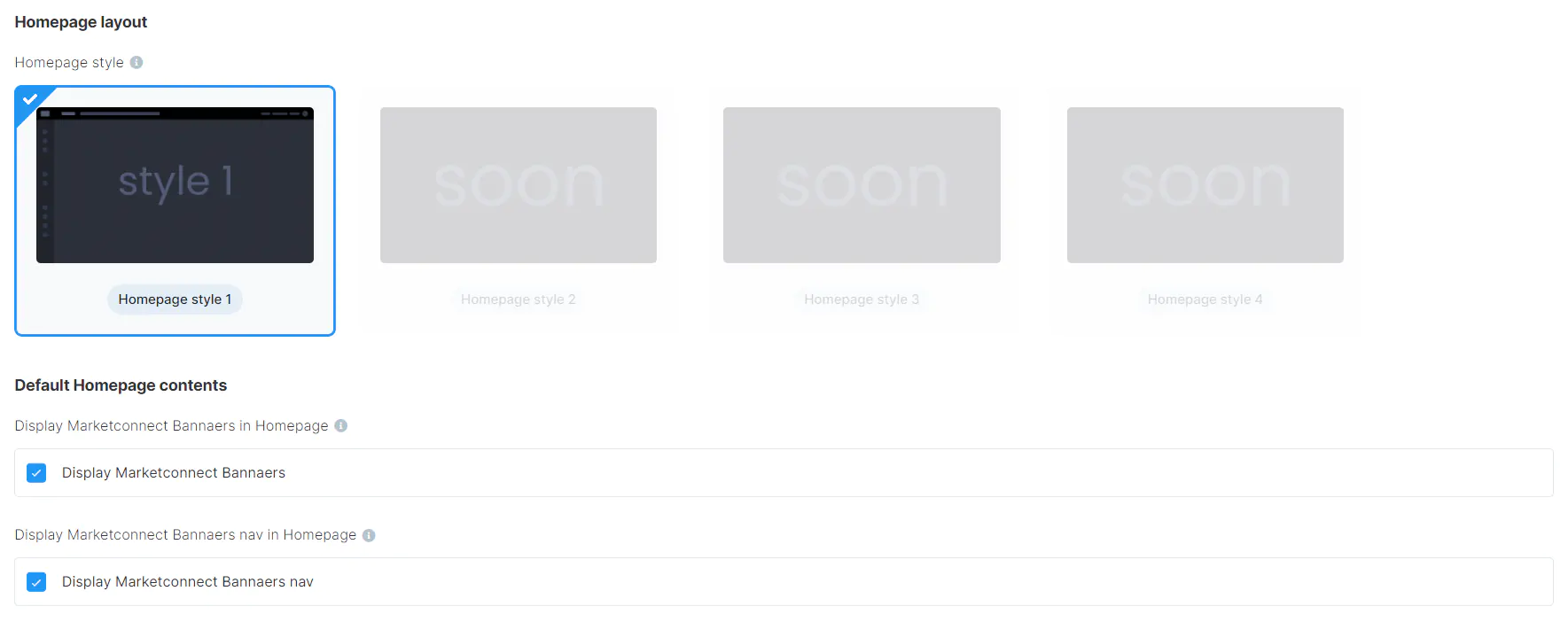
You can select the homepage layouts and customize which sections you want to display or remove using the Homepage Layouts settings.
- Marketconnect Bannaers Display Marketconnect Bannaers in Homepage
- Marketconnect Bannaers nav Display Marketconnect Bannaers nav in Homepage
- Announcements Display Announcements in the Homepage
2. Homepage featured services settings
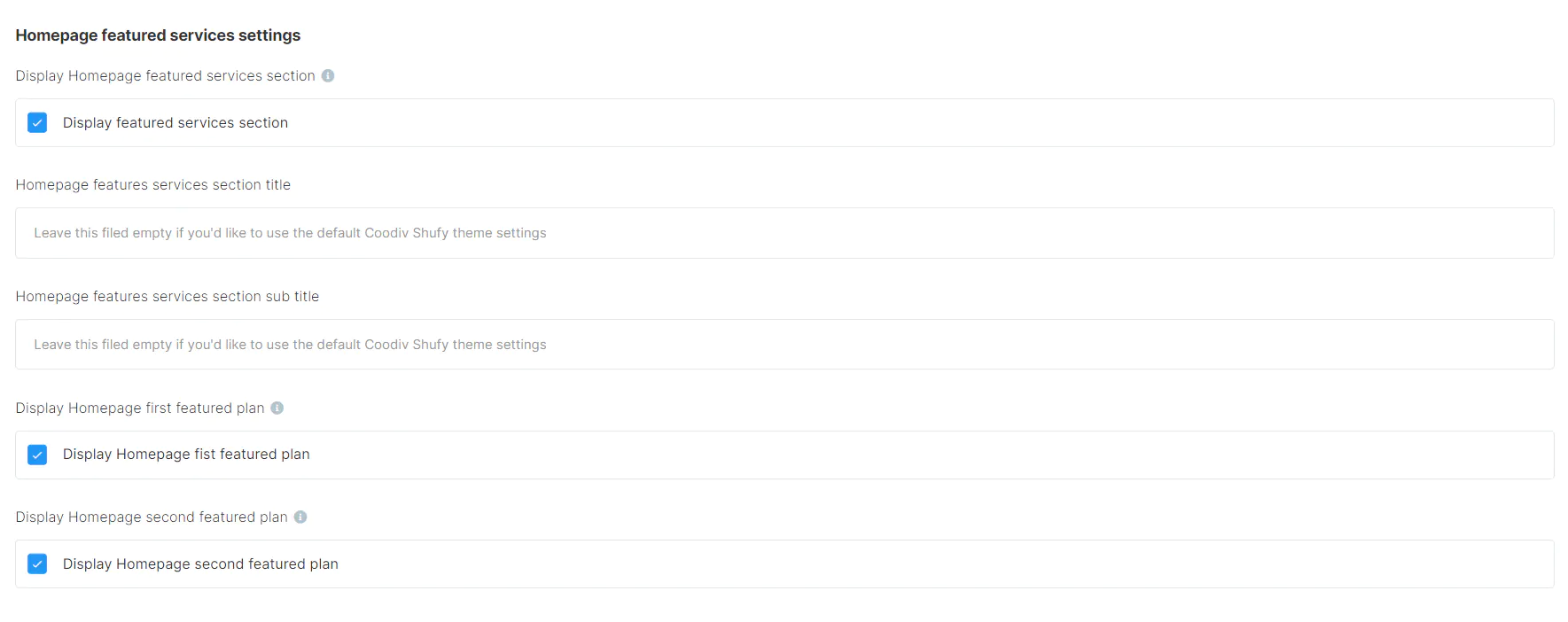
In this section, you'll discover an array of settings dedicated to configuring the Featured Services section of your website. From titles and subtitles to pricing links and beyond, you have the ability to fine-tune various aspects to align with your branding and messaging. Whether you're highlighting key offerings, showcasing product features, or promoting services, these settings empower you to create a compelling and informative section that resonates with your audience.
3. Homepage featured plans settings
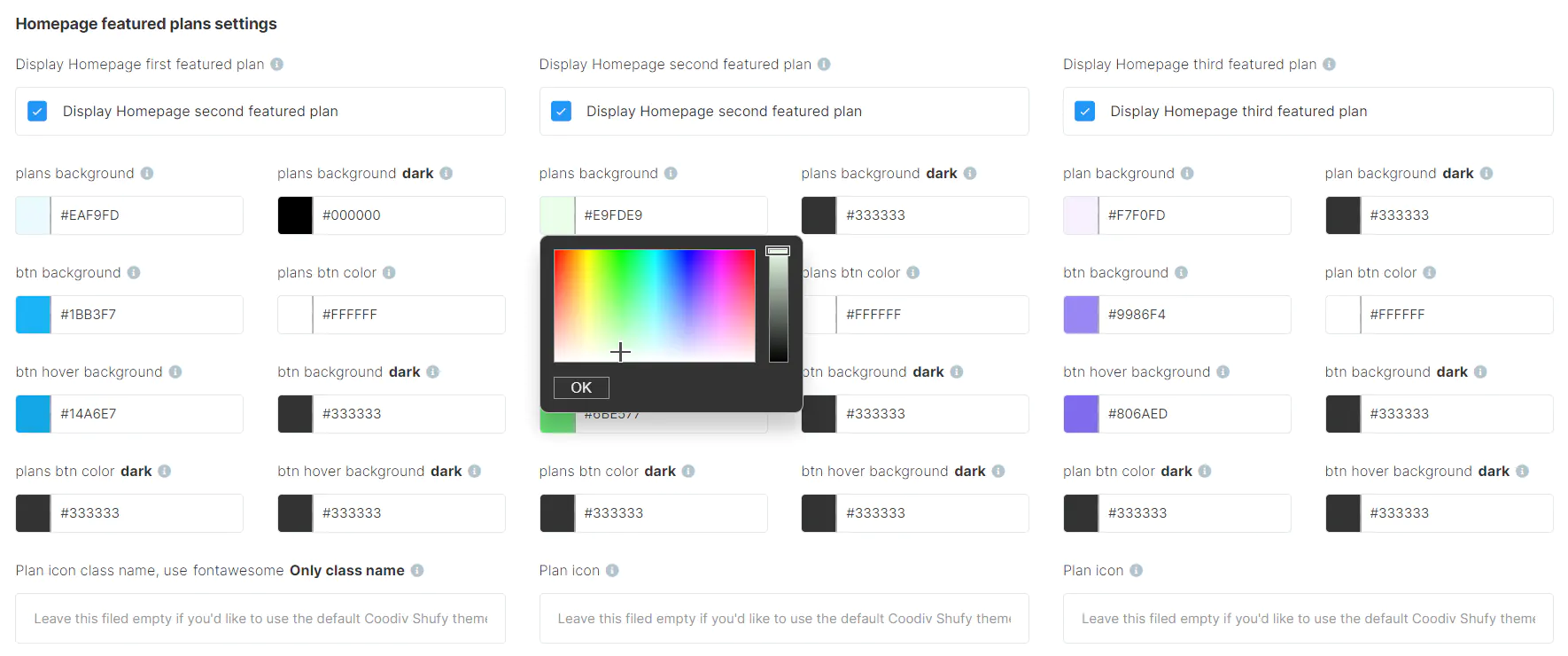
Within this section, you'll find a comprehensive array of customization options tailored specifically for the Homepage Featured Plans section. From adjusting titles and subtitles to fine-tuning colors, links, and pricing details, you have full control over every aspect of this prominent section. Whether you're showcasing subscription tiers, service packages, or product offerings, these customizable settings enable you to create an impactful and visually appealing display that effectively communicates your value proposition to your audience.
4. Homepage features boxes
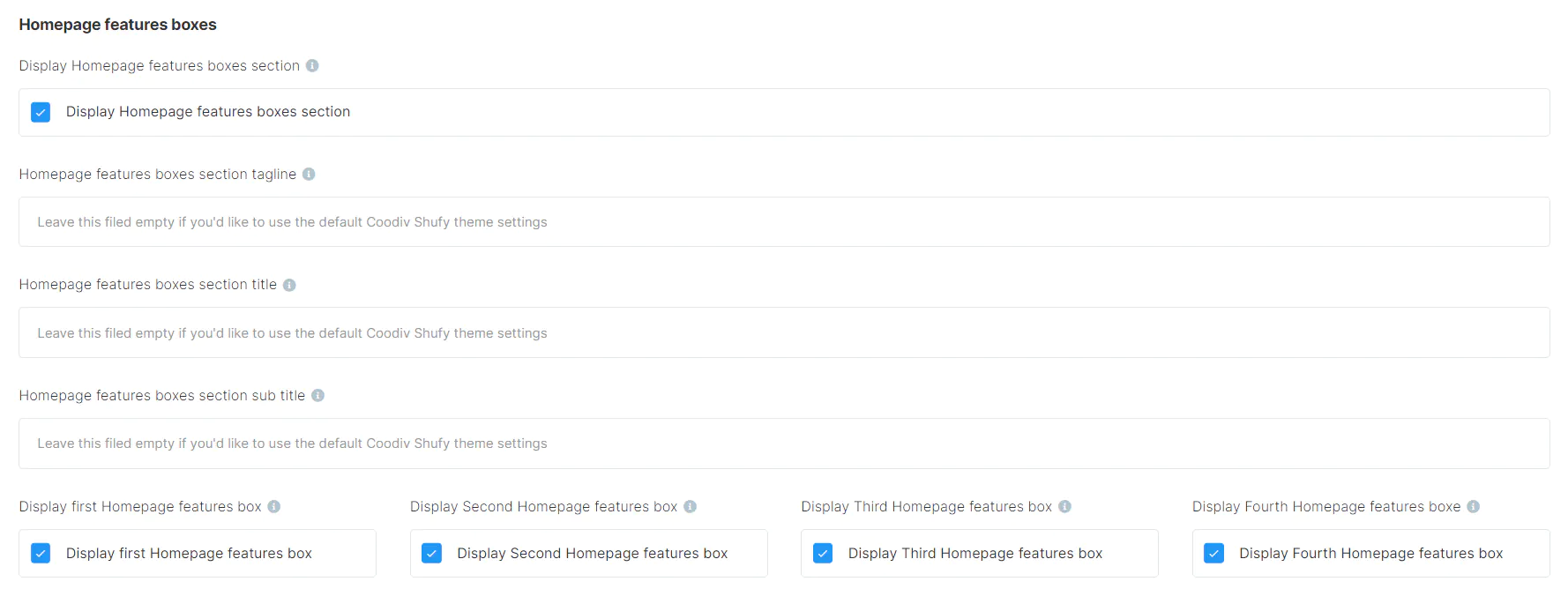
Within this interface, you have the capability to edit and personalize the Homepage Features Boxes section according to your preferences. This includes the ability to incorporate your own icons, titles, descriptions, and URLs, providing a tailored and informative showcase of key features or services offered on your website. Whether you're highlighting product features, service offerings, or key benefits, these customizable options empower you to craft a visually engaging and informative section that resonates with your audience.
5. Homepage Saving banner & subscribing
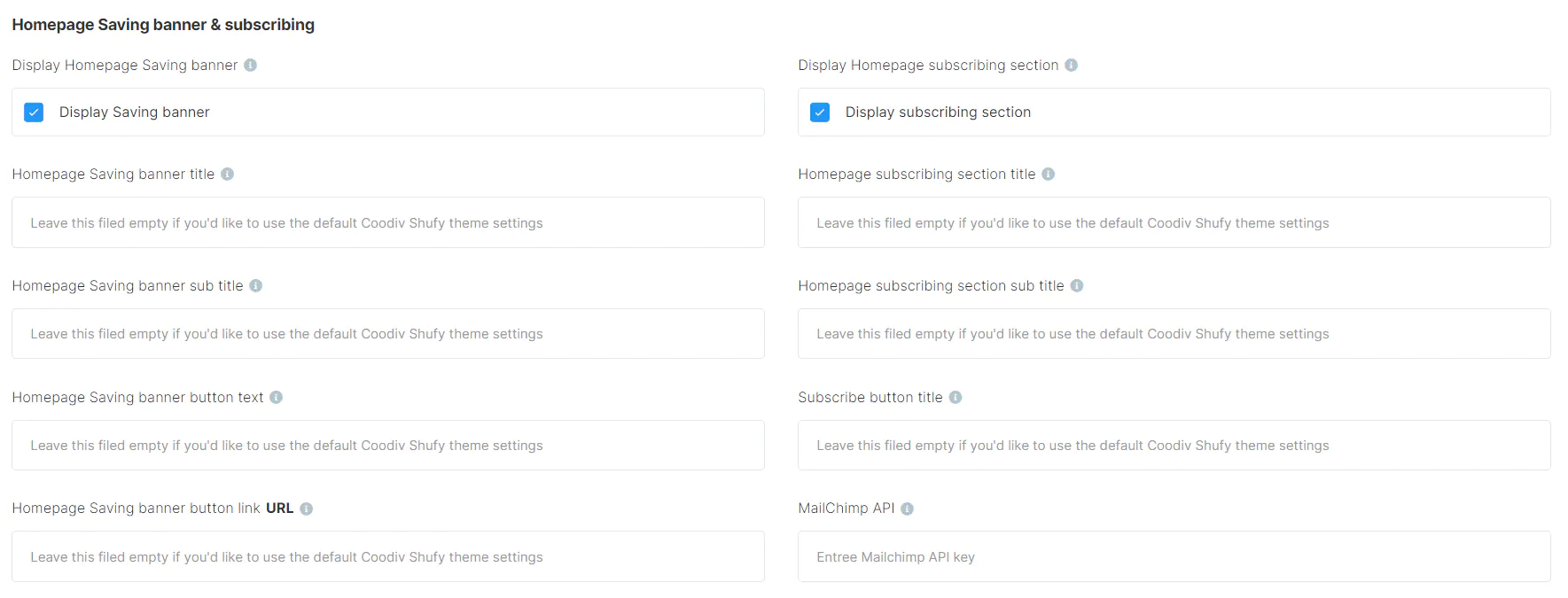
In this section, you have the opportunity to personalize the Homepage Saving banner & subscribing section to align with your branding and messaging. You can add custom links and text to the banner, tailoring it to promote specific offers or highlight key messages. Additionally, you can integrate your Mailchimp information to enable visitors to subscribe to your mailing list directly from this section, facilitating seamless engagement and communication with your audience. Whether you're promoting discounts, announcing special offers, or encouraging newsletter sign-ups, these customization options empower you to create a compelling and interactive section that drives user engagement and conversion.
6. Setup your Mailchimp subscription list
- MailChimp API key To find your API, follow these steps.
- Click your profile name to expand the Account Panel and choose Account Settings
- Click the Extras menu and choose API keys.
- MailChimp unique audience ID To find your audience ID, follow these steps.
- Click Audience
- Click All contacts
- If you have more than one audience, click the Current audience drop-down and choose the one you want to work with.
- Click the Settings drop-down and choose Audience name and defaults.
- In the Audience ID section, you’ll see a string of letters and numbers. This is your audience ID.
- Mailchimp account data center you will find the data center in you api key, your-api-key-
usX
Menu manager
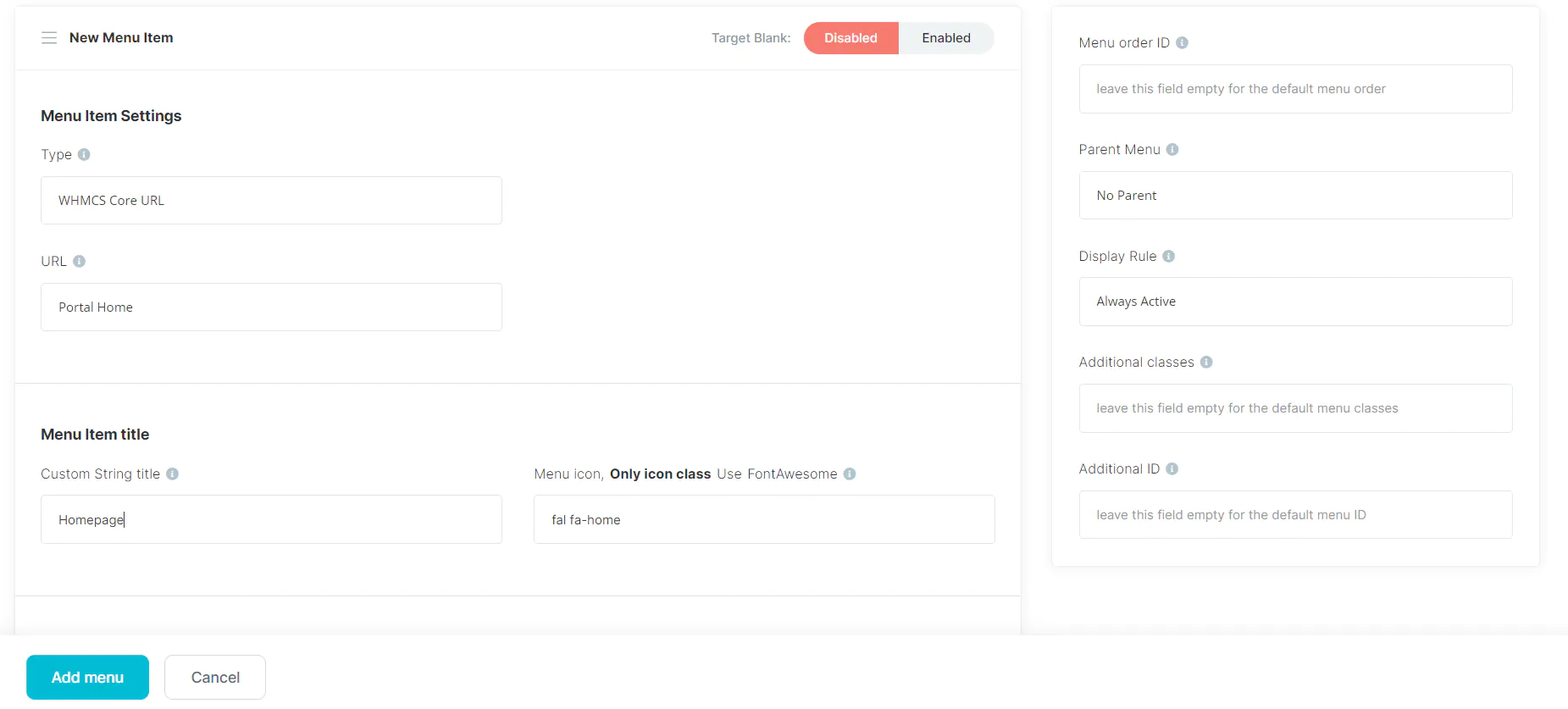
With the Shufytheme Menu manager, the process of creating or editing menus for your WHMCS no longer requires complex WHMCS hooks. This intuitive tool offers convenient options to establish and customize your theme's primary and footer navigation effortlessly. Whether you're adding new menu items, rearranging existing ones, or adjusting navigation settings, ShufyTheme manager streamlines the entire process, empowering you to create a seamless and user-friendly navigation experience for your website visitors.
- Primary Menu You can easly create and edit Primary menus
- Footer Menu You can easly create and edit footer menus.
- Expoloring Menu Features Shufytheme Menu manager has many features included.
- Target Blank option
- WHMCS core url or custom url
- Custom String title
- Menu icon
- Menu Item title translation
- Dynamic fileds
- Total Products/Services
- Active Products/Services
- Total Domains
- Active Domains
- Due Invoices
- Overdue Invoices
- Active Tickets
- Shopping Cart Items
- Menu order ID
- Parent Menu
- Display Rule
- Additional classes
- Additional ID
1. How to create primary or footer Menu
Within the menu management feature of Shufytheme, you are granted the seamless capability to not only create but also edit Primary menus with utmost ease and flexibility. This intuitive tool empowers you with a user-friendly interface and a plethora of customization options, allowing you to craft your website's primary navigation exactly as you envision it. Whether you're adding new menu items, rearranging their order, adjusting their styling, or fine-tuning their functionality, the Shufytheme Menu Manager simplifies the entire process, enabling you to create a coherent and user-friendly navigation experience for your website visitors. With Shufytheme, menu customization becomes a breeze, ensuring that your website's navigation aligns perfectly with your branding and enhances the overall user experience.
- Open shufytheme control panel ---> menu manager tab ---> and click on create
New group
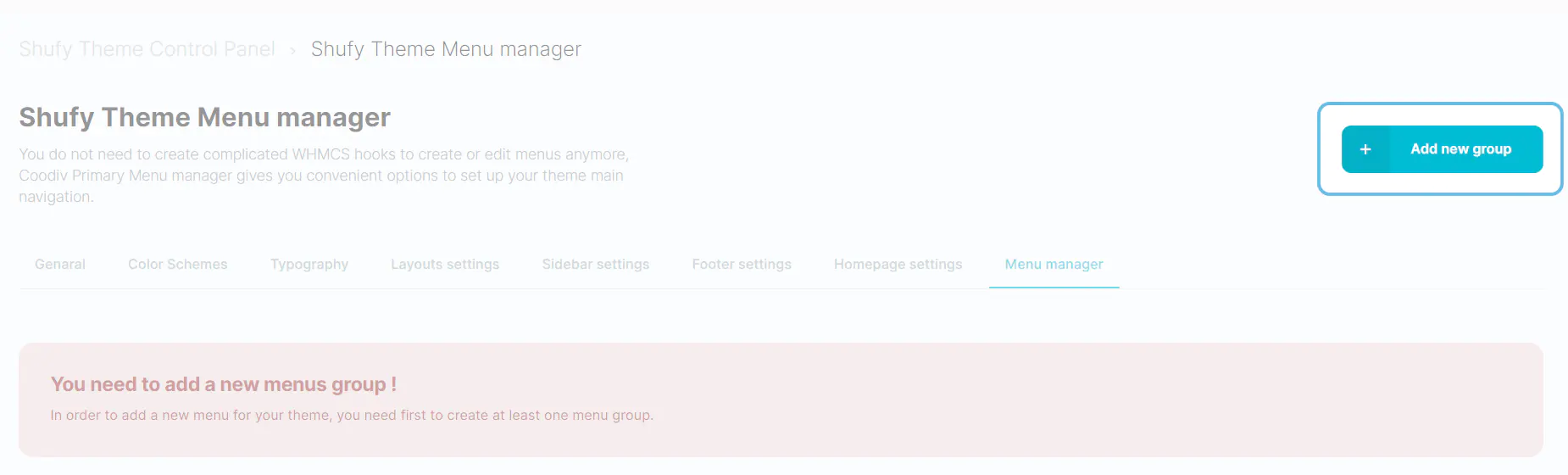
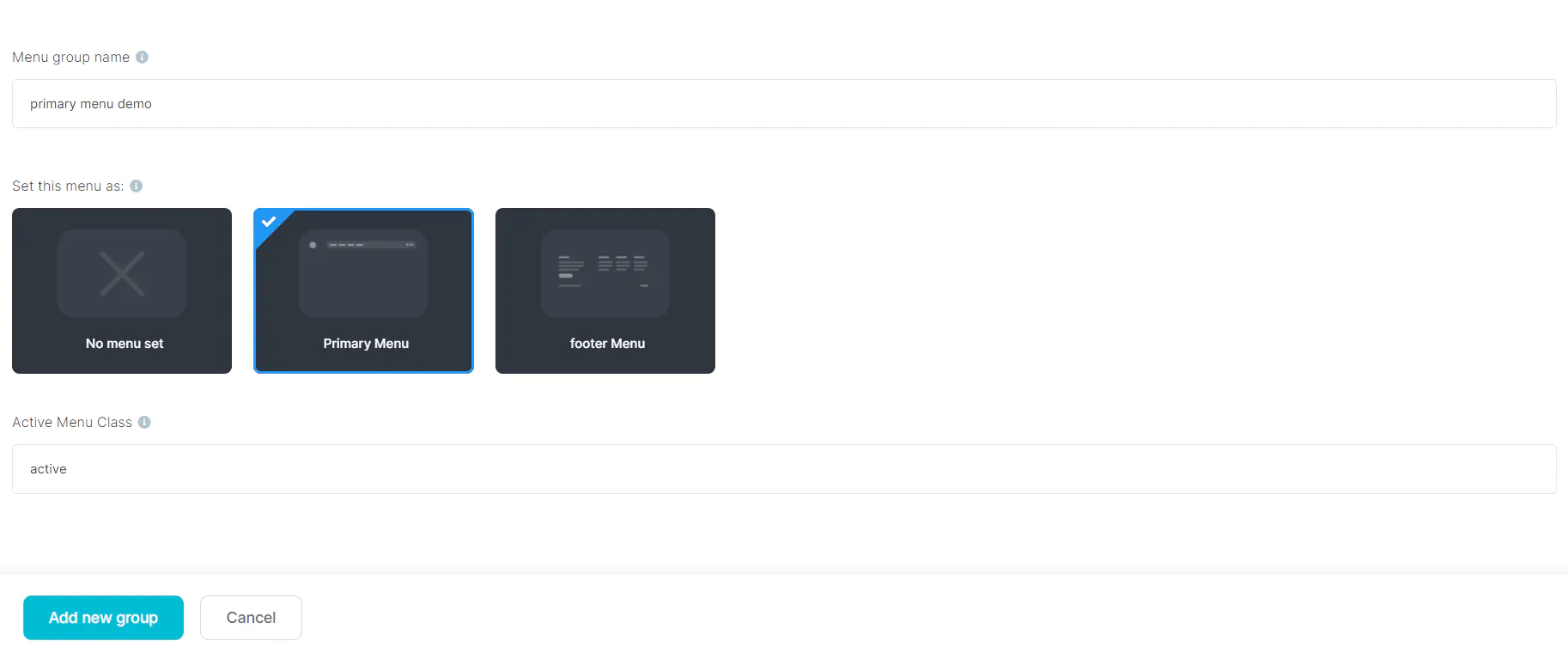
- Give a name for menu group and set this menu as
Primary MenuorFooter menuand click onAdd new group
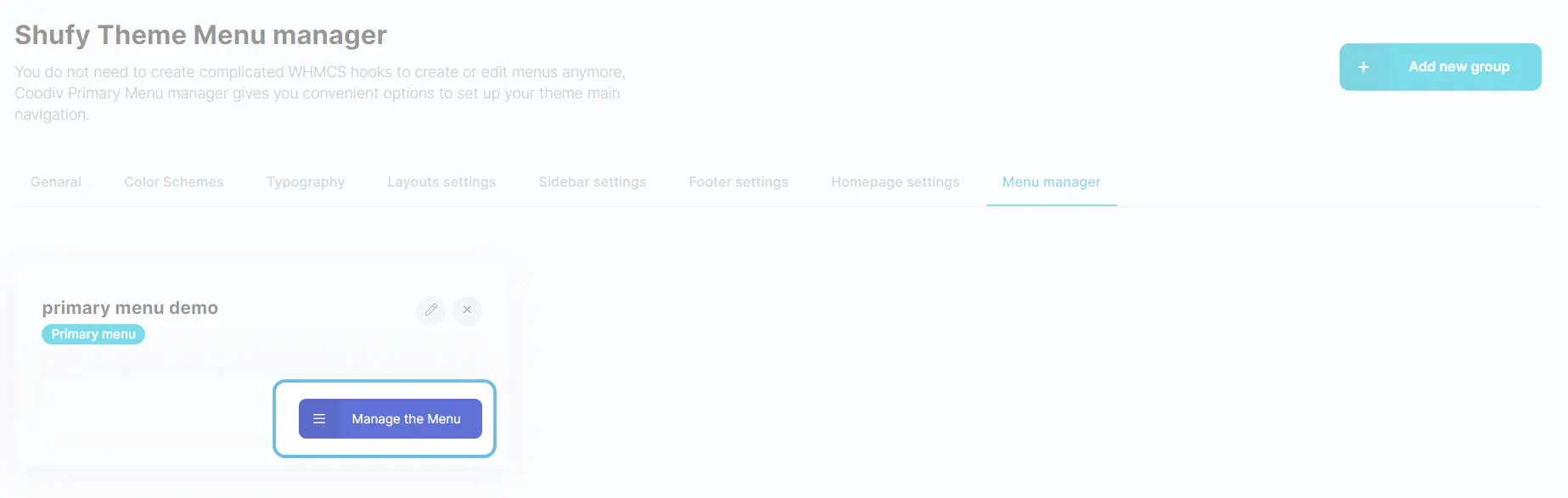
- After creating the menu group, click on
Manage the Menubutton
- Here you can start creating menus items to the group by clicking on
Add new itembutton
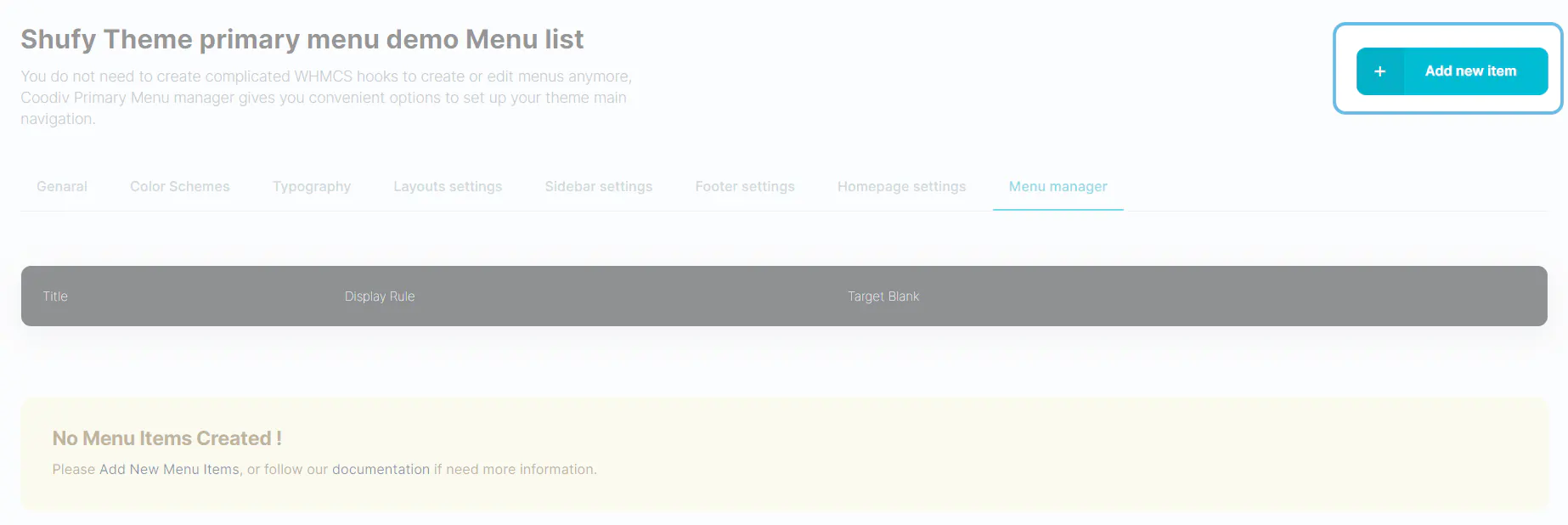
- You can fill in information for your menu item, such as title, icon, link, etc. You can read more about menu item features here
2. Creating footer menu
Within the menu management feature of Shufytheme, you can easily customize your footer layouts and menu links without any coding knowledge, thanks to the easy-to-use control panel.
- Open shufytheme control panel ---> menu manager tab ---> and click on create
New group
- Give a name for menu group and set this menu as
Footer menuand click onAdd new group
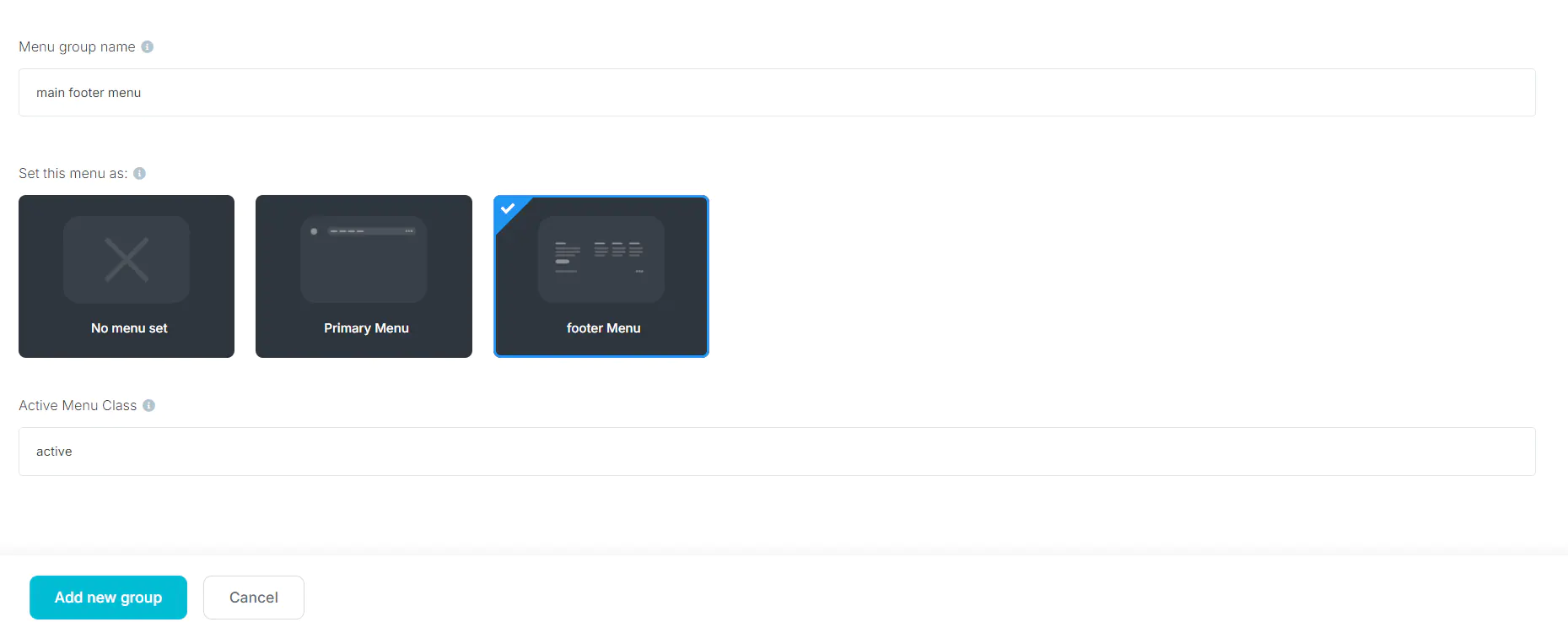
- After creating the footer menu group, click on
Manage the Menubutton
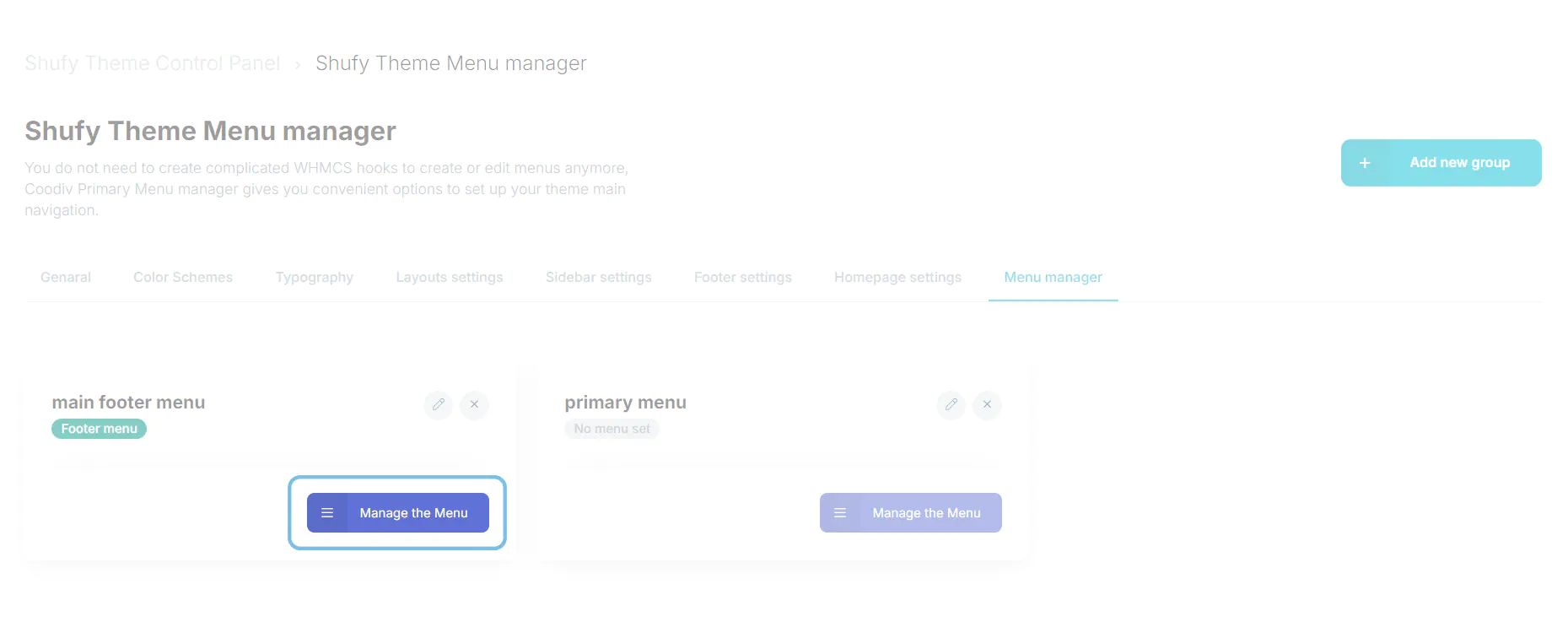
- Here you can start creating menus items to the group by clicking on
Add new itembutton
- Here, we need to create a menu title. The menu title must not have any parent, and you can still use the other menu features.
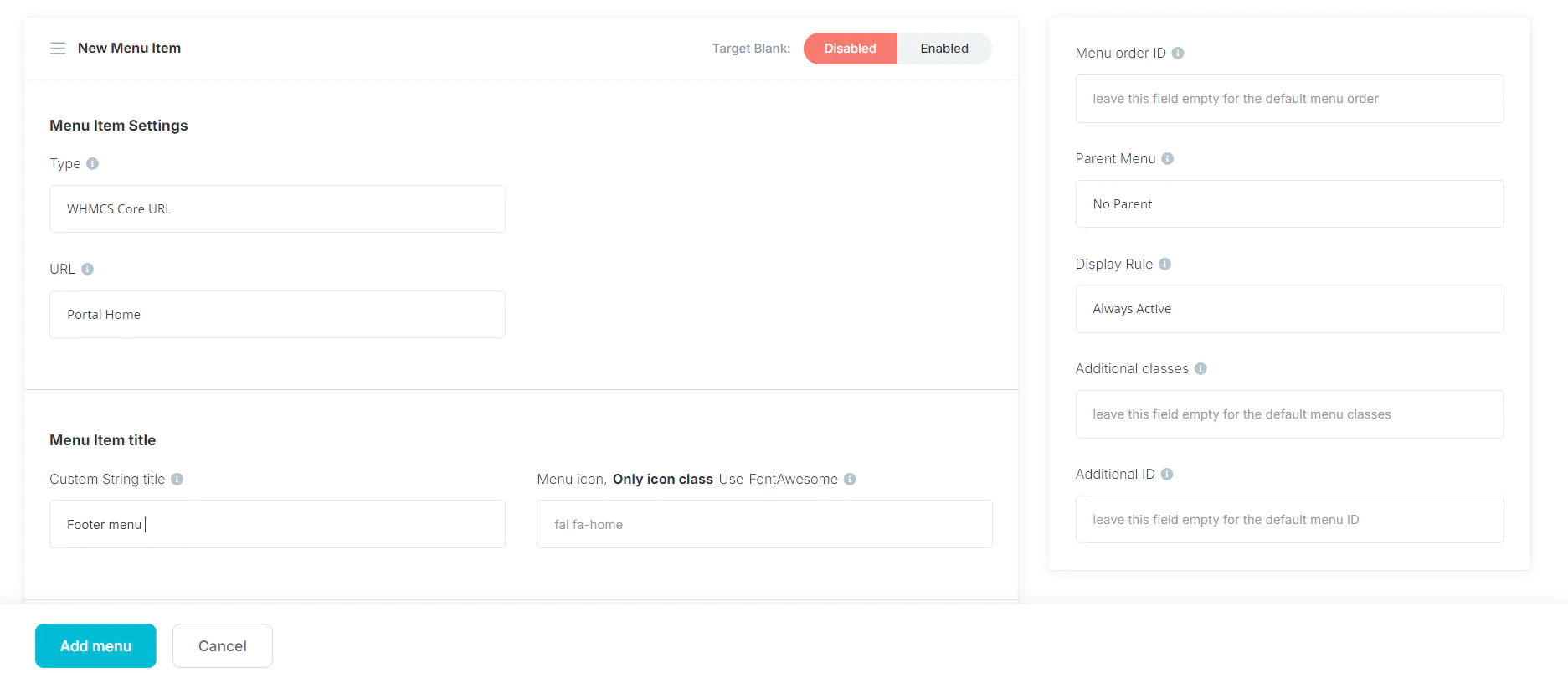
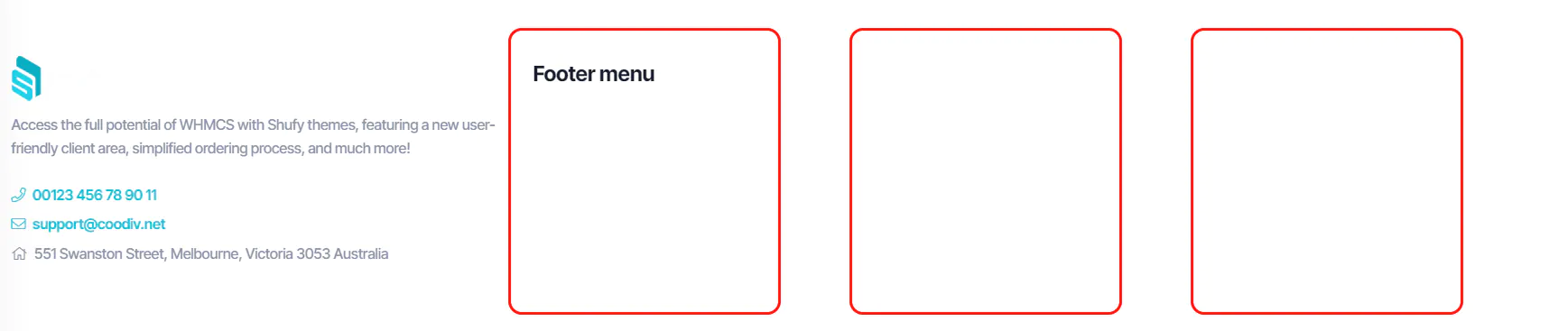
The menu title that we create represents a column in the footer, and the child items of that menu are what we will create in the next steps.
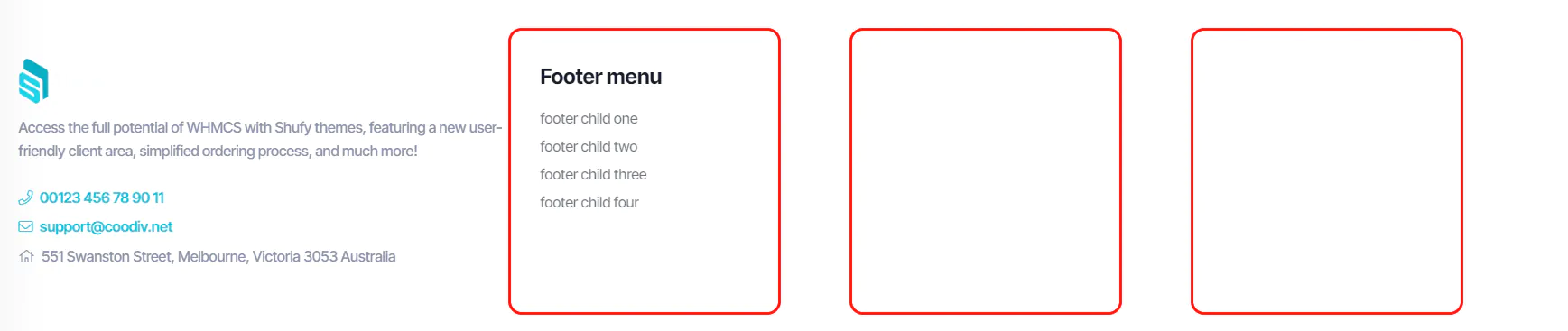
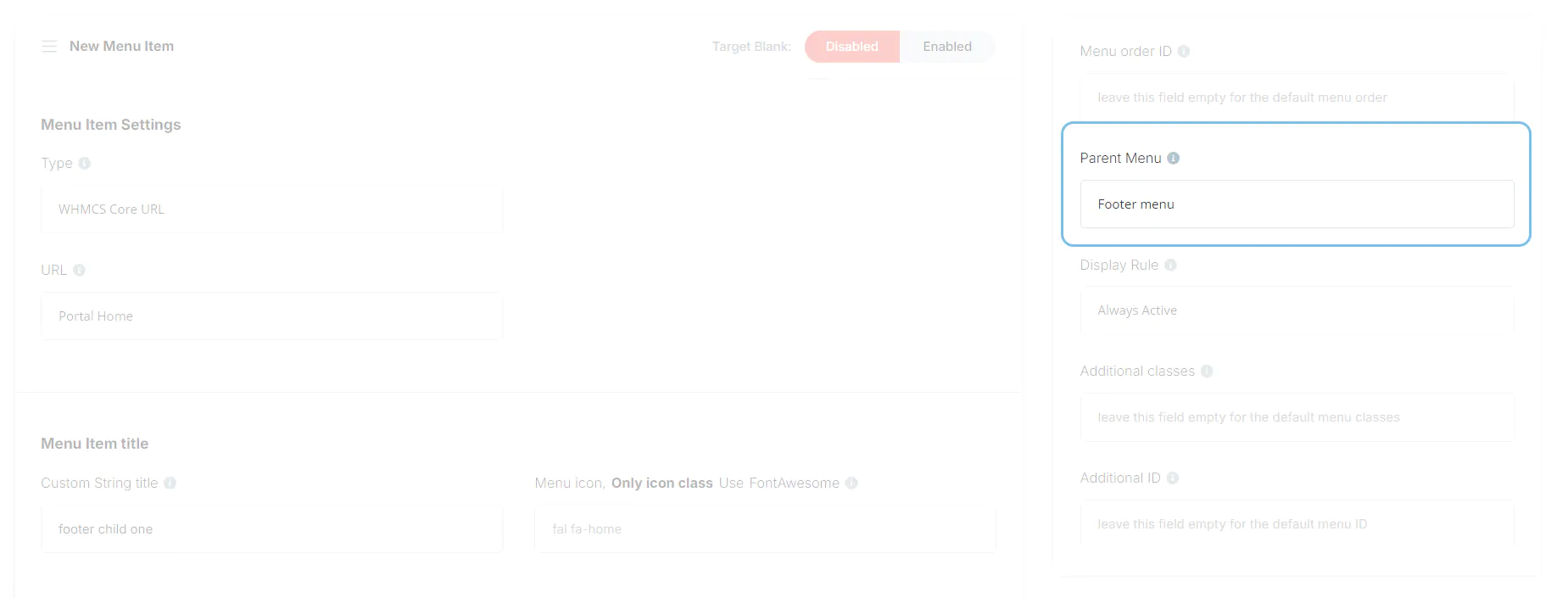
- Now, we will start creating child items for the title we created in the previous step. Don’t forget to assign the parent from the right-side panel.
The child menu we create will display under the parent title, as shown in the screenshot.
Shufytheme control panel import, export and reset to default
The "Shufytheme Control Panel" function within this WHMCS addon offers comprehensive management capabilities for theme configurations. With this tool, users can effortlessly import, export, and reset theme settings to default values, streamlining the customization process.
With these features, you can efficiently tailor your theme experience to meet their specific needs and preferences.
1. Import settings
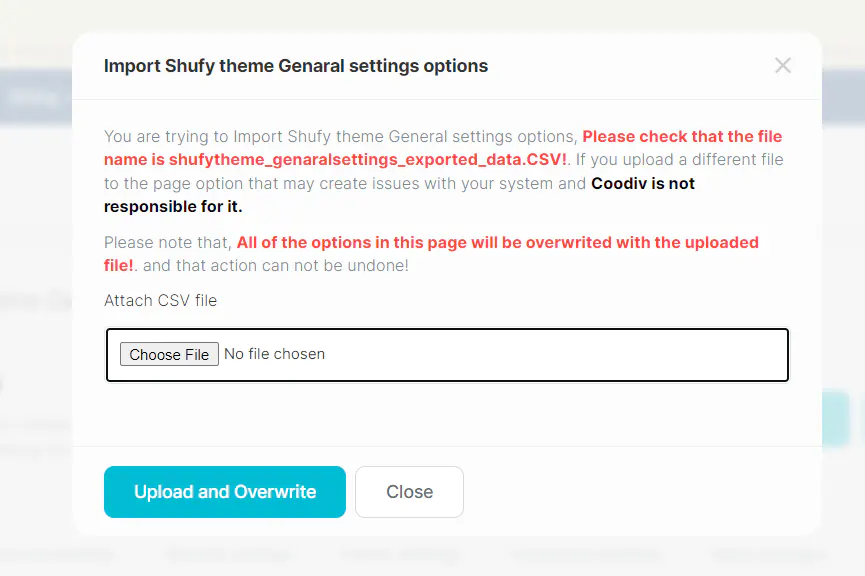
Seamlessly import pre-configured theme settings, simplifying setup and ensuring consistency across platforms.
2. Export settings
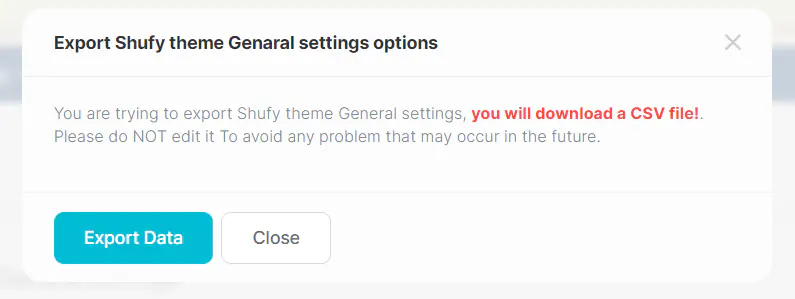
Easily export current theme configurations for backup or transfer purposes, providing peace of mind and flexibility.
3. Reset to Default
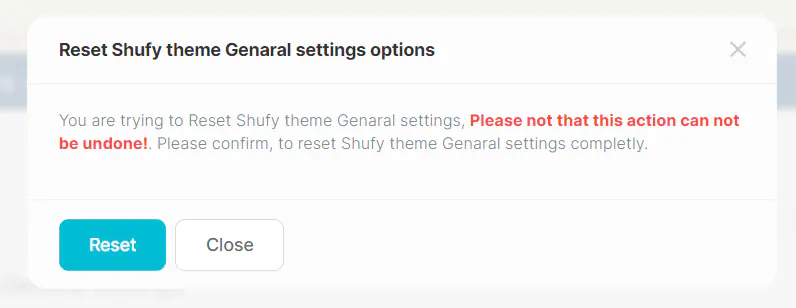
Instantly revert theme settings to their default state, offering a convenient option for troubleshooting or starting anew.
Shufytheme default product description
You can use HTML in your product descriptions, which we utilized to create the best pricing plans for WHMCS. This allows you to use icons, adjust font weight, font sizes, and more.
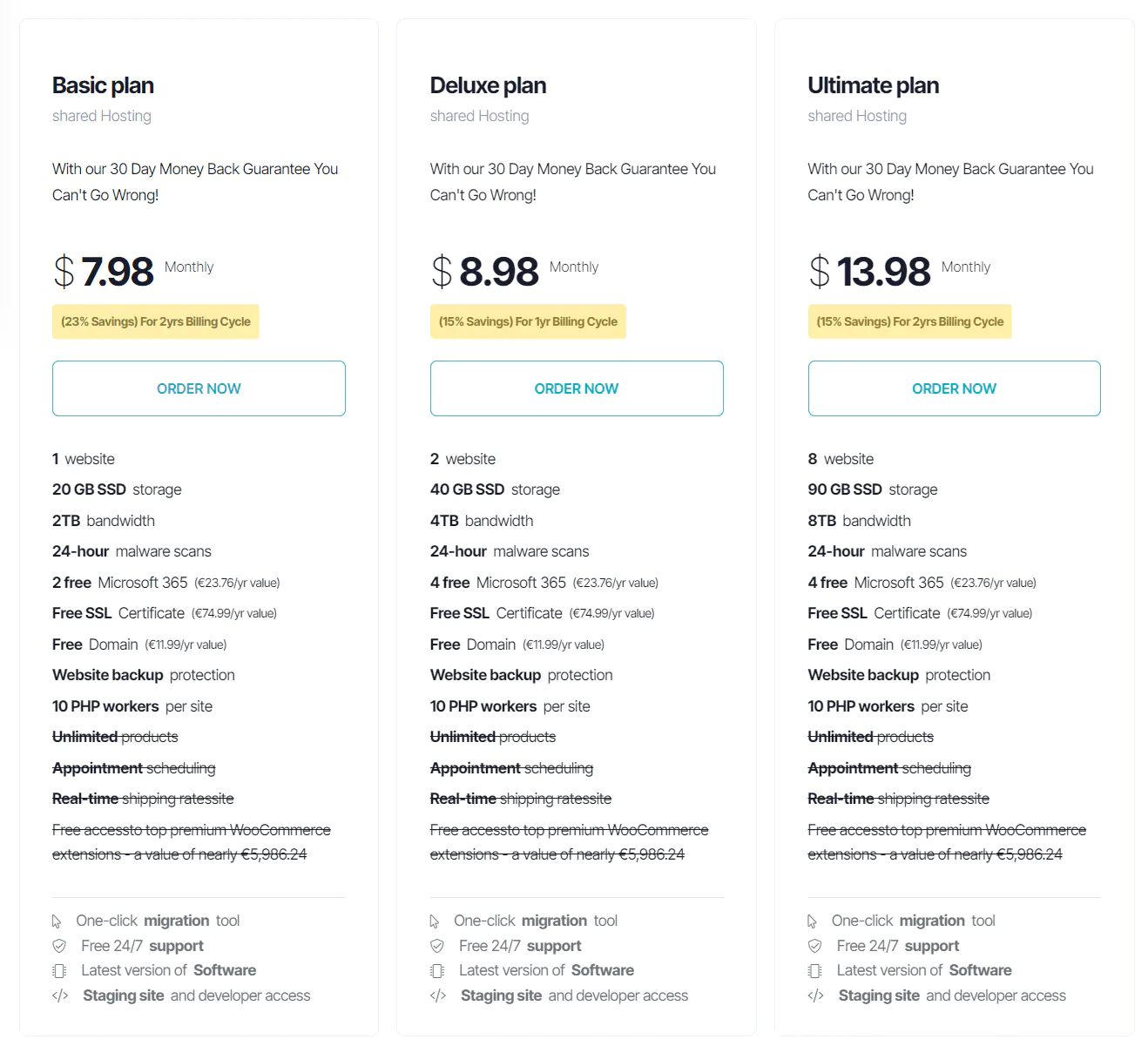
To use that, you need to copy this code to your product description, edit the values without adding any spaces or empty lines between elements
			<ul>
			<li><b>1</b> website</li>
			<li><b>20 GB SSD</b> storage</li>
			<li><b>2TB</b> bandwidth</li>
			<li><b>24-hour</b> malware scans</li>
			<li><b>2 free</b> Microsoft 365 <small>(€23.76/yr value)</small></li>
			<li><b>Free SSL</b> Certificate <small>(€74.99/yr value)</small></li>
			<li><b>Free</b> Domain <small>(€11.99/yr value)</small></li>
			<li><b>Website backup</b> protection</li>
			<li><b>10 PHP workers</b> per site</li>
			<li><s><b>Unlimited</b> products</s></li>
			<li><s><b>Appointment</b> scheduling</s></li>
			<li><s><b>Real-time</b> shipping rates</s></li>
			<li><s>Free access to top premium WooCommerce extensions - a value of nearly €5,986.24</s></li>
			<li class="coodiv-text-12 mb-0 mt-8 pt-4 border-top pb-0 text-muted">
				<i class="coodiv-text-12 mr-3 fal fa-mouse-pointer"></i> One-click <b>migration</b> tool
			</li>
			<li class="coodiv-text-12 mb-0 py-0 text-muted">
				<i class="coodiv-text-12 mr-3 fal fa-shield-check"></i> Free 24/7 <b>support</b>
			</li>
			<li class="coodiv-text-12 mb-0 py-0 text-muted">
				<i class="coodiv-text-12 mr-3 fal fa-microchip"></i> Latest version of <b>Software</b>
			</li>
			<li class="coodiv-text-12 mb-0 py-0 text-muted">
				<i class="coodiv-text-12 mr-3 fal fa-code"></i> <b>Staging site</b> and developer access
			</li>
			</ul>
Customizing the register and transfer domains front-end element.
In domain register and transfer pages, we used a front elements and in this version you need to edit them manually like editing any HTML file
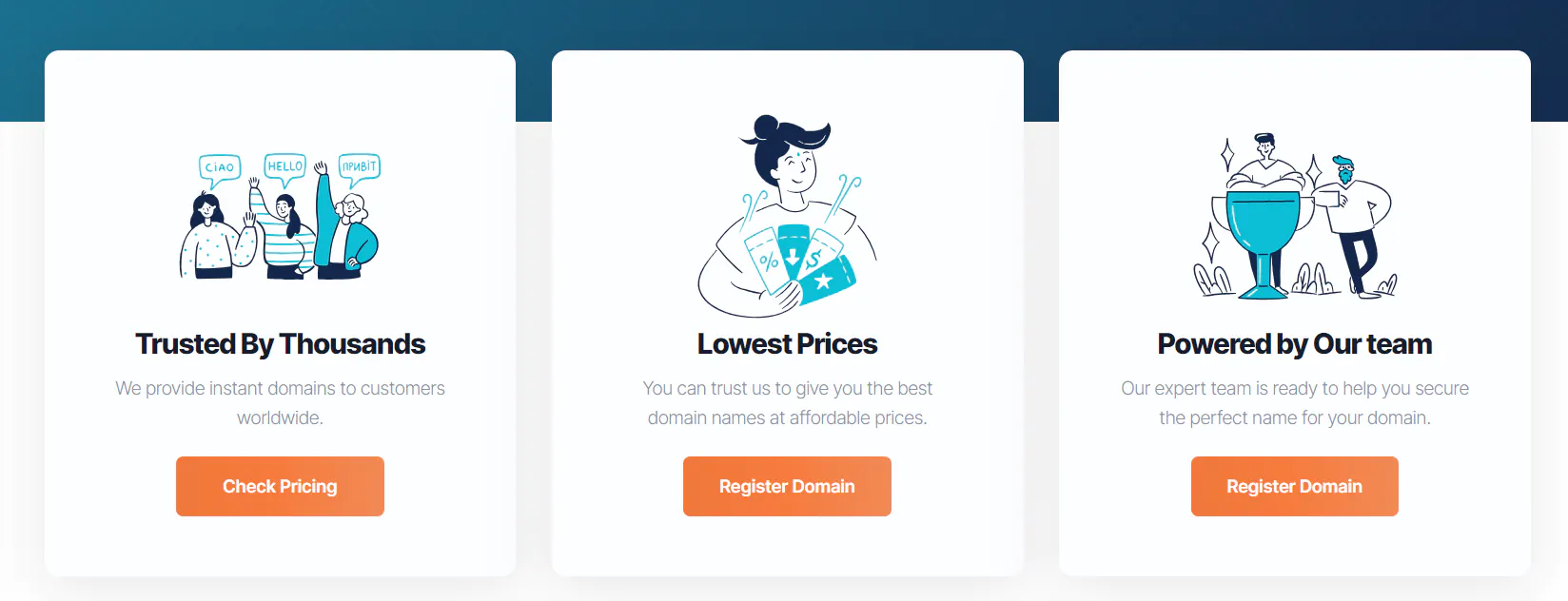
In order to edit these section you need to open:
templates/orderforms/shyfytheme_cart/parts/domain-register-front.tpl: this file for the domain register page front elementstemplates/orderforms/shyfytheme_cart/parts/domain-transfer-front.tpl: this file for the domain transfer page front elements
Add custom icons to Configurable options
Shufytheme 1.2.6 introduces a new and exclusive feature for configurable options, you can now assign your own icon to each radio option as the following screenshot.
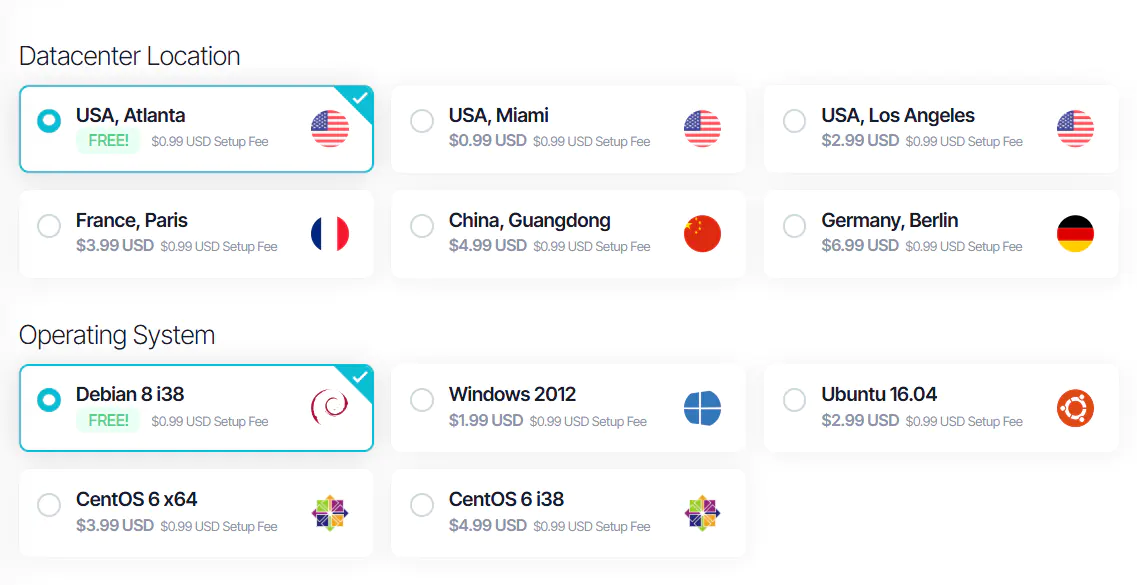
To use this feature, you must update your theme to at least version 1.2.6, then follow these steps.
- Start the Process
Go to your website store and begin ordering the service that includes configurable options. When you're in the cart, contniue to the "Configure Product" page. - Find the Configurable Option ID
- Scroll down to the Configurable Options section.
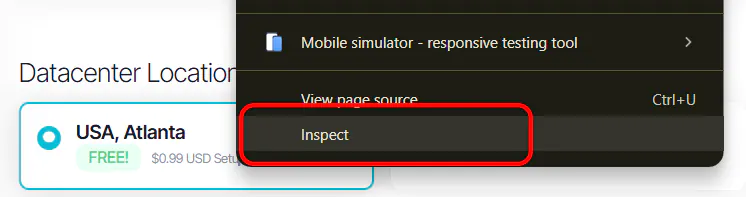
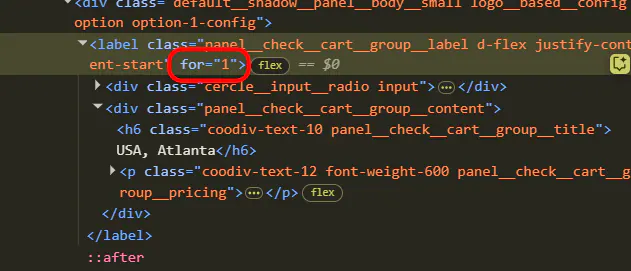
- To find the option’s ID, right-click on the checkbox of the option you want to customize and choose Inspect (using your browser’s inspect tool).
- A panel will open with the code. Look for the
labelelement that contains the checkbox.
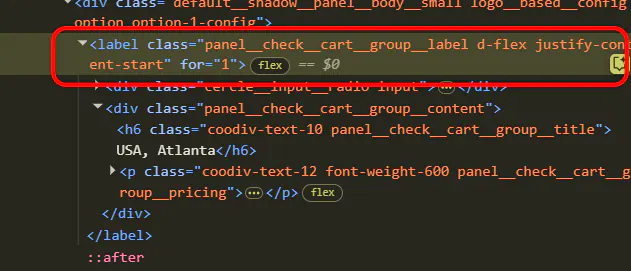
- In that label, find the attribute
for="...", the number inside is the option’s ID.
- Add the Custom Icon with CSS
- Go to your WHMCS Admin Panel
- Navigate to: ShufyTheme Control Panel → General Settings → Custom CSS Code
- Add the following code (example):
.logo__based__configoption.option-1-config:after {background: url(your__icon__link.png);} - Replace option-1-config with the ID you found earlier (e.g.,
option-23-config). - Replace
your_icon_link.pngwith the full URL to your icon. - Tip: Use an icon with a 1:1 aspect ratio and at least 30x30px in size for best results.
- Repeat for Other Options
Repeat these steps for every configurable option you want to add a custom icon to.
Add custom logo for payments methods
With Shufytheme, you can easily add payment method logos to your checkout page.
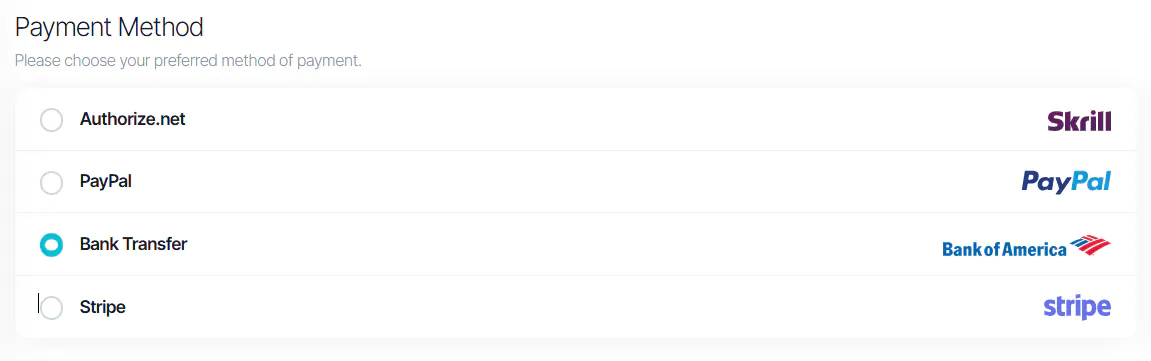
To use this feature, you must have your payment method logo in SVG format, then follow these steps.
- Go to the Checkout Page
Scroll down to the Payment Method section. - Find the Payment Method ID Name
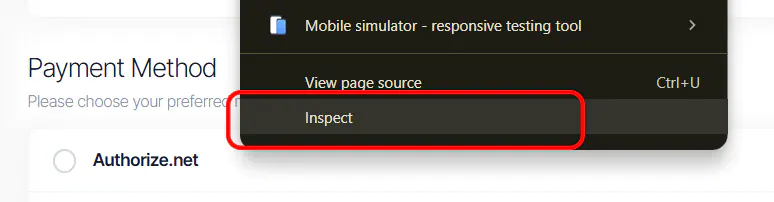
- Right-click on the checkbox of the payment method you want to customize and select Inspect.
- In the code, look for a
spanelement that contains the attributedata-gateway-icon-name="..."
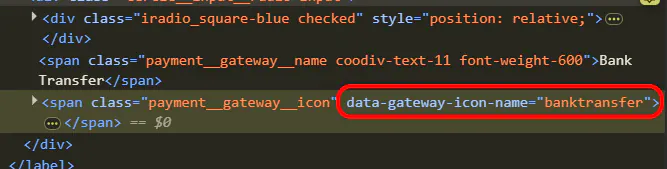
- Copy the value inside that attribute, this is the payment Method ID Name.
- Right-click on the checkbox of the payment method you want to customize and select Inspect.
- Edit the SVG Logo
- Open your SVG logo file using any code editor (e.g., Notepad++ or VS Code).
ImportantMake sure the file does not contain any inline styles. Inline styles can break your page layout.- In the
svgtag, add this class:class="checkout__payment__svg__icon"

- Save the File
- Save the edited file using the Payment Method ID Name you copied, with a .tpl extension, For example: banktransfer.tpl
- Upload the File
- Upload the .tpl file to the following path: templates/shufytheme/assets/gateways
- Repeat
- Repeat these steps for each payment method you want to customize with a logo.
Enable the advanced email verification
By enabling the advanced email verification system in the Shufytheme admin panel, users will not be able to access your website until they successfully verify their email address.
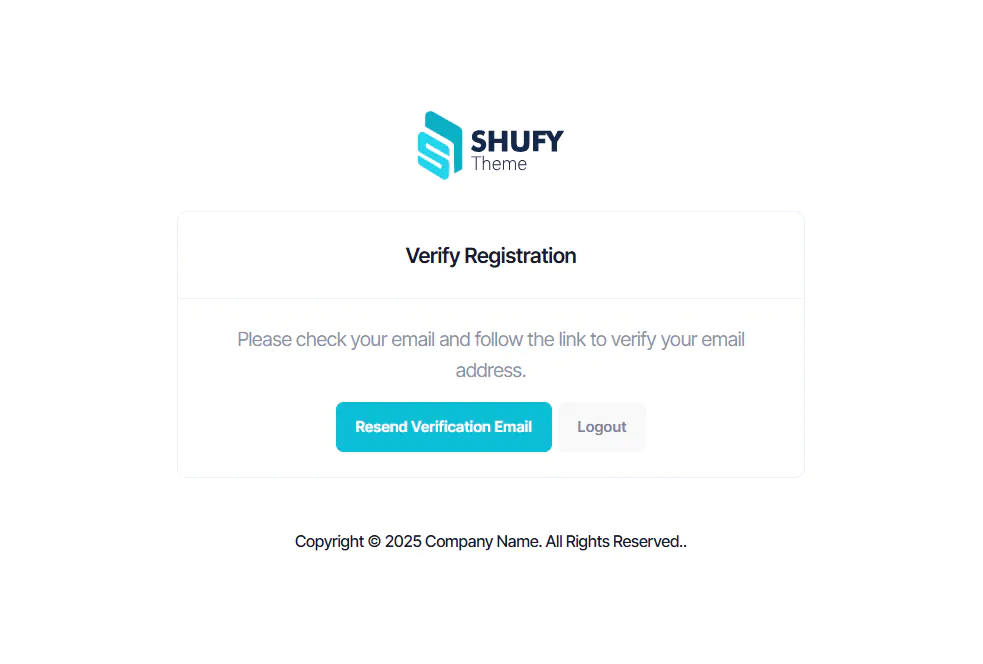
To use this feature, follow the next steps
- You must update your theme to at least
version 1.2.6. - Upload verify-email.php file to your main WHMCS directory
- Enabe the Email Verification from your general settings > Security tab
- Enabe Shufytheme advanced Email Verification from ShufyTheme Control Panel > ShufyTheme Genaral settings > Activate the advanced email verification system
Common WHMCS issues
you fill find in this section common WHMCS issues and some suggestions to fix them
If you see an Oops error page like this indicates an error occurred during the generation of the page.
The error can be anything, from a simple notice or warning to a fatal error that halts execution.
Or you are installing the wrong theme version.
It's the PHP error reporting level on your server that determines which types of errors will trigger it.
If you find some error installing the theme like Missing main.css, white page or something similar, please:
- make sure you are uploading the correct file
WHMCS(X.X.X)/upload.zip. - make sure that you unpack the zip file after uploading to your server
- make sure that you are using the right version for your WHMCS
- make sure that you activate the template from your WHMCS admin panel
- make sure that the files has the right permission
Or probably has these issues in your server
- Syntax errors in custom modules, hooks or templates.
- Incompatible hooks or addons.
- PHP, Apache or Ioncube related errors.
- Missing or corrupted files / incomplete uploads.
- If the above suggestions do not solve please contact your hosting provider, or our support team will help you with your issue
Support
If this documentation doesn't answer your questions, So, Please send us Email via Item Support Page or coodiv support team
We are located in GMT+1 time zone and we answer all questions within 12-24 hours in weekdays.
In some rare cases the waiting time can be to 48 hours. (except holiday seasons which might take longer).
Don’t forget to Rate this theme
To leave a review, simply navigate to your Themeforest Profile, access the Downloads Tab, and you'll find the option to rate and review our theme.
Thank you for your time and support.
Changelog
See what's new added, changed, fixed, improved or updated in the latest versions.
For Future Updates Follow Us @themeforest / @facebook / @instagram
Version 1.3.1 (06/06/2026)
[ADD] Menu Manager AJAX structure editor in the menu list page with a simple buttons.
[ADD] Menu Manager second child level for menus
[ADD] Add Full Theme Profile Export/Import, Export/import everything in one package: General, Colors, Typography, Layout, Sidebar, Footer, Homepage, menus, and generated CSS files.
[ADD] add Custom CSS Editor
[ADD] Added the default WHMCS menu to the Menu Manager.
[ADD] Added a demo footer menu to the Menu Manager.
[ADD] Added one-click WHMCS default menu seeding.
[ADD] Added one-click demo footer menu seeding.
[ADD] Added duplicate-name protection when seeding menus.
[ADD] Added AJAX saving for addon settings without requiring a full page reload.
[ADD] Added progressive AJAX saving inside the ShufyTheme Control Panel.
[ADD] Added automatic settings backups before save, reset, import, and restore actions.
[ADD] Added a Settings Backups page with manual backup, download, restore, and delete options.
[ADD] Added an unsaved changes warning for settings pages.
[ADD] Added a styled in-page unsaved changes message instead of using a browser alert.
[ADD] Added a Theme Health Check page.
[ADD] Added new menu security statements.
[ADD] Added CSRF tokens to destructive POST actions.
[UPDATE] Improved the import and export system for all settings pages.
[UPDATE] Improved CSV import/export handling for commas, quotes, and line breaks.
[UPDATE] Added validation for imported CSV columns and row structure.
[UPDATE] Added friendly import error messages.
[UPDATE] Improved Health Check coverage for files, folders, database tables, settings rows, menus, extension files, and addon version status.
[FIX] Fixed Menu Manager links in the admin area not saving correctly and staying set to “Portal Home”.
[FIX] Fixed WHMCS Core URL selection not showing the saved URL when editing menu items.
[FIX] Fixed menu URL type consistency for WHMCS core URLs.
[FIX] Fixed Menu Manager item translation editing.
[FIX] Fixed PHP errors in the WHMCS tblerrorlog table on PHP 8.1+.
[FIX] Fixed the SpamExperts front page order button not working.
[FIX] Fixed viewbillingnote not working correctly.
[FIX] Fixed some payment gateways printing “Thank you for using ShufyTheme”.
[FIX] Fixed Custom CSS saving when the code contains quotes or special characters.
[FIX] Fixed Custom CSS sync after General Settings import or reset.
[FIX] Fixed an issue where the addon cron could set unverified client accounts to Inactive or Closed after 365 days.
Version 1.3.0 (28/01/2026)
[ ADD ] Add Extension Manager features to ShufyTheme Control Panel
[ ADD ] Add small loading animation to action buttons
[ ADD ] Enable accordion-style footer menu in mobile mode
[ ADD ] Add icon picker for creating and editing menu items inside the ShufyTheme Control Panel (Menu Manager)
[ ADD ] Add pagination option to Client Area homepage services and tickets boxes
[ ADD ] Add options to customize the cookies header and include a cookies page link
[ ADD ] Add accordion footer option for footer menu inside the ShufyTheme Control Panel
[ ADD ] Add automatic upgrade feature to ShufyTheme Control Panel
[ ADD ] Add option to hide any section on the Client Area homepage via ShufyTheme Control Panel
[ ADD ] Allow changing or disabling the website loader icon and add 10 custom loaders to choose from
[ ADD ] Add product tagline and short description to front products page
[ ADD ] Add support pin search in admin area
[ ADD ] Add support pin to clients list table in admin area
[ ADD ] Make ShufyTheme front store 100% translatable using custom strings
[ ADD ] Add advanced domain search features to the WHMCS 9.0 theme/p>
[ UPDATE ] Update ShufyTheme Control Panel to version 1.3.0
[ UPDATE ] Upgrade ShufyTheme to WHMCS 9.0.0
[ IMPROVE ] Improve ShufyTheme front-end and fix multiple bugs
[ IMPROVE ] Improve ShufyTheme Control Panel UI
[ IMPROVE ] Improve billing cycles display on mobile in product configuration page
[ IMPROVE ] Improve support pin UI in admin area
[ IMPROVE ] Add versioning to custom & schemes CSS files on every save to fix browser cache issues
[ FIX ] Checkout page login radio button selected by default causing empty register form error
[ FIX ] Fix reCAPTCHA issue on homepage domain register page
[ FIX ] Fix social login and registration on checkout page
[ FIX ] Fix domain register & transfer pages on mobile view
[ FIX ] Fix missing domain management options on mobile view
[ FIX ] Fix PayPal gateway responsive layout issue on checkout page
[ FIX ] Fix payment method UI issue when logo or name is too long
Version 1.2.6.1 (25/09/2025)
[ FIX ] Sidebar icon color customization issue when not using the default color schemes (modules/addons/shufyTheme/views/styleoptions.tpl)
[ FIX ] Custom fields UI when creating new support tickets & line break issue in tickets (assets/css/app.min.css)
[ FIX ] payment button UI on the invoice view page (assets/css/app.min.css)
[ FIX ] “View More Services” issue in the client area page (assets/css/app.min.css & assets/js/app.min.js)
[ FIX ] Display product pricing on the product page when Monthly Pricing Breakdown is enabled and monthly pricing is set to 0 (shufytheme_cart/product.tpl)
[ FIX ] Viewing more than 5 active products on the client area homepage (assets/js/app.min.js)
[ FIX ] Issue where if you are already logged in and try to create a new account on the checkout page (shufytheme_cart/checkout.tpl)
[ FIX ] Responsive issue on the MarketConnect SSL page (assets/css/app.min.css)
[ FIX ] Saved payment cards on checkout page UI (shufytheme_cart/includes/existing-paymethods.tpl)
[ UPDATE ] Updated assets versions in footer.tpl and include/head.tpl to 1.2.6.1
Version 1.2.6 (17/05/2025)
[ UPDATE ] the main theme to support WHMCS 8.13
[ UPDATE ] THE main order form template to support WHMCS 8.13
[ UPDATE ] Updated MarketConnect Order Page secondary navigation (store/order.tpl)
[ UPDATE ] Updated Card UI for payment methods (existing-paymethods.tpl)
[ UPDATE ] Edited domain contact info: changed "Specify custom information below" text (clientareadomaincontactinfo.tpl)
[ ADD ] Email Verification feature (hooks.php, views/themeoption.tpl, verify-email.tpl, verify-email.php, user-verify-email.php)
[ ADD ] Remove Domain button on the confdomains page (configuredomains.tpl)
[ ADD ] icons feature to the products Configurable Options
[ IMPROVE ] Domain Suggestions Table and Badge Placement (configureproductdomain.tpl)
[ IMPROVE ] The secondary nav and add Navigation Arrows and grap feature
[ IMPROVE ] Cart View (Mobile): Quantity column now visible
[ IMPROVE ] The UI in Configure Product Domain page (configureproductdomain.tpl)
[ IMPROVE ] the UI in Configure product domain page
[ FIX ] Product Card Height Mismatch when using slider
[ FIX ] responsive issues on Product Domain page
[ FIX ] The "Pay" Button issue on Invoice Page (viewinvoice.tpl)
[ FIX ] Configurable Options issue when changing Billing Cycle (configureproduct.tpl)
[ ADD ] Terms of Service checkbox now shows Red Border/Error if not accepted (viewcart.tpl & checkout.tpl)
[ FIX ] incorrect usage of .btn-primary-light class
[ FIX ] .co.uk Domain Spotlight issue on Homepage (includes/theme-front/front-products.tpl)
[ FIX ] .co.uk Spotlight & "Most Popular" sections on Domain Register & Configure Domain pages (domainregister.tpl, configureproductdomain.tpl)
[ FIX ] Cart Layout issue when plan sizes vary (products.tpl)
[ FIX ] Sidebar icons now remain fixed when sidebar is collapsed
[ FIX ] Nameserver Section text in Domain Details (clientareadomaindetails.tpl)
[ FIX ] Mobile view in Configure product domain page
[ FIX ] Fixed Checkout Captcha issue for non-logged-in users (checkout.tpl)
[ ADD ] Featured Plan display on Products Page
[ FIX ] Formatting of Large Pricing values (commas) on product and config pages
[ FIX ] Fixed issue with setting Default Card in Payment Methods (account-paymentmethods.tpl)
Version 1.2.5 (30/12/2024)
[ IMPROVE ] UI & UX Enhancements of services renewal page (File updated: templates/orderforms/shufytheme_cart/service-renewal-item.tpl, templates/orderforms/shufytheme_cart/service-renewals.tpl, templates/orderforms/shufytheme_cart/ordersummary.tpl)
[ IMPROVE ] UI & UX Enhancements of Client area homepage and renew service section (File updated: clientareahome.tpl)
[ IMPROVE ] UI & UX Enhancements of Accept invite page (File updated: user-invite-accept.tpl)
[ CUSTOMIZABLE FEATURES ] Add a custom image to register and login sidebars
[ CUSTOMIZABLE FEATURES ] Add your banners in place of the Market Connect banner
[ CUSTOMIZABLE FEATURES ] Custom website loader
[ CUSTOMIZABLE FEATURES ] Random name and password to configure server and hide ns1 and ns2
[ FIX ] Horizontal sidebar issue when the collapsed sidebar is not active (File updated: header.tpl)
[ FIX ] Tooltips for minimalist sidebar when collapsed by default (File updated: header.tpl)
[ FIX ] WHMCS 8.11 Sign-In integrations issue (Folder updated: oauth)
[ FIX ] Knowledge article print view issues
[ FIX ] Announcement article page print view issues
[ FIX ] MarketConnect slider translation issues (Files updated: promo-slider-banner-nav.tpl, promo-slider-banner.tpl)
[ FIX ] CAPTCHA issue in the checkout (File updated: hook.php)
[ FIX ] Terms of service URL in the email subscription section
[ FIX ] The color scheme issue in dark mode
[ FIX ] Dark mode JavaScript code in footer.tpl file
[ FIX ] Support ticket list page translation (File updated: supportticketslist.php)
[ FIX ] The Item dropdown in the product details page
[ FIX ] The error messages on login and register pages with social login active (File updated: footer.tpl)
[ FIX ] OAuth Login Pages issues (Folder updated: oauth)
[ FIX ] The account Security Links in the client area homepage and account sidebar
[ FIX ] The service numbers displayed in the footer (File updated: hook.php)
Version 1.2.3 (15/09/2024)
[ FIX ] header issue in the mobile version when using a big icon horizontal sidebar
[ FIX ] view cart link in domain configuration pages
[ FIX ] Switch accounts bug
[ IMPROVE ] UI & UX of domains configuration pages
[ UPDATE ] The main theme to WHMCS 8.11
[ UPDATE ] The child theme to WHMCS 8.11
[ UPDATE ] The orderform template to WHMCS 8.11
Version 1.2.2 (16/08/2024)
[ IMPROVE ] Theme accessibility
[ IMPROVE ] Theme SEO
[ IMPROVE ] Theme load speed and performance
[ FIX ] support ticket custom field issue
[ FIX ] order form template checkout radios when PayPal is enabled
[ FIX ] 0 value issue on the products page
[ FIX ] homepage link in client registration page
[ FIX ] mobile sub-menu issue for the separated sidebar layout
[ UPDATE ] Documentation for product description
[ UPDATE ] Documentation for uploading ShufyTheme addon
[ UPDATE ] Documentation on Footer menu manager configuration
[ UPDATE ] Documentation on how to edit domains registration and transfer front elements
Version 1.2.1 (24/07/2024)
[ IMPROVE ] The UI of quotes page
[ IMPROVE ] The UI of veiw quote page
[ IMPROVE ] The plans pricing on product page
[ IMPROVE ] The UI of support départements page
[ IMPROVE ] Shufytheme child gets optimized
[ ADD ] currencey selector
[ FIX ] The yellow dot in the product page when use single price
[ FIX ] Register lock button in domain details page
[ FIX ] The sidebar colors customization issue
[ FIX ] The typos errors in the theme
[ FIX ] Smooth scrolling button on the Nord VPN page
Version 1.2.0 (16/07/2024)
[ IMPROVE ] Make the logo more responsive to the custom widths and heights
[ IMPROVE ] Improve the UI for social accounts buttons in login & register pages
[ IMPROVE ] Improve client area homepage affiliate program box
[ IMPROVE ] Newsletters form get improved and issues solved also add 2 protection layers for spammers and bots
[ ADD ] Add dynamic highlighted TLDs on the homepage
[ ADD ] Add domains catégories at domain pricing list in domain register & transfer pages
[ ADD ] Add pagination to the domain list domain register & Transfer pages
[ FIX ] Fix HTML announcements issue in homepage
[ FIX ] Solve HTML announcements issue in the login and register sidebar
[ FIX ] clients area homepage links (dynamic links)
[ FIX ] update user information sidebar links (dynamic links)
[ FIX ] Fixing the last slide issue in the Homepage slider
Version 1.1.1 (23/06/2024)
[ FIX ] Image and checkbox reCAPTCHA issues on domain register and transfer pages
templates/orderforms/shyfytheme_cart/domainregister.tpl
templates/orderforms/shyfytheme_cart/domaintransfer.tpl
templates/shufytheme/assets/css/app.min.css
templates/shufytheme/assets/css/app.rtl
Version 1.1.0 (20/06/2024)
[ FIX ] Searching for unavailable TLDs in domain register page issue
[ FIX ] the logo issues in the different layouts ( text & image )
[ FIX ] The announcement slider on the login and register page ( text height )
[ FIX ] password email rest not working
[ FIX ] affiliates number in the client area pages
[ FIX ] Using a domain already in the shopping cart to order new hosting on the mobile version
[ New ] Full Supporting for RTL layouts
[ New ] Affiliates page redesigned
[ New ] All of the Marketconnect pages has been improved to match the theme UI
[ New ] Activating the Arabic, Hebrew, and Farsi fonts and RTL mode from the admin panel
Version 1.0.1 (15/05/2024)
[ FIX ] license verification issue: modules/addons/shufyTheme/hooks.php
Version 1.0 (12/05/2024)
Initial Release