EMYUI Template Documentation file
by coodiv team
Thank you so much for purchasing our template and for being our loyal customer.
You are entitled to get free lifetime updates to this product + free support from our team directly.
This documentation is to help you regarding each step of install and customization. Please go through the documentation carefully to understand how this theme works and how to edit this properly. Basic HTML & CSS knowledge is required to customize this template. You may learn basics here
Before get started
we highly encourage you to get familiar with this documentation file. Spending half an hour reading the manual may save a lot of your time and avoid questions with obvious answers.
To quickly find the necessary information, you can use your browser's built-in "Search" tool
Press the CMD+F (in macOS)
press CTRL+F (in Windows)
- Version: 1.8
- Author: COODIV (Nedjai Mohamed)
- Created: 16 December 2021
- Last update: 14 April 2023
If you have any questions that are beyond the scope of this help file, Please feel free to email via Item Support Page
Or contact our support team support.
Installation (HTML)
Follow the steps below to setup your site template:
- Unzip the downloaded package and open the HTML folder to find all of the HTML template files. You will need to upload these files to your hosting web server using FTP or localhost in order to use it on your website.
- Below is the folder structure and needs to be uploaded to your website or localhost root directory:
HTML/css- Stylesheet files.HTML/css/bootstrap.css- Bootstrap v4.5.0 framework.HTML/css/main.css- Main stylesheet files.HTML/css/custom.css- Add your custom stylesheet in this file.
HTML/image- Images files.HTML/fonts- ALL font external files.HTML/js- Core javacript files.HTML/js/custom.js- Activation JS file.HTML/js/vendor.min.js- Vendor JS file.
HTML/lang- Language system files.HTML/mailer- Ajax contact form files.HTML/plugins– All external libs.HTML/template-part– Main navbar, Footer navbar and header language files.HTML/index.html- Homepage
- You should upload all or specific HTML files as per your need.
- You are good to go for editing the template & adding your content now!
HTML Structure
EMYUI follows a simple and easy to customize coding structure. Here is the sample for your reference:
The template is based on Bootstrap Framework
<!DOCTYPE html>
<html lang="en">
<head>

<!-- Your Title, Description, Stylesheets ============================================= -->

</head>

<body>

<!-- Page preloader =============================== -->
<div class="preloader"> </div>

<!-- Page Wrapper =============================== -->
<div id="site-wrapper overflow-hidden">

  <!-- Header ============================ -->
  <header class="site-header header-with-right-menu dark-mode-texts site-header--absolute fixed-header-layout">
   ......
  </header>
  <!-- Header End -->

  <!-- Hero area start ============================ -->
  <div class="hero-area-coodiv position-relative">
   ......
  </div>
  <!-- Hero area end -->

  <!-- Content ============================ -->
  <div id="content" role="main">


  <!-- Start page sections ============================ -->
  <div class="section-one">
  .....
  </div>

  <div class="section-two">
  .....
  </div>
  <!-- End page sections ============================ -->


  <!-- Footer -->
  <div class="dark-mode-texts footer-gradient-default overflow-hidden position-relative">
    <div class="container"> ...... </div>
  </div>
  <!-- Footer end -->

</div>
<!-- Page Wrapper end -->

<!-- JavaScript -->
</body>
</html>
If you need more information, please visit bootstrap site: https://getbootstrap.com
HTML Language Translation System
We used in EMYUI a language translation system. We used I18next a JavaScript Internationalisation framework
to translate or add new language to your html pages, read this.
All pre-made translations file in HTML/lang folder inside a .JSON file, which can be edited by any text editor.
Translations
For ex: English Language
Open the HTML/lang/en/lang.json file with any text editor and edit the values according to your needs. And here is a small example of how JSON looks
{
"systems": {
  "langname": "EN"
},

"genaral": {
  "homapgetitle": "Create a unique, powerful & professional website",
  "homepage": "Homepage",
  "soon": "soon",
  "getstarted": "Get started now",
  "getstartedfree": "Get started free",
  "pages": "Pages"
}
you only need to add a parent name and then put translations texts inside.
The prefix keys homapgetitle, homepage, soon .. this example file are individual words separated by hyphens and written in lowercase ONLY.
to use these translations add an HTML tag on the the element that you want to put the text on it with data-i18n attribute.
For Example:
<span data-i18n="[html]genaral.homepage"></span>
<span data-i18n="[html]genaral.getstarted"></span>
<span data-i18n="[html]genaral.homapgetitle"></span>
Add new language
- CREATE new folder for your language, for example
arinHTML/langfolder and add inside it lang.json file. - ADD your translations inside
lang.jsonlike we mentioned earlier. - ADD you new lang link inside
HTML/template-part/languages.htmlfile, there you can find and change the translation buttons.<a href="#" data-lng="ar">Arabic</a>
Change the default language
THE default language is English, you can change this inside custom.js file from 91 to 117 line.
If you need more information, lease check all the documentation on: i18next website
Color Schemes
You can change your Website's Color Scheme in an instant. We have build 10 Color css file for change template primary color.
this feature NOT AVAILABLE yet :(
Template Customization
We have include a Custom CSS File in the css Folder so that you can better handle your Customizations for New Styles or
Overwriting Default Template Styles. Simply add all your Custom CSS Codes in the css/custom.css File.
Also make sure that this is the Last Linked CSS File in the Document <head> so that your Custom CSS Styles are Overwritten properly.
<head>

<!-- favicon
============================== -->
<link rel="shortcut icon" type="image/x-icon" href="image/favicon/favicon.png" />

<!-- Stylesheet
============================== -->
<!-- Bootstrap -->
<link rel="stylesheet" type="text/css" href="css/bootstrap.css" />
<!-- Font Awesome Icon -->
<link rel="stylesheet" type="text/css" href="fonts/fontawesome-5/css/all.css" />
<!-- Typographie -->
<link rel="stylesheet" type="text/css" href="fonts/sofia-pro/typographie.css" />
<!-- slick -->
<link rel="stylesheet" type="text/css" href="plugins/slick/slick.min.css" />
<!-- fancybox -->
<link rel="stylesheet" type="text/css" href="plugins/fancybox/jquery.fancybox.min.css" />
<!-- aos -->
<link rel="stylesheet" type="text/css" href="plugins/aos/aos.min.css" />
<!-- nice-select -->
<link rel="stylesheet" type="text/css" href="plugins/nice-select/nice-select.min.css" />
<!-- Main css file -->
<link rel="stylesheet" type="text/css" href="css/main.css" />

<!-- Here goes your custom.css
============================================= -->
<link rel="stylesheet" type="text/css" href="css/custom.css" />
</head>
Logo Settings
In EMYUI you need to use 2 logos file, white one for dark backgrounds & black one for light backgrounds
The Logo Container can be found in the Header Container - <header>
<!-- START Logo header -->
<div class="brand-logo mr-8">
<a href="index.html" >
   <!-- light version logo (logo must be black) -->
   <img src="image/logo-main-black.png" alt="emyui" class="light-version-logo"/>
   <!-- Dark version logo (logo must be White -->
   <img src="images/logo-light.png" alt="emyui" class="dark-version-logo"/>
</a>
</div>
<!-- END Logo header -->
Ajax contact form Settings
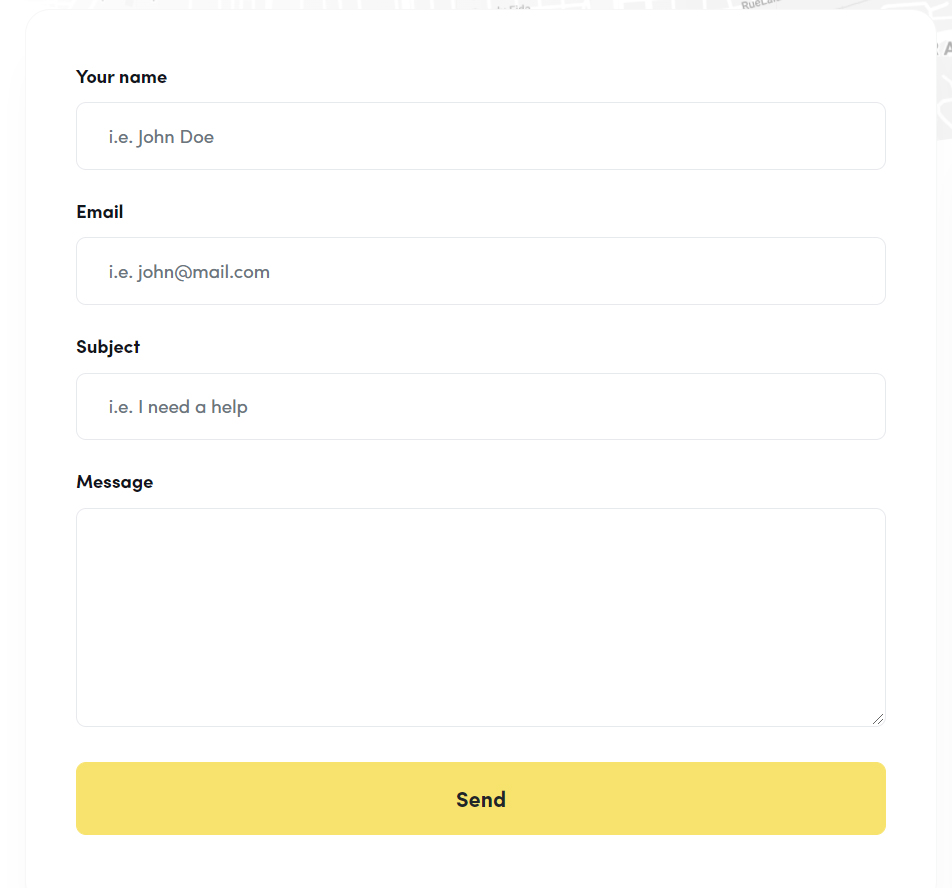
To setup the contact form just open HTML/mailer/mailer.php file and add your email in line 9
$to = '[email protected]';Google maps setup
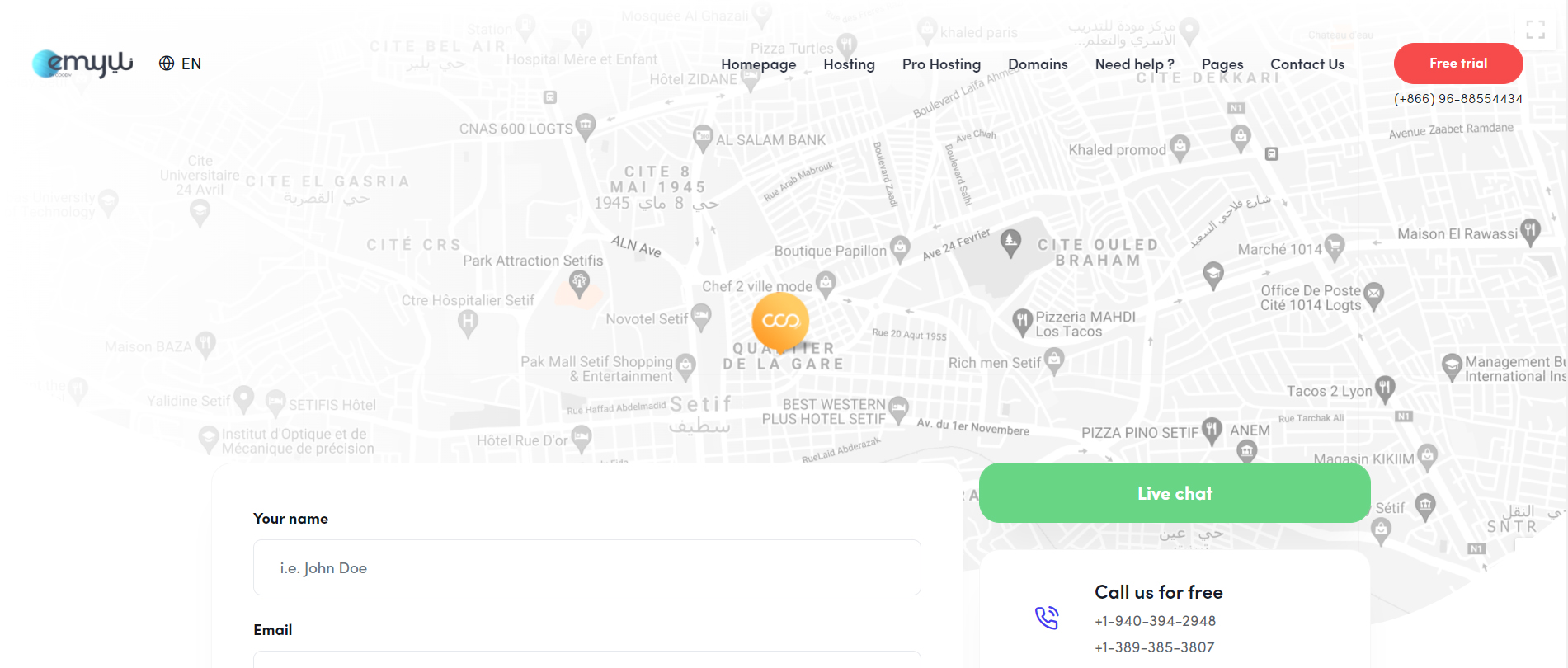
To setup your google maps place open HTML/contact.html file and add you google maps javascript code in the footer
center: new google.maps.LatLng(36.1916251953616, 5.414302215343549),Layout
Documentation and examples for header, navbar, sidebar, footer
Header
The list of various header types & its descriptions are provided below for your reference:
Light
Header with white background Color & Dark text. See below image and code for more inforamtion.

<!-- Header
============================ -->
<header class="site-header header-with-right-menu dark-mode-texts site-header--absolute fixed-header-layout">
  <div class="container-fluid pr-lg-9 pl-lg-9">
  <!-- Navbar -->
  <nav class="navbar site-navbar offcanvas-active navbar-expand-lg px-0">
      .....
  </nav>
  <!-- Navbar End -->
  </div>
</header>
<!-- Header End -->
Dark
Header with dark background & Light text. See below image and code for more inforamtion.

Add the .light-color-header and .light-mode-texts Class to the <header> Tag to display a Dark Header.
<!-- Header
============================ -->
<header class="site-header header-with-right-menu light-mode-texts site-header--absolute fixed-header-layout light-color-header">
  <div class="container-fluid pr-lg-9 pl-lg-9">
  <!-- Navbar -->
  <nav class="navbar site-navbar offcanvas-active navbar-expand-lg px-0">
      .....
  </nav>
  <!-- Navbar End -->
  </div>
</header>
<!-- Header End -->
By default the Header will be fixed. to remove this, delete .fixed-header-layout class from the <header>
Navbar
Documentation and examples for powerful responsive navigation header
Left align
Header with Navigation alligned Left. See below image and code for more inforamtion.

Add the .header-with-left-menu class to header to display a align left navbar.
<!-- Header
============================ -->
<header class="site-header header-with-left-menu dark-mode-texts site-header--absolute fixed-header-layout">
  <div class="container-fluid pr-lg-9 pl-lg-9">
  <!-- Navbar -->
  <nav class="navbar site-navbar offcanvas-active navbar-expand-lg px-0">
      .....
  </nav>
  <!-- Navbar End -->
  </div>
</header>
<!-- Header End -->
Right align
Header with Navigation alligned Right. See below image and code for more inforamtion.
Add the .header-with-right-menu class to header to display a align right navbar.
<!-- Header
============================ -->
<header class="site-header header-with-right-menu dark-mode-texts site-header--absolute fixed-header-layout">
  <div class="container-fluid pr-lg-9 pl-lg-9">
  <!-- Navbar -->
  <nav class="navbar site-navbar offcanvas-active navbar-expand-lg px-0">
      .....
  </nav>
  <!-- Navbar End -->
  </div>
</header>
<!-- Header End -->
Center Align
Header with Navigation alligned Center. See below image and code for more inforamtion.

Add the .site-header--menu-center class to header to display a align center navbar.
<!-- Header
============================ -->
<header class="site-header site-header--menu-center dark-mode-texts site-header--absolute fixed-header-layout">
  <div class="container-fluid pr-lg-9 pl-lg-9">
  <!-- Navbar -->
  <nav class="navbar site-navbar offcanvas-active navbar-expand-lg px-0">
      .....
  </nav>
  <!-- Navbar End -->
  </div>
</header>
<!-- Header End -->
how to install WHMCS
Before installing the template, you need to install WHMCS first.
WHMCS theme installation
Before installing the template, please make sure you unpacked the archive and extracted template files.
- documentation: this folder has the docs files
- HTML: this folder has the all EMYUI HTML template files
- WHMCS (X.X.X): this folder has EMYUI the all template & orderforms files
- changelog & updates.txt: this txt file has all updates and changelogs of the template
Plese make sure that template version, which you are trying to install is compatible with your WHMCS installation!
Let’s walk you through how to install the Coowhm WHMCS template properly. To complete this tutorial, you will need your FTP login credentials for your hosting environment, your favorite FTP client, and finally the download files from themeforest. I would recommend either FileZilla for Windows/Mac
Let’s head over to the local folder in which you saved the theme download. The file is a ZIP archive and will need to be extracted. Mac users can easily do this by double-clicking on the .zip file, and it will unzip the contents into a folder with the same name as the download. Windows users can use the default ZIP extraction tool, or you can use something like WinZip or WinRar to do this for you. Either way, once you’re done, you will have a folder with the theme contents. Fire up your favorite FTP client and connect to your hosting environment. You will need to navigate to the root directory of your WHMCS installation. If you’re not sure what the root directory is, it will be the folder that contains the config.php file for your WHMCS installation.
In the FTP client, you can locally browse to the unzipped folder of the template download. Inside of the download files in WHMCS (X.X.X) folder, you will find another folder called “upload.” This folder contains all of the files that need to be uploaded to the root WHMCS installation directory. However, do not upload the “upload” folder, just the files inside of it! Once the upload is complete, we can go through the process of installing your template and orderform.
Changing your default template & orderform
When you’re ready for your clients to see your new template, you will need to head to “Setup” > “General Settings” and wait for the page to load. Look for the option called “Template” and change it to “EMYUI theme” Save your changes, and the new template will be live!.
Our WHMCS template support all WHMCS order forms & Our own orderform also: EMYUI Cart
You will need to change your default order form template to our if you want to use it. To do this, you will head to “Setup” > “General Settings” > “Ordering.” Once the page loads, you will select the order form and click “Save Changes.”
Edit WHMCS theme parts
In version 1.2 we add new WHMCS theme, EMYUI-HERO this theme has a new static elements in the homepage that you need to edit them, you will find these parts in:
templates/emyui-hero/theme-parts/hosting-plans.tpl: you can edit this file to edit web-hosting plans in homepagetemplates/emyui-hero/theme-parts/domain-registration.tpl: you can edit this file to edit domain registration form in homepagetemplates/emyui-hero/theme-parts/vps-plans.tpl(X.X.X): you can edit this file to edit VPS hosting plans in homepagetemplates/emyui-hero/theme-parts/how-works-section.tpl& updates.txt: you can edit this file to edit how-works section in homepagetemplates/emyui-hero/theme-parts/customers-reviews.tpl& updates.txt: you can edit this file to edit the customers-reviews section in homepage
if you want to delete one of these sections, you have to edit templates/emyui-hero/homepage.tpl file and delete the included file ex:
{include file="$template/theme-parts/hosting-plans.tpl"}
WHMCS Email template installation
In this section you will find a installation guide and how customize EMYUI WHMCS Email Template, For a more professional emails to your clients.
For using the template in your WHMCS system, you have to config the header, footer and global CSS style in your WHMCS Admin Panel, follow the below steps to install the email template successfully:
- Step One: Unzip the download EMYUI pack, and open the
WHMCS email templatefolder, you can find three filesheader.html,footer.html,global.cssandimgfolder - Step Two: Go to your WHMCS Admin Panel -> System Settings -> General Settings -> Mail tab
- Step Three: Use any text editor and open
global.cssfile and copy all code and replace code inside Global Email CSS Styling field in Mail tab of your WHMCS admin panel. Do the same process forheader.htmlin Client Email Header Content field andfooter.htmlin Client Email Footer Content field - Step Four: The final step, use your FTP account or Cpanel file manger to upload
imgfolder to your server. You have to remember the images directory, to upload the correctly files. In our case, We created "img" folder, inside the email folder at https://emyui.coodiv.net/email-template-files, for example https://emyui.coodiv.net/email-template-files/img/logo-pos.png - Step Five replace all links and images directory in Client Email Header Content and Client Email Footer Content fields to your own links

WHMCS email template/global.css fileContents should be in WHMCS Admin Panel -> System Settings -> General Settings -> Mail tab -> Global Email CSS Styling fieldWHMCS email template/header.html fileContents should be in WHMCS Admin Panel -> System Settings -> General Settings -> Mail tab -> Client Email Header Content fieldWHMCS email template/footer.html fileContents should be in WHMCS Admin Panel -> System Settings -> General Settings -> Mail tab -> Client Email Footer Content field
WHMCS Newsletter template
In this section you will find a installation guide and how to use ans customize our newsletter blocks, elements and sections according to your requirements.
the header and footer already been configured during the installation of the Email Template,Now you need to configure the content, below you will find how to send Mass Newsletter to selective groups of your clients:
To install the Newsletter Template, do you need to first configure the Email Template.
- Step One: Unzip the download EMYUI pack from themeforest, and open the
WHMCS newsletterfolder, you can find therecontent.htmlfile andimgfolder - Step Two: Go to your WHMCS Admin Panel -> Clients -> Mass Mail Tools. Now, choose the message type.
- Step Three: Click in the Compose Message -> Help -> Source Code.
- Step four: Open the
content.htmlfile and copy all code to the window. - Step Five: Use your FTP account or Cpanel file manger to upload
imgfolder to your server. You have to remember the images directory, to upload the correctly files. In our case, We created "img" folder, inside the email folder at https://emyui.coodiv.net/email-template-files, for example https://emyui.coodiv.net/email-template-files/img/logo-pos.png - Step Six And finally, Replace all images directory your own and Click in "OK" button to close the window and then click
Send Message
Common WHMCS issues
you fill find in this section common WHMCS issues and some suggestions to fix them
If you see an Oops error page like this indicates an error occurred during the generation of the page.
The error can be anything, from a simple notice or warning to a fatal error that halts execution.
Or you are installing the wrong theme version.
It's the PHP error reporting level on your server that determines which types of errors will trigger it.
If you find some error installing the theme like Missing main.css, white page or something similar, please:
- make sure you are uploading the correct file
WHMCS(X.X.X)/upload.zip. - make sure that you unpack the zip file after uploading to your server
- make sure that you are using the right version for your WHMCS
- make sure that you activate the template from your WHMCS admin panel
- make sure that the files has the right permission
Or probably has these issues in your server
- Syntax errors in custom modules, hooks or templates.
- Incompatible hooks or addons.
- PHP, Apache or Ioncube related errors.
- Missing or corrupted files / incomplete uploads.
- If the above suggestions do not solve please contact your hosting provider, or our support team will help you with your issue
how to install Coodiv theme manager
You can install Coodiv theme manager like any other WHMCS addon module, to install it please follow this simple steps:
- After Extracting the downloaded package from themeforest, upload the ZIP file in
WHMCS/WHMCS Coodiv themes managerfolder to your main WHMCS directory, and Extract the zip file there. - Go to
Admin Area ---> System settings ---> Addon Modules, then activate Coodiv themes control panel , then click the "Configure" button to choose who can manage this module and click Save Changes - After that from WHMCS top menu bar click on
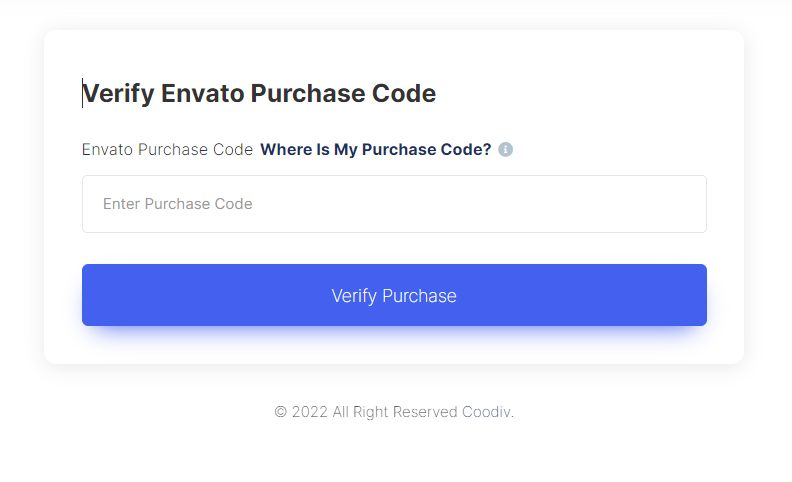
Addons ---> Coodiv themes control panel - In this step you need to get your Purchase Code from themeforest, Where Is My Purchase Code? past the code the filed and click on Verify Purchase
- After verifying your Purchase Code, you will see the WHMCS Coodiv themes manager admin interface
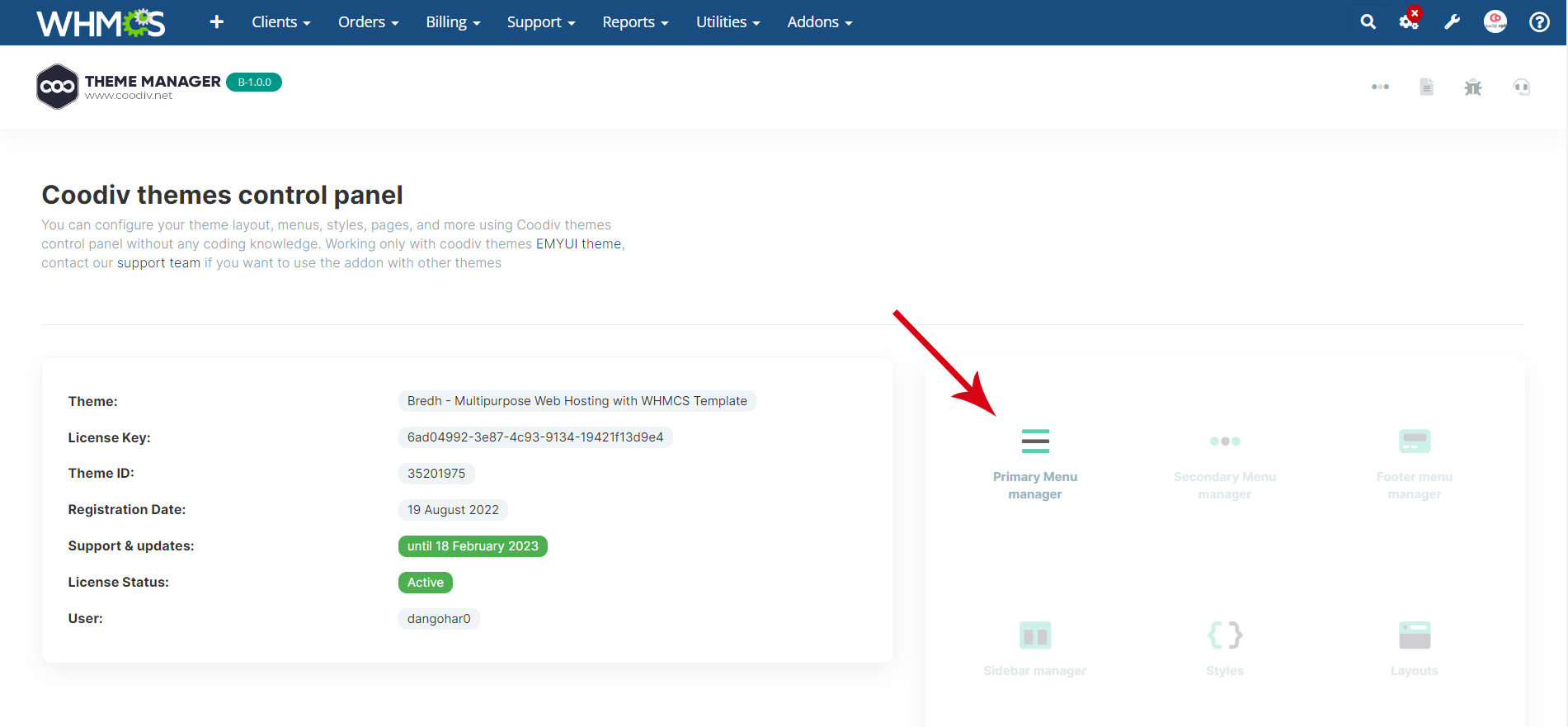
Coodiv Primary Menu manager
Coodiv theme manager addon has a lot of powerful features that make customizing your WHMCS theme even easier, but for now, we are still developing them, For use Coodiv Primary Menu manager please follow this simple steps:
- from WHMCS top menu bar click on
Addons ---> Coodiv themes control panel - After that just click on Coodiv Primary Menu manager in right sidebar
Primary Menu groups
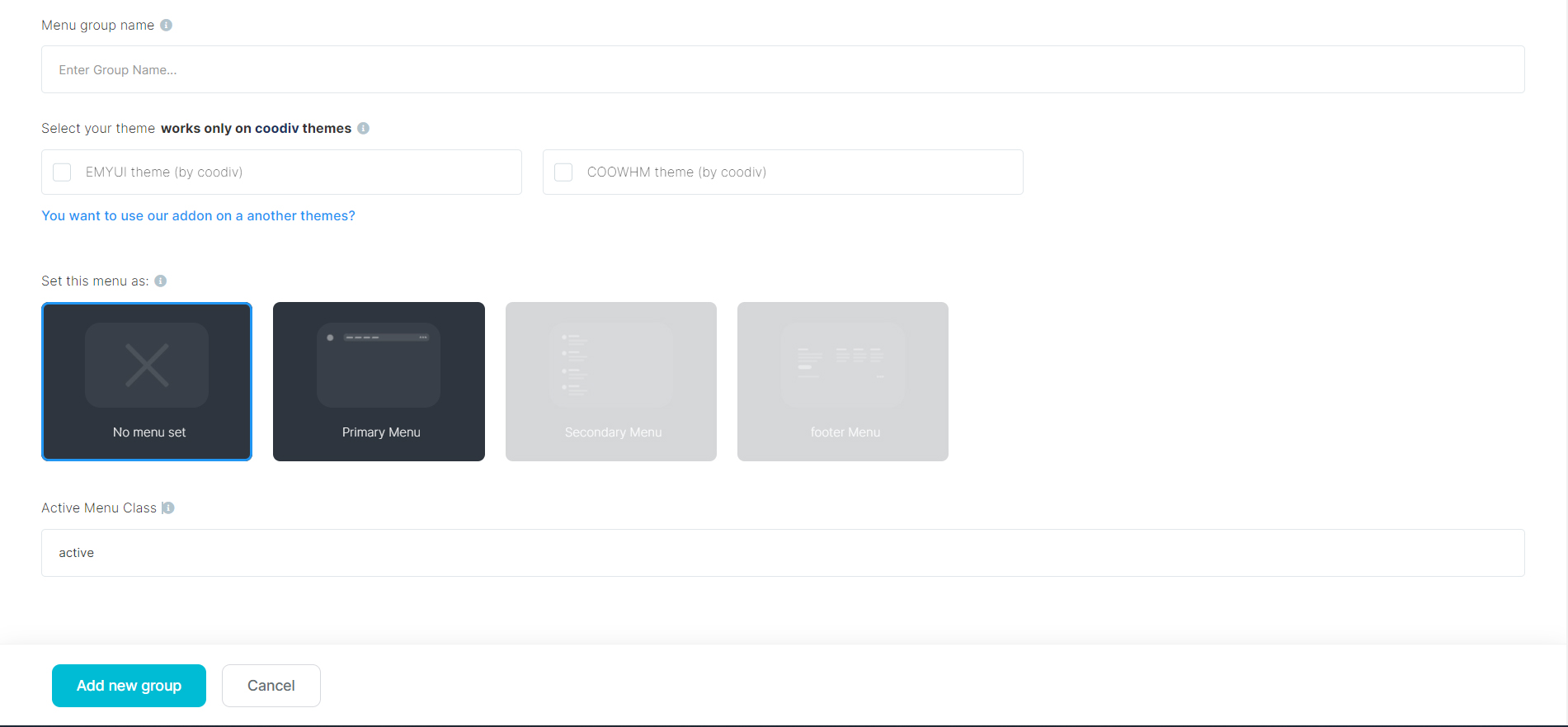
Use menu groups to create as many menus that need to be integrated with your websit, to create new group just click on add new group button in header

- Menu group name: Choose the menu group name that you would to create.
- Select your theme: select the theme that you would to use the menu group on it.
- Select Menu as: for now you can select only primary menu, new places will be released soon
- Active Menu Class: Assign the custom HTML class that applies on the menu when the user is on the active menu
Primary Menu items
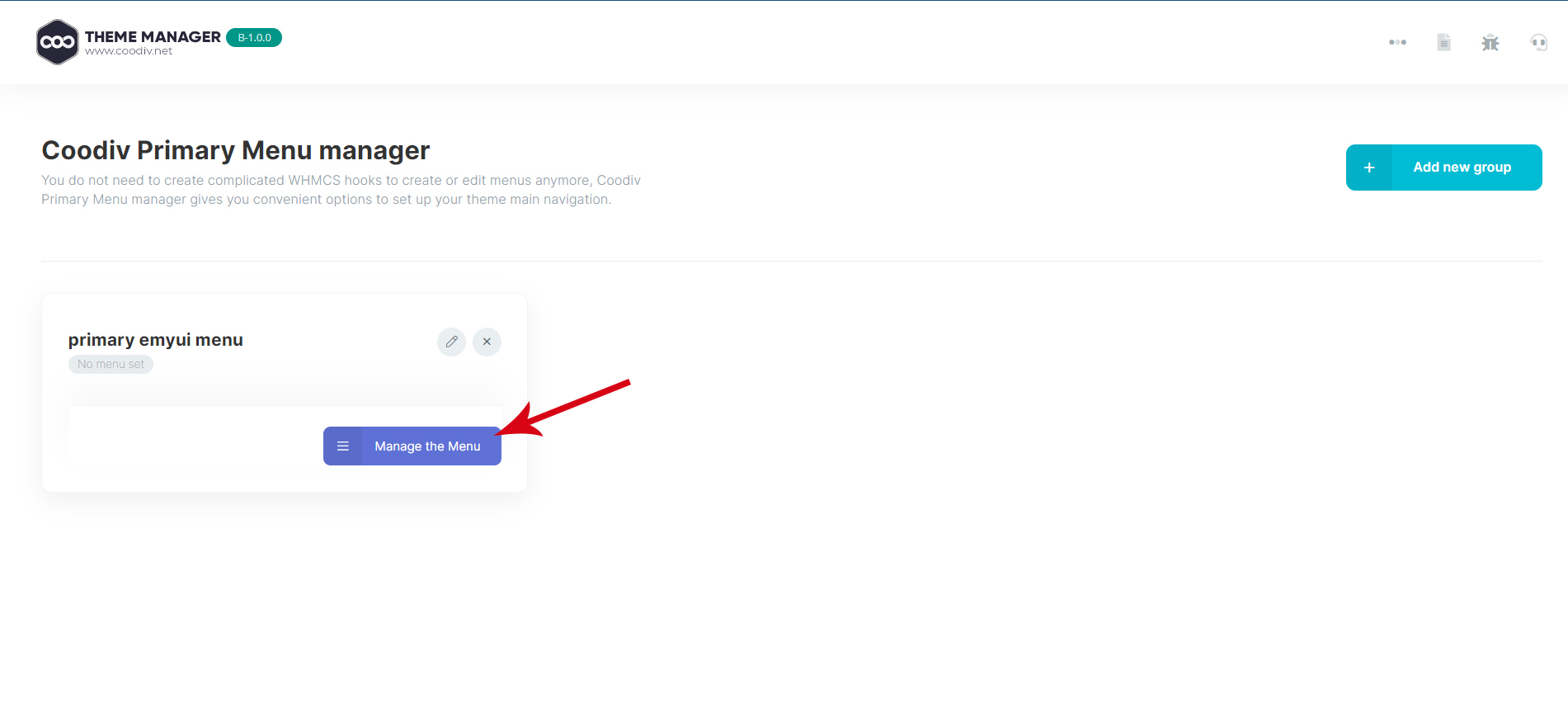
in this page you can manage your WHMCS menu! This powerful feature comes FREE with EMYUI Client Themes and makes customizing your WHMCS theme even easier.
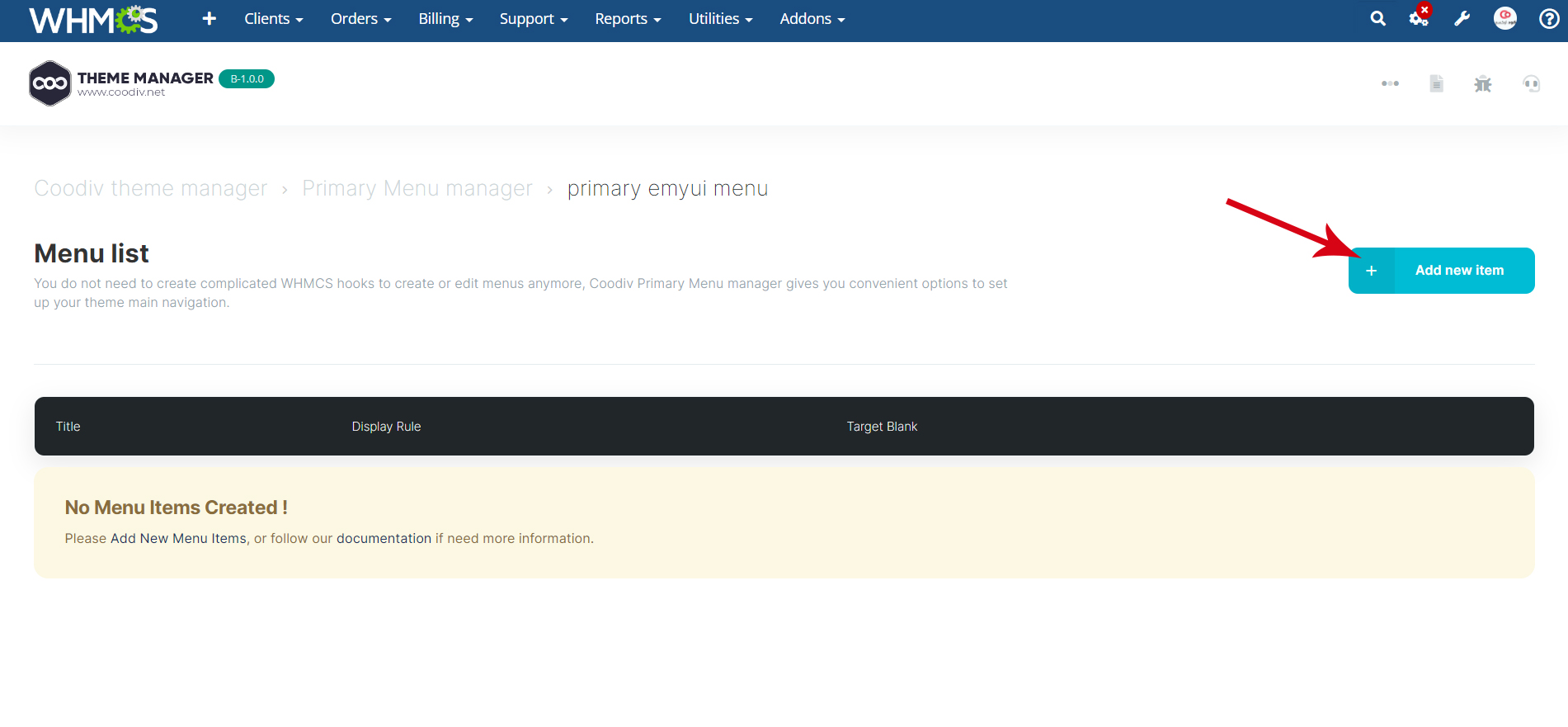
Add New Menu Items
To new add menu you need to do the following:
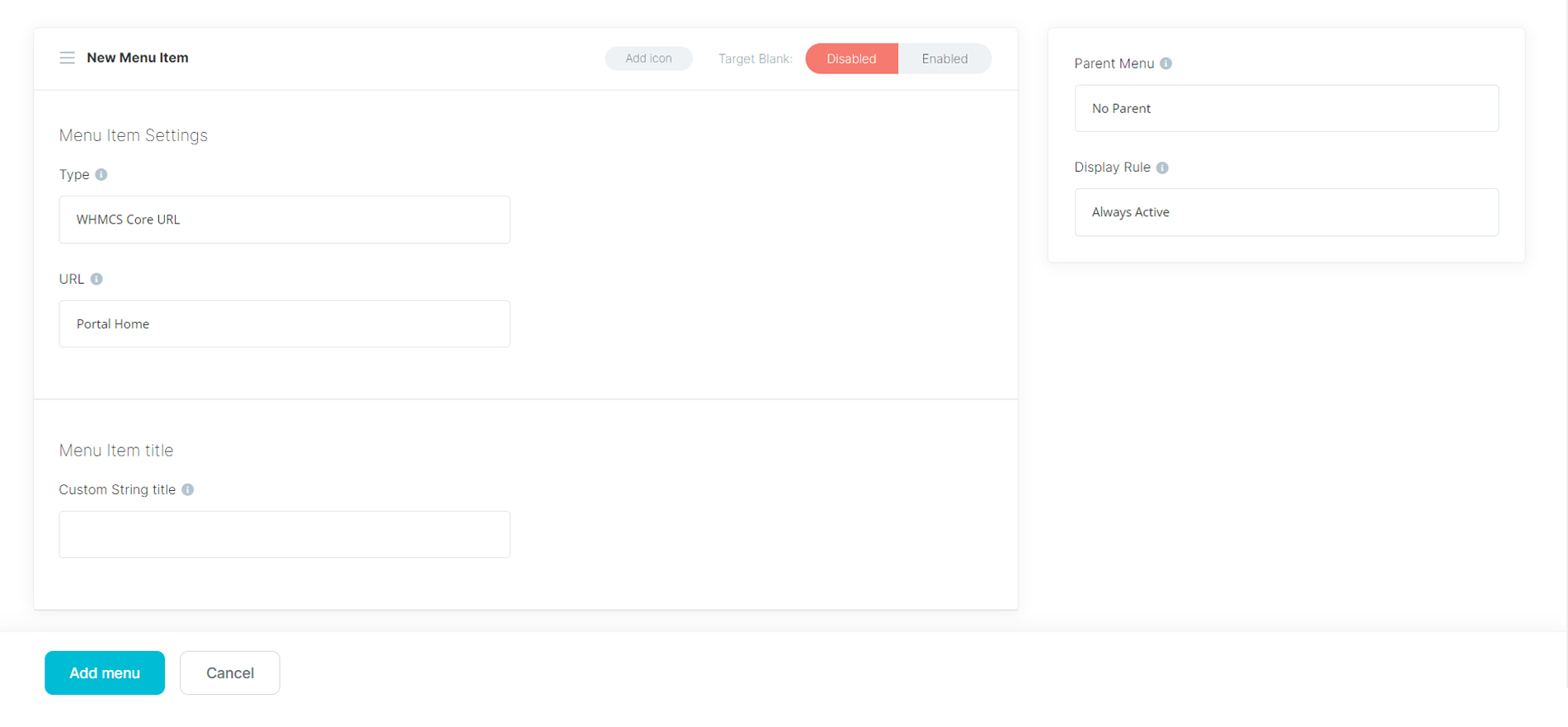
- Type: Choose the menu type that you would like to manage.
- URL: Displays a predefined list of WHMCS pages to choose from. The menu item URL will be set automatically based on the selected page or you can use you custom link.
- Custom String title: Use the custom title string, translation is not available yet.
- Parent Menu: Select the parent menu for this menu, you can leave it if you want to make this a parent menu.
- Display Rule: Assign the currently managed menu to the specific display rule.
Content
Documentation and examples for displaying typography, code, table, image and video and more..
Typography
Documentation and examples for typography, headings, body text, lists, and more.
Headings
you can use coodiv-text-1,coodiv-text-2,coodiv-text-3 ..ext, for your headings and text or you can use :
| Heading | Example |
|---|---|
<h1></h1> |
h1. Heading |
<h2></h2> |
h2. Heading |
<h3></h3> |
h3. Heading |
<h4></h4> |
h4. Heading |
<h5></h5> |
h5. Heading |
<h6></h6> |
h6. Heading |
Lead
Make a paragraph stand out by adding .lead
Lorem Ipsum is simply dummy text of the printing and typesetting industry. Anim pariatur cliche reprehenderit, enim eiusmod high life accusamus terry richardson ad squid.
<p class="lead">
   Lorem Ipsum is simply dummy text of the printing and typesetting industry. Anim pariatur cliche reprehenderit, enim eiusmod high life accusamus terry richardson ad squid.
</p>
Inline Text elements
You can use the mark tag to highlight text.
This line of text is meant to be treated as deleted text.
This line of text is meant to be treated as no longer accurate.
This line of text is meant to be treated as an addition to the document.
This line of text will render as underlined
This line of text is meant to be treated as fine print.
This line rendered as bold text.
This line rendered as italicized text.
<p>You can use the mark tag to <mark>highlight</mark> text.</p>
<p><del>This line of text is meant to be treated as deleted text.</del></p>
<p><s>This line of text is meant to be treated as no longer accurate.</s></p>
<p><ins>This line of text is meant to be treated as an addition to the document.</ins></p>
<p><u>This line of text will render as underlined</u></p>
<p><small>This line of text is meant to be treated as fine print.</small></p>
<p><strong>This line rendered as bold text.</strong></p>
<p><em>This line rendered as italicized text.</em></p>
Table
Documentation and examples for opt-in styling of tables.
emyui is based on Bootstrap 4.5, so you can easily use Bootstrap's table classes to style your table. Bootstrap Documentation
Bordered
<table class="table table-bordered">
   .......
</table>| # | First | Last | Handle |
|---|---|---|---|
| 1 | Mark | Otto | @mdo |
| 2 | Jacob | Thornton | @fat |
| 3 | Larry | the Bird |
Striped
<table class="table table-bordered table-striped">
   .......
</table>| # | First | Last | Handle |
|---|---|---|---|
| 1 | Mark | Otto | @mdo |
| 2 | Jacob | Thornton | @fat |
| 3 | Larry | the Bird |
NoteYou can refer more information in Bootstrap Documentation here: Bootstrap Documentation
Icons
Font Awesome icon sets are used in EMYUI.
<i class="fas fa-mobile-alt"></i>
<i class="fab fa-twitter"></i>
<i class="fas fa-credit-card"></i>
<i class="fab fa-facebook-f"></i>
Please go to their official documentation pages for a full list of icons: Font Awesome
feathericons icon sets also are used in EMYUI.
<i class="feather icon-airplay"></i>
<i class="feather arrow-down-right"></i>
<i class="feather arrow-left"></i>
<i class="feather icon-facebook"></i>
Please go to their official documentation pages for a full list of icons: feather
Image
Documentation and examples for opting images into responsive behavior and add lightweight styles to them—all via classes.
Responsive Images
Images in Bootstrap are made responsive with .img-fluid. max-width: 100%; and height: auto; are applied to the image so that it scales with the parent element.
<img src="assets/images/screenshot.jpg" class="img-fluid" alt="Responsive image">Video
Create responsive video embeds based on the width of the parent by creating an intrinsic ratio that scales on any device.
Embedded Video
Wrap any embed like an <iframe> in a parent element with .embed-responsive and an aspect ratio. The .embed-responsive-item isn’t strictly required, but we encourage it.
<div class="embed-responsive embed-responsive-16by9">
  <iframe class="embed-responsive-item" src="https://www.youtube.com/embed/7e90gBu4pas" allowfullscreen></iframe>
</div>NotePlease go to official bootstrap documentation for a full information of embed video: Bootstrap Documentation
Popup with Video
Show Youtube and Vimeo video popup when click on link:
<a class="video-trigger" data-fancybox="" href="http://www.youtube.com/watch?v=7e90gBu4pas" data-tabindex="-1" >Open Popup YouTube Video </a>
Components
Setting up components is very easy. Here is the Some of shortcodes describe. also, emyui is based on Bootstrap 4.5, so you can easily use Bootstrap's components: Bootstrap Documentation
Accordion
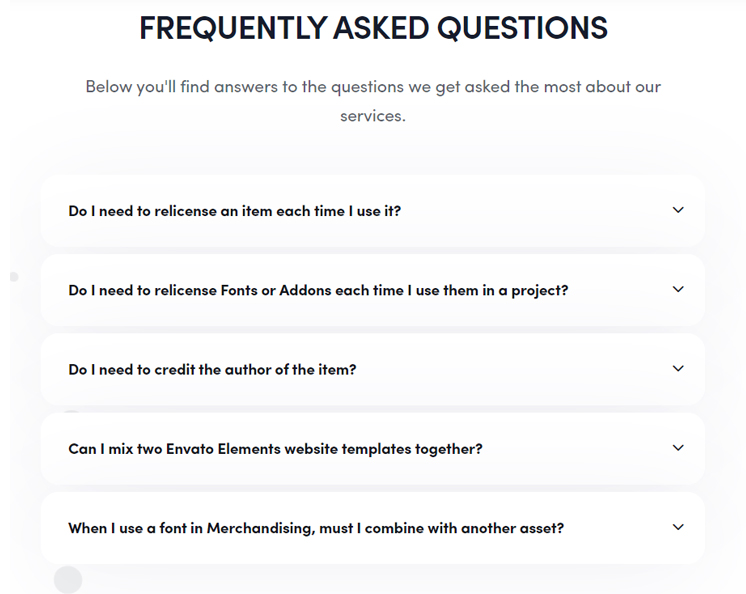
You can extend the default collapse behavior to create an accordion. To properly achieve the accordion style, be sure to use .accordion as a wrapper.
See below image and code for more inforamtion.
<div class="accordion" id="accordionDefault">
  <div class="card">
    <div class="card-header" id="headingOne">
      <h5 class="mb-0"> <a href="#" data-toggle="collapse" data-target="#collapseOne" aria-expanded="true" aria-controls="collapseOne">Accordion Title</a> </h5>
    </div>
    <div id="collapseOne" class="collapse show" aria-labelledby="headingOne" data-parent="#accordionDefault">
      <div class="card-body">This is Accordion Content</div>
    </div>
  </div>
  <div class="card">
    <div class="card-header" id="headingTwo">
      <h5 class="mb-0"> <a href="#" class="collapsed" data-toggle="collapse" data-target="#collapseTwo" aria-expanded="false" aria-controls="collapseTwo">Accordion Title</a> </h5>
    </div>
    <div id="collapseTwo" class="collapse" aria-labelledby="headingTwo" data-parent="#accordionDefault">
      <div class="card-body">This is Accordion Content</div>
    </div>
  </div>
  <div class="card">
    <div class="card-header" id="headingThree">
      <h5 class="mb-0"> <a href="#" class="collapsed" data-toggle="collapse" data-target="#collapseThree" aria-expanded="false" aria-controls="collapseThree">Accordion Title</a> </h5>
    </div>
    <div id="collapseThree" class="collapse" aria-labelledby="headingThree" data-parent="#accordionDefault">
      <div class="card-body">This is Accordion Content</div>
    </div>
  </div>
</div>
Options:
| Type Class | Features | Code Example |
|---|---|---|
.accordion-alternate |
Alternate Minimal Style for the accordions. | |
.arrow-right |
For set arrow in right side in accordions | |
Tabs
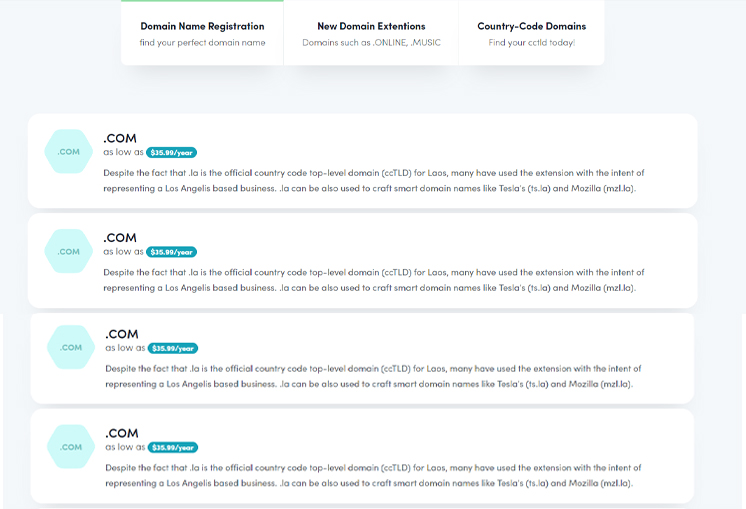
Default Bootstrap Nav component combined with EMYUI for unique tabs.
See below image and code for more inforamtion.
<ul class="nav nav-tabs" id="myTab" role="tablist">
  <li class="nav-item" role="presentation">
    <a class="nav-link active" id="home-tab" data-toggle="tab" href="#home" role="tab" aria-controls="home" aria-selected="true">Home</a>
  </li>
  <li class="nav-item" role="presentation">
    <a class="nav-link" id="profile-tab" data-toggle="tab" href="#profile" role="tab" aria-controls="profile" aria-selected="false">Profile</a>
  </li>
  <li class="nav-item" role="presentation">
    <a class="nav-link" id="contact-tab" data-toggle="tab" href="#contact" role="tab" aria-controls="contact" aria-selected="false">Contact</a>
  </li>
</ul>
<div class="tab-content my-3" id="myTabContent">
  <div class="tab-pane fade show active" id="home" role="tabpanel" aria-labelledby="home-tab">This is Tab Content Home</div>
  <div class="tab-pane fade" id="profile" role="tabpanel" aria-labelledby="profile-tab">This is Tab Content Profile</div>
  <div class="tab-pane fade" id="contact" role="tabpanel" aria-labelledby="contact-tab">This is Tab Content Contact</div>
</div>
Options:
| Type Class | Features | Code Example |
|---|---|---|
Basic Navs |
Basic Navs Style for the Tabs | |
.nav-separator |
Basic Navs Style with Separator for the Tabs | |
.nav-tabs |
Tabs Navs Style for the Tabs. For example - above Preview Example. | |
.nav-pills |
Pills Navs Style for the Tabs | |
ajax frequently asked questions
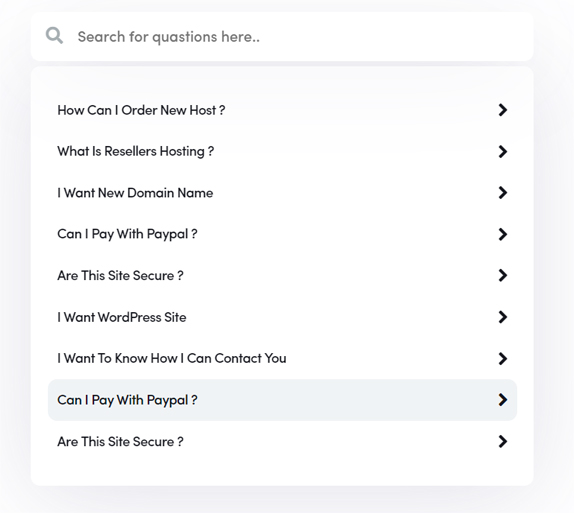
with more then 50 special element you will find the frequently asked questions box.
See below image and code for more inforamtion.
<div class="dinamic-filter-container">
<i class="fas fa-search" > </i>
<input type="text" id="dinamic-filter-input" onkeyup="FilterListSection()" placeholder="Search for quastions here.."  />
</div>

<div class="inamic-filter-list-container">
<div class="filter-content-box" id="go-to-qst-01-content" >
<h5>... </h5
<p>... </p
</div>

<ul id="dinamic-filter-list">
<li>
<ul id="go-to-qst-01"> ... </a>
</li>
</ul>
</div>
Helper Classes
We have created some really useful helper classes for you. Here are a few of them. also, You can refer other default bootstrap helper classes here: Bootstrap Documentation
Text Size:
.coodiv-text-1- Changes the Font size to 5rem..coodiv-text-2- Changes the Font size to 3.75rem..coodiv-text-3- Changes the Font size to 3rem..coodiv-text-4- Changes the Font size to 2.25rem..coodiv-text-5- Changes the Font size to 2rem..coodiv-text-6- Changes the Font size to 1.5rem..coodiv-text-7- Changes the Font size to 1.3125rem..coodiv-text-8- Changes the Font size to 1.1875rem..coodiv-text-9- Changes the Font size to 1.0625rem..coodiv-text-10- Changes the Font size to 1rem..coodiv-text-11- Changes the Font size to .9375rem..coodiv-text-12- Changes the Font size to .8125rem..coodiv-text-13- Changes the Font size to .625rem..coodiv-text-14- Changes the Font size to .5rem.
Font Weight:
.font-weight-100- For font weight of 100..font-weight-200- For font weight of 200..font-weight-300- For font weight of 300..font-weight-400- For font weight of 400..font-weight-500- For font weight of 500..font-weight-600- For font weight of 600..font-weight-700- For font weight of 700..font-weight-800- For font weight of 800..font-weight-900- For font weight of 900.
Background Color:
.bg-transparent- For background color of transparent.bg-light- For background color of light gray.bg-light-1- For background color of more light gray.bg-light-2- For background color of more light gray.bg-light-3- For background color of more light gray.bg-light-4- For background color of more light gray.bg-dark- For background color of dark.bg-dark-1- For background color of dark gray.bg-dark-2- For background color of more dark gray.bg-dark-3- For background color of more dark gray.bg-dark-4- For background color of more dark gray
Box Shadow
.shadow-none- For No shadow to elements with box-shadow utilities..shadow-sm- For Small shadow to elements with box-shadow utilities..shadow- For Regular shadow to elements with box-shadow utilities..shadow-md- For medium light shadows to elements with box-shadow utilities..shadow-lg- For Larger shadows to elements with box-shadow utilities.
Opacity
.opacity-1- For 10% opacity..opacity-2- For 20% opacity..opacity-3- For 30% opacity..opacity-4- For 40% opacity..opacity-5- For 50% opacity..opacity-6- For 60% opacity..opacity-7- For 70% opacity..opacity-8- For 80% opacity..opacity-9- For 90% opacity.
Border Radius
.rounded-top-0- No Border Radius for top..rounded-bottom-0- No Border Radius for bottom..rounded-left-0- No Border Radius for left..rounded-right-0- No Border Radius for right.
Borders, Sizing, Spacing (margin & padding) and also much more....
FAQ
A FAQ is a list of frequently asked questions (FAQs) and answers on a particular topic.
Still no luck? We can help!
Source & Credits
Images:
- Unsplash - https://unsplash.com/
Fonts:
- Icons Font Face - https://fontawesome.com/
- feathericons - https://feathericons.com/
Scripts:
- jQuery - http://www.jquery.com/
- Bootstrap - http://getbootstrap.com/
- aos - https://michalsnik.github.io/aos/
- fancybox - http://fancybox.net/
- i18next - https://www.i18next.com/
- isotope - https://isotope.metafizzy.co/
- nice-select - https://jqueryniceselect.hernansartorio.com/
- parallax - https://matthew.wagerfield.com/parallax/
- particles - https://vincentgarreau.com/particles.js/
- slick - https://kenwheeler.github.io/slick/
- smoothscroll - https://github.com/cferdinandi/smooth-scroll
- sticky-sidebar - https://abouolia.github.io/sticky-sidebar/
- typed - https://github.com/mattboldt/typed.js/
- waypoints - http://imakewebthings.com/waypoints/
Support
If this documentation doesn't answer your questions, So, Please send us Email via Item Support Page or coodiv support team
We are located in GMT+1 time zone and we answer all questions within 12-24 hours in weekdays.
In some rare cases the waiting time can be to 48 hours. (except holiday seasons which might take longer).
Don’t forget to Rate this template
Go to your Themeforest Profile > Downloads Tab > & then You can Rate & Review for our template.
Thank You.
Changelog
See what's new added, changed, fixed, improved or updated in the latest versions.
For Future Updates Follow Us @themeforest / @facebook / @instagram
Version 1.5 (31/08/2022) - ( COODIV WHMCS THEME PANEL )
[ ADD ] Coodiv themes control panel version B-1.0.0 addon (EMYUI version)
[ ADD ] Coodiv WHMCS theme Primary Menu manager addon (EMYUI version)
[ fixed ] Drop down menu bug Was Fixed (css/main.min.css file changed)
[ fixed ] WHMCS online Invoice
[ fixed ] Some overall bugs in HTML & WHMCS theme (css/main.min.css file changed)
[ fixed ] EMYUI WHMCS email template responsive issue
Version 1.4 (07/07/2022) - ( NEW WHMCS EMAIL PACK)
[ NEW ] WHMCS email template
[ NEW ] WHMCS newsletter
Version 1.3 (15/06/2022) - ( UPDATE WHMCS THEME TO VERSION 8.5) ( UPDATE WHMCS ORDERFORM TEMPLATE TO VERSION 8.5 )
[ ADD ] WHMCS orderforms templates for version 8.5 and fixing some bugs: (emyui_cart, emyui_cart_aws)
[ ADD ] WHMCS theme for version 8.5 and fixing some bugs: (emyui, emyui-hero, emyui-aws)
Version 1.3 (20/03/2022) - ( NEW WHMCS THEME) ( NEW WHMCS ORDERFORM TEMPLATE )
[ NEW ] Whole new WHMCS theme, (emyui-aws)
[ NEW ] Whole new WHMCS orderform template (emyui_cart_aws)
[ UPDATE ] UPDATE WHMCS orderform template and fixing some bugs, (emyui_cart )
[ UPDATE ] UPDATE WHMCS themes and fixing some bugs, (emyui & emyui-hero)
[ FIX ] Fix some bugs in WHMCS RTL version
[ FIX ] Fix some other bugs in HTML version
Version 1.2 (02/02/2022) - ( NEW HTML PAGES & ELEMENTS ) ( NEW ILLUSTRATIONS PACKS ) ( NEW WHMCS THEME VERSION ) ( WHMCS RTL READY ) ( WHMCS 8.4.X READY )
[ ADD ] New HTML page for VPN providers index-vpn.html ( with all new elements )
[ ADD ] New HTML page for CDN providers index-cdn.html ( with all new elements )
[ ADD ] New network HTML page network.html ( with new elements )
[ ADD ] New landing page for vpn providers start-vpn.html ( with new elements )
[ ADD ] New footer in HTML version
[ ADD ] whoosh illustration pack
[ ADD ] stubborn illustration pack
[ ADD ] saly illustration pack
[ ADD ] new patterns effects
[ ADD ] NEW WHMCS theme with new features (emyui-hero)
[ ADD ] EMYUI-HERO & EMYUI WHMCS themes RTL ready
[ UPDATE ] EMYUI-HERO & EMYUI WHMCS 8.4.X ready
[ UPDATE ] Documentation file
[ FIX ] WHMCS passwords issue
[ FIX ] WHMCS use your own domain issue
[ FIX ] WHMCS datatables issue
[ FIX ] background issues for 4k screens
[ FIX ] some other bugs in the theme
Version 1.1 (18/12/2021)
[ fix ] WHMCS Configure product domain page (WHMCS_directory/templates/orderform/emyui_cart/configureproductdomain)
[ fix ] WHMCS Language system UI (WHMCS_directory/templates/emyui/includes/language-system.tpl), (WHMCS/templates/emyui/js/custom.js)
[ fix ] HTML Homepage tabs issue (HTML/index.html)
Version 1.0 (26/11/2021)
Initial Release